`.
## React Element Tree (and React Element)[](#react-element-tree-and-react-element "Direct link to React Element Tree (and React Element)")
A *React Element Tree* is created by React in JavaScript and consists of React Elements. A *React Element* is a plain JavaScript object that describes what should appear on the screen. It includes props, styles, and children. React Elements only exist in JavaScript and can represent instantiations of either React Composite Components or React Host Components. [Read more about React components and elements in this blog post.](https://reactjs.org/blog/2015/12/18/react-components-elements-and-instances.html)
## React Native Framework[](#react-native-framework "Direct link to React Native Framework")
React Native allows developers to use the [React programming paradigm](https://react.dev/learn/thinking-in-react) to ship applications to native targets. The React Native team is focused on creating **core APIs** and **functionalities** that fit the most general use case when developing native apps.
Shipping native apps to production usually requires a set of tools and libraries that are not provided by default as part of React Native, but are still crucial to ship an app to production. Examples of such tools are: support for publishing applications to a dedicated store or support for routing and navigation mechanisms.
When those tools and libraries are collected to form a cohesive framework built on top of React Native, we define it as a **React Native Framework**.
An example of Open Source React Native Framework is [Expo](https://expo.dev/).
## React Shadow Tree (and React Shadow Node)[](#react-shadow-tree-and-react-shadow-node "Direct link to React Shadow Tree (and React Shadow Node)")
A *React Shadow Tree* is created by the Fabric Renderer and consists of React Shadow Nodes. A React Shadow Node is an object that represents a React Host Component to be mounted, and contains props that originate from JavaScript. They also contain layout information (x, y, width, height). In Fabric, React Shadow Node objects exist in C++. Before Fabric, these existed in the mobile runtime heap (e.g. Android JVM).
## Yoga Tree (and Yoga Node)[](#yoga-tree-and-yoga-node "Direct link to Yoga Tree (and Yoga Node)")
The *Yoga Tree* is used by [Yoga](https://www.yogalayout.dev/) to calculate layout information for a React Shadow Tree. Each React Shadow Node typically creates a *Yoga Node* because React Native employs Yoga to calculate layout. However, this is not a hard requirement. Fabric can also create React Shadow Nodes that do not use Yoga; the implementation of each React Shadow Node determines how to calculate layout.
---
# About the New Architecture
Since 2018, the React Native team has been redesigning the core internals of React Native to enable developers to create higher-quality experiences. As of 2024, this version of React Native has been proven at scale and powers production apps by Meta.
The term *New Architecture* refers to both the new framework architecture and the work to bring it to open source.
The New Architecture has been available for experimental opt-in as of [React Native 0.68](/blog/2022/03/30/version-068#opting-in-to-the-new-architecture) with continued improvements in every subsequent release. The team is now working to make this the default experience for the React Native open source ecosystem.
## Why a New Architecture?[](#why-a-new-architecture "Direct link to Why a New Architecture?")
After many years of building with React Native, the team identified a set of limitations that prevented developers from crafting certain experiences with a high polish. These limitations were fundamental to the existing design of the framework, so the New Architecture started as an investment in the future of React Native.
The New Architecture unlocks capabilities and improvements that were impossible in the legacy architecture.
### Synchronous Layout and Effects[](#synchronous-layout-and-effects "Direct link to Synchronous Layout and Effects")
Building adaptive UI experiences often requires measuring the size and position of your views and adjusting layout.
Today, you would use the [`onLayout`](/docs/view.md#onlayout) event to get the layout information of a view and make any adjustments. However, state updates within the `onLayout` callback may apply after painting the previous render. This means that users may see intermediate states or visual jumps between rendering the initial layout and responding to layout measurements.
With the New Architecture, we can avoid this issue entirely with synchronous access to layout information and properly scheduled updates such that no intermediate state is visible to users.
Example: Rendering a Tooltip
Measuring and placing a tooltip above a view allows us to showcase what synchronous rendering unlocks. The tooltip needs to know the position of its target view to determine where it should render.
In the current architecture, we use `onLayout` to get the measurements of the view and then update the positioning of the tooltip based on where the view is.
jsx
```
function ViewWithTooltip() {
// ...
// We get the layout information and pass to Tooltip to position itself
const onLayout = React.useCallback(event => {
targetRef.current?.measureInWindow((x, y, width, height) => {
// This state update is not guaranteed to run in the same commit
// This results in a visual "jump" as the Tooltip repositions itself
setTargetRect({x, y, width, height});
});
}, []);
return (
<>
Some content that renders a tooltip above
);
}
```
With the New Architecture, we can use [`useLayoutEffect`](https://react.dev/reference/react/useLayoutEffect) to synchronously measure and apply layout updates in a single commit, avoiding the visual "jump".
jsx
```
function ViewWithTooltip() {
// ...
useLayoutEffect(() => {
// The measurement and state update for `targetRect` happens in a single commit
// allowing Tooltip to position itself without intermediate paints
targetRef.current?.measureInWindow((x, y, width, height) => {
setTargetRect({x, y, width, height});
});
}, [setTargetRect]);
return (
<>
Some content that renders a tooltip above
);
}
```
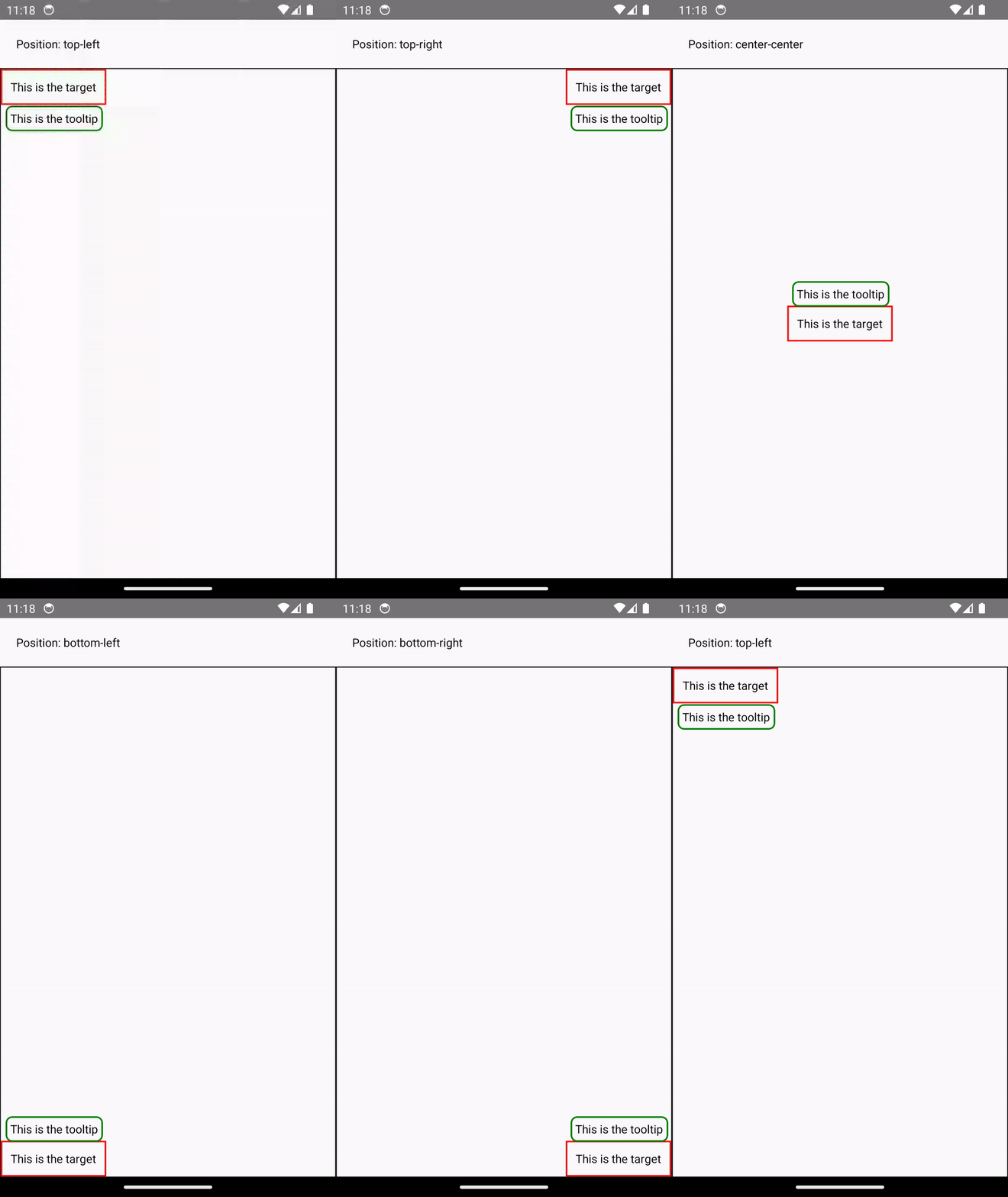
Asynchronous measurement and render of the Tooltip. [See code](https://gist.github.com/lunaleaps/eabd653d9864082ac1d3772dac217ab9).
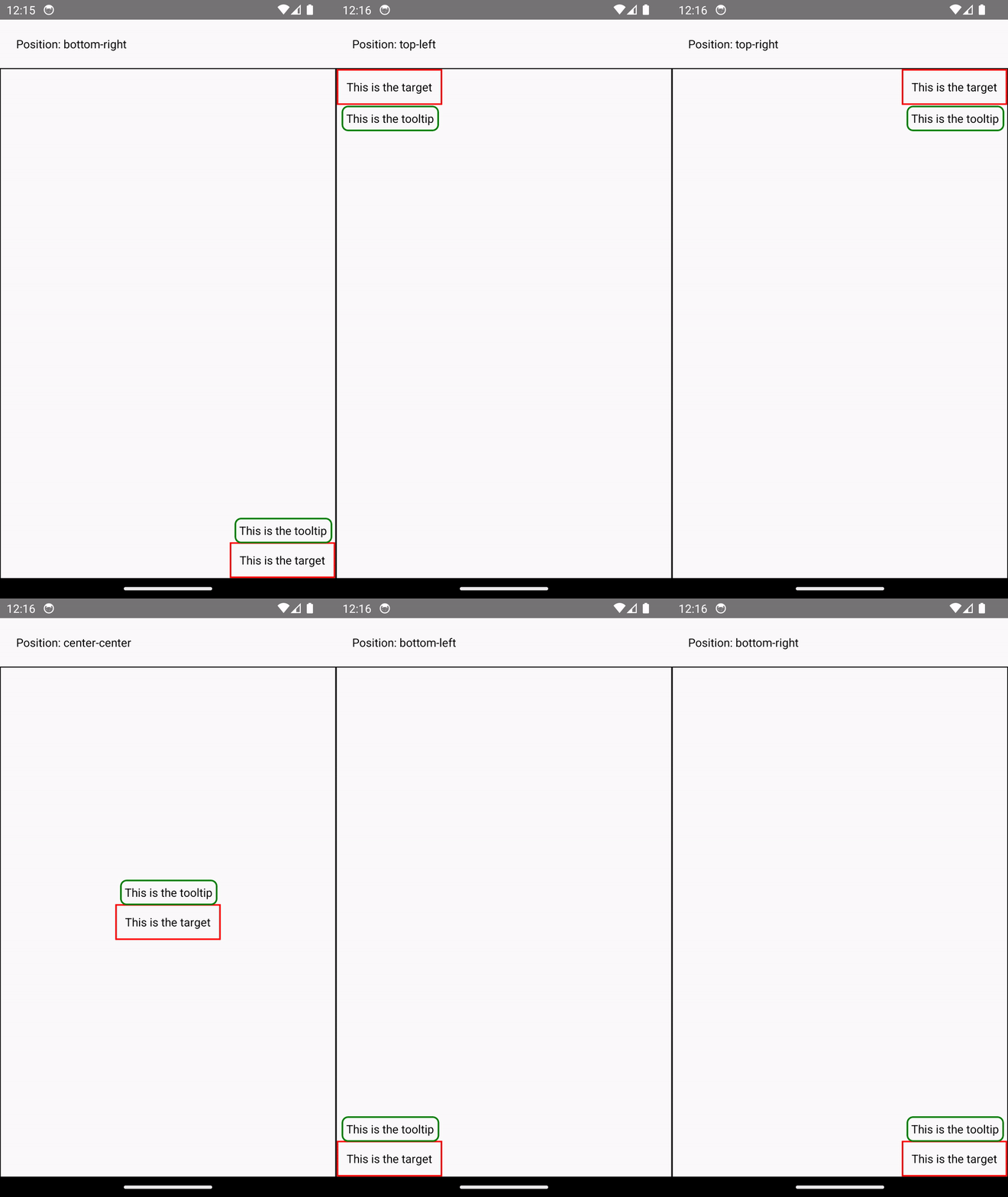
Synchronous measurement and render of the Tooltip. [See code](https://gist.github.com/lunaleaps/148756563999c83220887757f2e549a3).
### Support for Concurrent Renderer and Features[](#support-for-concurrent-renderer-and-features "Direct link to Support for Concurrent Renderer and Features")
The New Architecture supports concurrent rendering and features that have shipped in [React 18](https://react.dev/blog/2022/03/29/react-v18) and beyond. You can now use features like Suspense for data-fetching, Transitions, and other new React APIs in your React Native code, further conforming codebases and concepts between web and native React development.
The concurrent renderer also brings out-of-the-box improvements like automatic batching, which reduces re-renders in React.
Example: Automatic Batching
With the New Architecture, you'll get automatic batching with the React 18 renderer.
In this example, a slider specifies how many tiles to render. Dragging the slider from 0 to 1000 will fire off a quick succession of state updates and re-renders.
In comparing the renderers for the [same code](https://gist.github.com/lunaleaps/79bb6f263404b12ba57db78e5f6f28b2), you can visually notice the renderer provides a smoother UI, with less intermediate UI updates. State updates from native event handlers, like this native Slider component, are now batched.
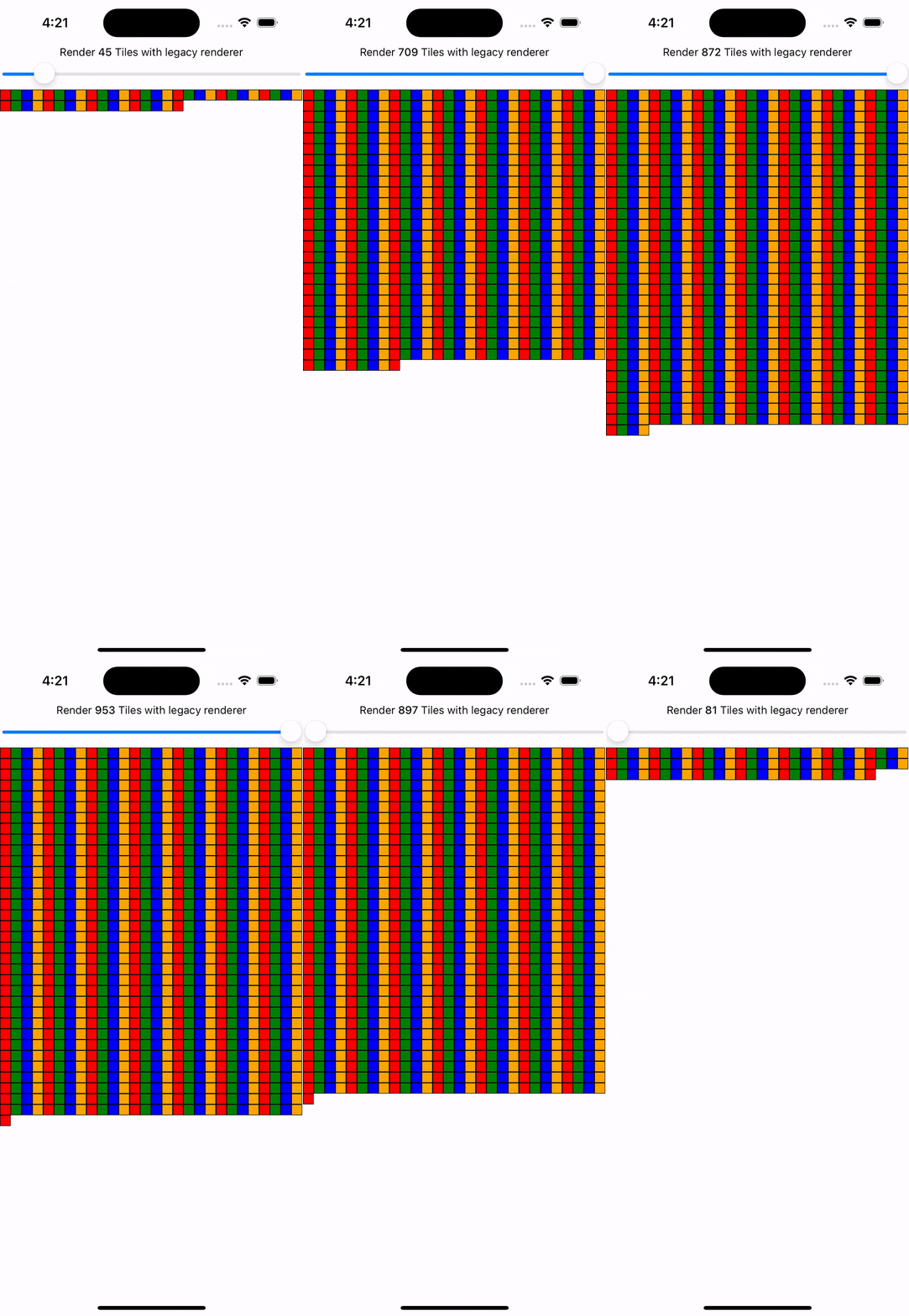
Rendering frequent state updates with legacy renderer.
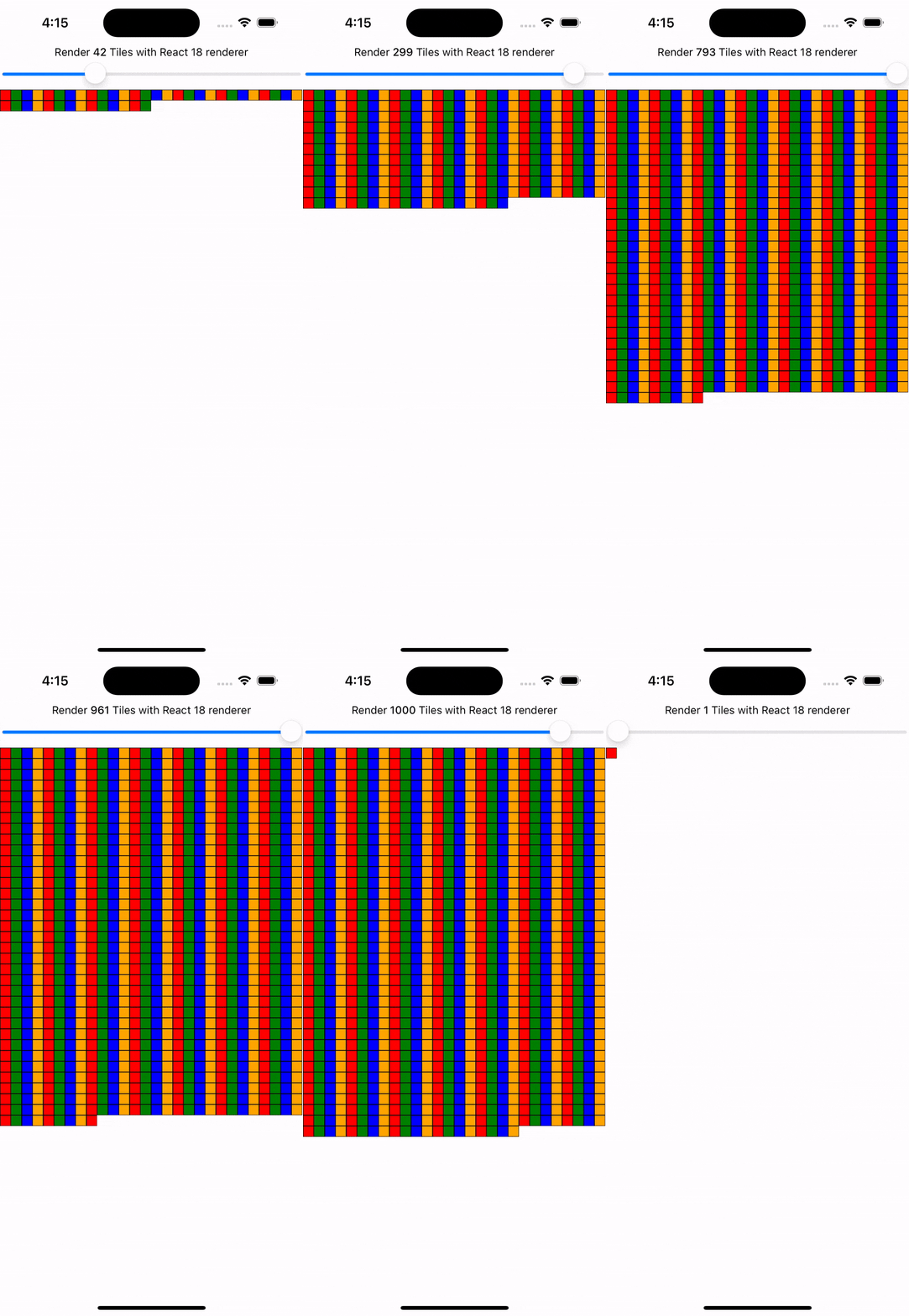
Rendering frequent state updates with React 18 renderer.
New concurrent features, like [Transitions](https://react.dev/reference/react/useTransition), give you the power to express the priority of UI updates. Marking an update as lower priority tells React it can "interrupt" rendering the update to handle higher priority updates to ensure a responsive user experience where it matters.
Example: Using `startTransition`
We can build on the previous example to showcase how transitions can interrupt in-progress rendering to handle a newer state update.
We wrap the tile number state update with `startTransition` to indicate that rendering the tiles can be interrupted. `startTransition` also provides a `isPending` flag to tell us when the transition is complete.
jsx
```
function TileSlider({value, onValueChange}) {
const [isPending, startTransition] = useTransition();
return (
<>
Render {value} Tiles
{
startTransition(() => {
onValueChange(newValue);
});
}}
/>
);
}
function ManyTiles() {
const [value, setValue] = useState(1);
const tiles = generateTileViews(value);
return (
{tiles}
)
}
```
You'll notice that with the frequent updates in a transition, React renders fewer intermediate states because it bails out of rendering the state as soon as it becomes stale. In comparison, without transitions, more intermediate states are rendered. Both examples still use automatic batching. Still, transitions give even more power to developers to batch in-progress renders.

Rendering tiles with transitions to interrupt in-progress renders of stale state. [See code](https://gist.github.com/lunaleaps/eac391bf3fe4c85953cefeb74031bab0/revisions).

Rendering tiles without marking it as a transition. [See code](https://gist.github.com/lunaleaps/eac391bf3fe4c85953cefeb74031bab0/revisions).
### Fast JavaScript/Native Interfacing[](#fast-javascriptnative-interfacing "Direct link to Fast JavaScript/Native Interfacing")
The New Architecture removes the [asynchronous bridge](https://reactnative.dev/blog/2018/06/14/state-of-react-native-2018#architecture) between JavaScript and native and replaces it with JavaScript Interface (JSI). JSI is an interface that allows JavaScript to hold a reference to a C++ object and vice-versa. With a memory reference, you can directly invoke methods without serialization costs.
JSI enables [VisionCamera](https://github.com/mrousavy/react-native-vision-camera), a popular camera library for React Native, to process frames in real time. Typical frame buffers are \~30 MB, which amounts to roughly 2 GB of data per second, depending on the frame rate. In comparison with the serialization costs of the bridge, JSI handles that amount of interfacing data with ease. JSI can expose other complex instance-based types such as databases, images, audio samples, etc.
JSI adoption in the New Architecture removes this class of serialization work from all native-JavaScript interop. This includes initializing and re-rendering native core components like `View` and `Text`. You can read more about our [investigation in rendering performance](https://github.com/reactwg/react-native-new-architecture/discussions/123) in the New Architecture and the improved benchmarks we measured.
## What can I expect from enabling the New Architecture?[](#what-can-i-expect-from-enabling-the-new-architecture "Direct link to What can I expect from enabling the New Architecture?")
While the New Architecture enables these features and improvements, enabling the New Architecture for your app or library may not immediately improve the performance or user experience.
For example, your code may need refactoring to leverage new capabilities like synchronous layout effects or concurrent features. Although JSI will minimize the overhead between JavaScript and native memory, data serialization may not have been a bottleneck for your app's performance.
Enabling the New Architecture in your app or library is opting into the future of React Native.
The team is actively researching and developing new capabilities the New Architecture unlocks. For example, web alignment is an active area of exploration at Meta that will ship to the React Native open source ecosystem.
* [Updates to the event loop model](https://github.com/react-native-community/discussions-and-proposals/blob/main/proposals/0744-well-defined-event-loop.md)
* [Node and layout APIs](https://github.com/react-native-community/discussions-and-proposals/blob/main/proposals/0607-dom-traversal-and-layout-apis.md)
* [Styling and layout conformance](https://github.com/facebook/yoga/releases/tag/v2.0.0)
You can follow along and contribute in our dedicated [discussions & proposals](https://github.com/react-native-community/discussions-and-proposals/discussions/651) repository.
## Should I use the New Architecture today?[](#should-i-use-the-new-architecture-today "Direct link to Should I use the New Architecture today?")
With 0.76, The New Architecture is enabled by default in all the React Native projects.
If you find anything that is not working well, please open an issue using [this template](https://github.com/facebook/react-native/issues/new?assignees=\&labels=Needs%3A+Triage+%3Amag%3A%2CType%3A+New+Architecture\&projects=\&template=new_architecture_bug_report.yml).
If, for any reasons, you can't use the New Architecture, you can still opt-out from it:
### Android[](#android "Direct link to Android")
1. Open the `android/gradle.properties` file
2. Toggle the `newArchEnabled` flag from `true` to `false`
gradle.properties
```
# Use this property to enable support to the new architecture.
# This will allow you to use TurboModules and the Fabric render in
# your application. You should enable this flag either if you want
# to write custom TurboModules/Fabric components OR use libraries that
# are providing them.
-newArchEnabled=true
+newArchEnabled=false
```
### iOS[](#ios "Direct link to iOS")
1. Open the `ios/Podfile` file
2. Add `ENV['RCT_NEW_ARCH_ENABLED'] = '0'` in the main scope of the Podfile ([reference Podfile](https://github.com/react-native-community/template/blob/0.76-stable/template/ios/Podfile) in the template)
diff
```
+ ENV['RCT_NEW_ARCH_ENABLED'] = '0'
# Resolve react_native_pods.rb with node to allow for hoisting
require Pod::Executable.execute_command('node', ['-p',
'require.resolve(
```
3. Install your CocoaPods dependencies with the command:
```
bundle exec pod install
```
---
# Architecture Overview
info
Welcome to the Architecture Overview! If you're getting started with React Native, please refer to [Guides](/docs/getting-started.md) section. Continue reading to learn how internals of React Native work!
This section is a work in progress and more material will be added in the future. Please make sure to come back later to check for new information.
Architecture Overview is intended to share conceptual overview of how React Native's internals work. The intended audience includes library authors and core contributors. If you are an app developer, it is not a requirement to be familiar with this material to be effective with React Native. You can still benefit from the overview as it will give you insights into how React Native works under the hood. Feel free to share your feedback on the [discussion inside the working group](https://github.com/reactwg/react-native-new-architecture/discussions/9) for this section.
## Table of Contents[](#table-of-contents "Direct link to Table of Contents")
* [About the New Architecture](/architecture/landing-page.md)
* Rendering
* [Fabric](/architecture/fabric-renderer.md)
* [Render, Commit, and Mount](/architecture/render-pipeline.md)
* [Cross Platform Implementation](/architecture/xplat-implementation.md)
* [View Flattening](/architecture/view-flattening.md)
* [Threading Model](/architecture/threading-model.md)
* Build Tools
* [Bundled Hermes](/architecture/bundled-hermes.md)
* [Glossary](/architecture/glossary.md)
---
# Render, Commit, and Mount
caution
This document refers to the [New Architecture](/architecture/fabric-renderer.md), that is in active roll-out.
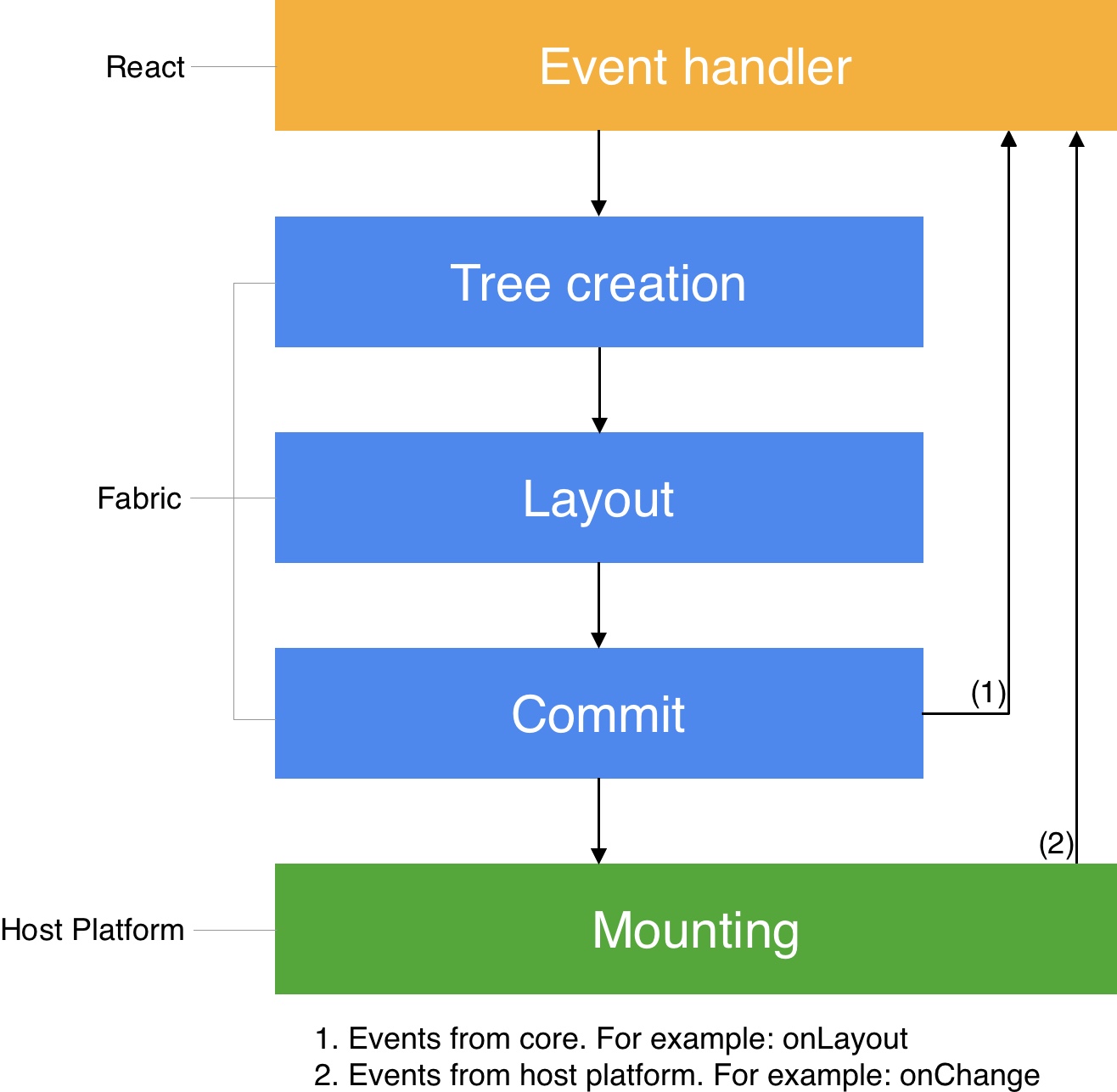
The React Native renderer goes through a sequence of work to render React logic to a [host platform](/architecture/glossary.md#host-platform). This sequence of work is called the render pipeline and occurs for initial renders and updates to the UI state. This document goes over the render pipeline and how it differs in those scenarios.
The render pipeline can be broken into three general phases:
1. **Render:** React executes product logic which creates a [React Element Trees](/architecture/glossary.md#react-element-tree-and-react-element) in JavaScript. From this tree, the renderer creates a [React Shadow Tree](/architecture/glossary.md#react-shadow-tree-and-react-shadow-node) in C++.
2. **Commit**: After a React Shadow Tree is fully created, the renderer triggers a commit. This **promotes** both the React Element Tree and the newly created React Shadow Tree as the “next tree” to be mounted. This also schedules calculation of its layout information.
3. **Mount:** The React Shadow Tree, now with the results of layout calculation, is transformed into a [Host View Tree](/architecture/glossary.md#host-view-tree-and-host-view).
> The phases of the render pipeline may occur on different threads. Refer to the [Threading Model](/architecture/threading-model.md) doc for more detail.
***
## Initial Render[](#initial-render "Direct link to Initial Render")
Imagine you want to render the following:
jsx
```
function MyComponent() {
return (
Hello, World
);
}
//
```
In the example above, `` is a [React Element](/architecture/glossary.md#react-element-tree-and-react-element). React recursively reduces this *React Element* to a terminal [React Host Component](/architecture/glossary.md#react-host-components-or-host-components) by invoking it (or its `render` method if implemented with a JavaScript class) until every *React Element* cannot be reduced any further. Now you have a *React Element Tree* of [React Host Components](/architecture/glossary.md#react-host-components-or-host-components).
### Phase 1. Render[](#phase-1-render "Direct link to Phase 1. Render")

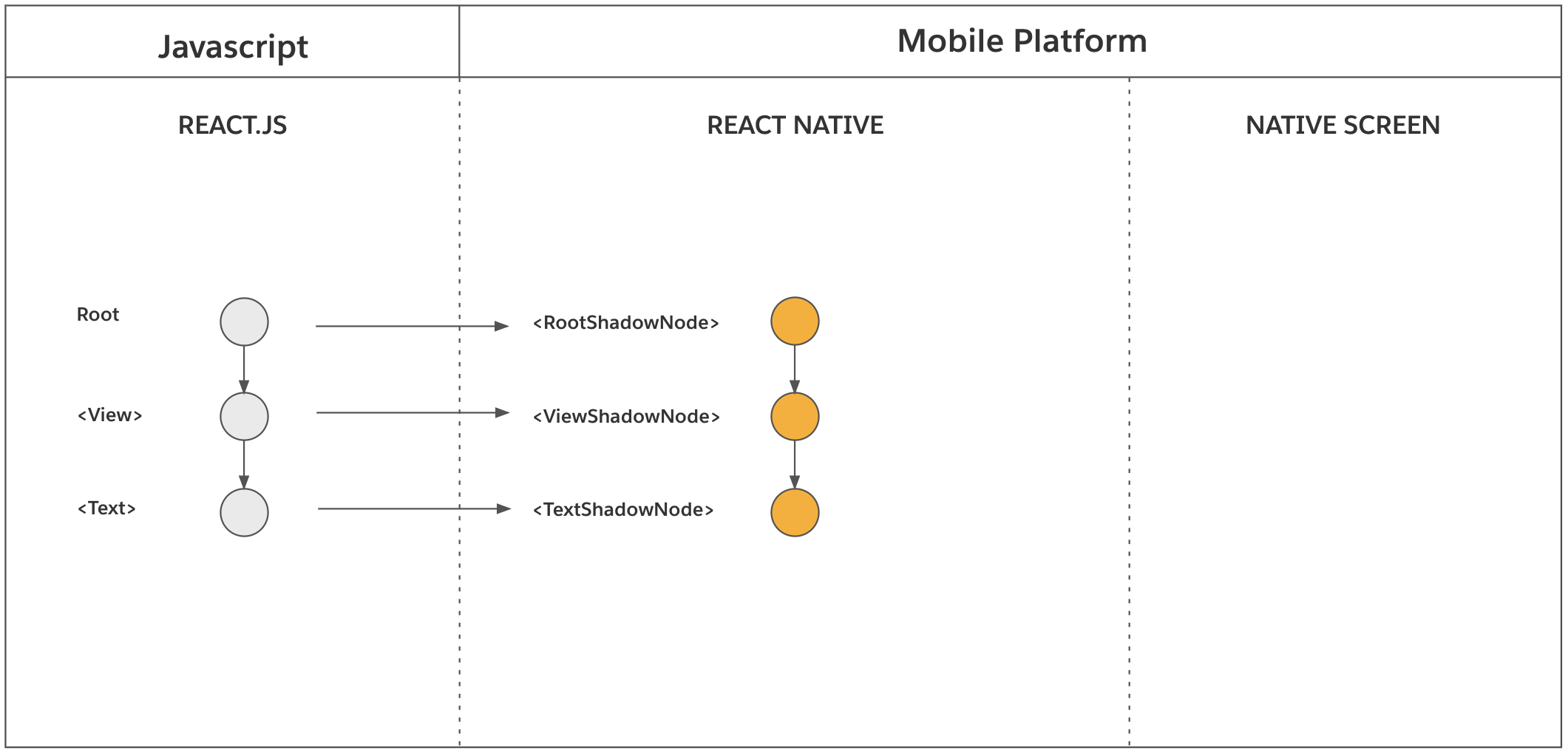
During this process of element reduction, as each *React Element* is invoked, the renderer also synchronously creates a [React Shadow Node](/architecture/glossary.md#react-shadow-tree-and-react-shadow-node). This happens only for *React Host Components*, not for [React Composite Components](/architecture/glossary.md#react-composite-components). In the example above, the `` leads to the creation of a `ViewShadowNode` object, and the `` leads to the creation of a `TextShadowNode` object. Notably, there is never a *React Shadow Node* that directly represents ``.
Whenever React creates a parent-child relationship between two *React Element Nodes*, the renderer creates the same relationship between the corresponding *React Shadow Nodes*. This is how the *React Shadow Tree* is assembled.
**Additional Details**
* The operations (creation of *React Shadow Node*, creation of parent-child relationship between two *React Shadow Nodes*) are synchronous and thread-safe operations that are executed from React (JavaScript) into the renderer (C++), usually on the JavaScript thread.
* The *React Element Tree* (and its constituent *React Element Nodes*) do not exist indefinitely. It is a temporal representation materialized by “fibers” in React. Each “fiber” that represents a host component stores a C++ pointer to the *React Shadow Node*, made possible by JSI. [Learn more about “fibers” in this document.](https://github.com/acdlite/react-fiber-architecture#what-is-a-fiber)
* The *React Shadow Tree* is immutable. In order to update any *React Shadow Node*, the renderer creates a new *React Shadow Tree*. However, the renderer provides cloning operations to make state updates more performant (see [React State Updates](/architecture/render-pipeline.md#react-state-updates) for more details).
In the example above, the result of the render phase looks like this:
After the *React Shadow Tree* is complete, the renderer triggers a commit of the *React Element Tree*.
### Phase 2. Commit[](#phase-2-commit "Direct link to Phase 2. Commit")

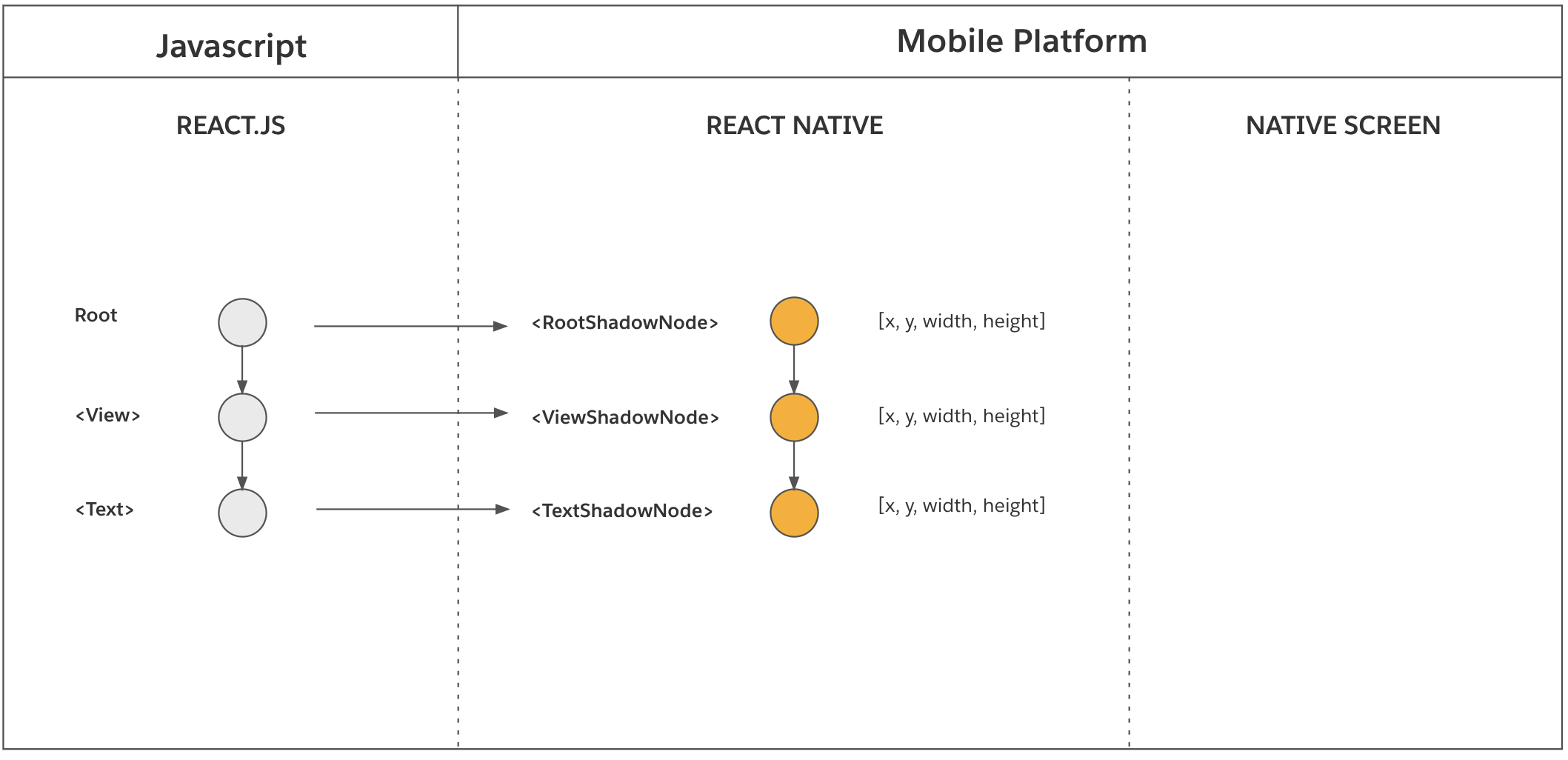
The commit phase consists of two operations: *Layout Calculation* and *Tree Promotion*.
* **Layout Calculation:** This operation calculates the position and size of each *React Shadow Node*. In React Native, this involves invoking Yoga to calculate the layout of each *React Shadow Node*. The actual calculation requires each *React Shadow Node*’s styles which originate from a *React Element* in JavaScript. It also requires the layout constraints of the root of the *React Shadow Tree*, which determines the amount of available space that the resulting nodes can occupy.
* **Tree Promotion (New Tree → Next Tree):** This operation promotes the new *React Shadow Tree* as the “next tree” to be mounted. This promotion indicates that the new *React Shadow Tree* has all the information to be mounted and represents the latest state of the *React Element Tree*. The “next tree” mounts on the next “tick” of the UI Thread.
**Additional Details**
* These operations are asynchronously executed on a background thread.
* Majority of layout calculation executes entirely within C++. However, the layout calculation of some components depend on the *host platform* (e.g. `Text`, `TextInput`, etc.). Size and position of text is specific to each *host platform* and needs to be calculated on the *host platform* layer. For this purpose, Yoga invokes a function defined in the *host platform* to calculate the component’s layout.
### Phase 3. Mount[](#phase-3-mount "Direct link to Phase 3. Mount")

The mount phase transforms the *React Shadow Tree* (which now contains data from layout calculation) into a *Host* *View Tree* with rendered pixels on the screen. As a reminder, the *React Element Tree* looks like this:
jsx
```
Hello, World
```
At a high level, React Native renderer creates a corresponding [Host View](/architecture/glossary.md#host-view-tree-and-host-view) for each *React Shadow Node* and mounts it on screen. In the example above, the renderer creates an instance of `android.view.ViewGroup` for the `` and `android.widget.TextView` for `` and populates it with “Hello World”. Similarly for iOS a `UIView` is created and text is populated with a call to `NSLayoutManager`. Each host view is then configured to use props from its React Shadow Node, and its size and position is configured using the calculated layout information.
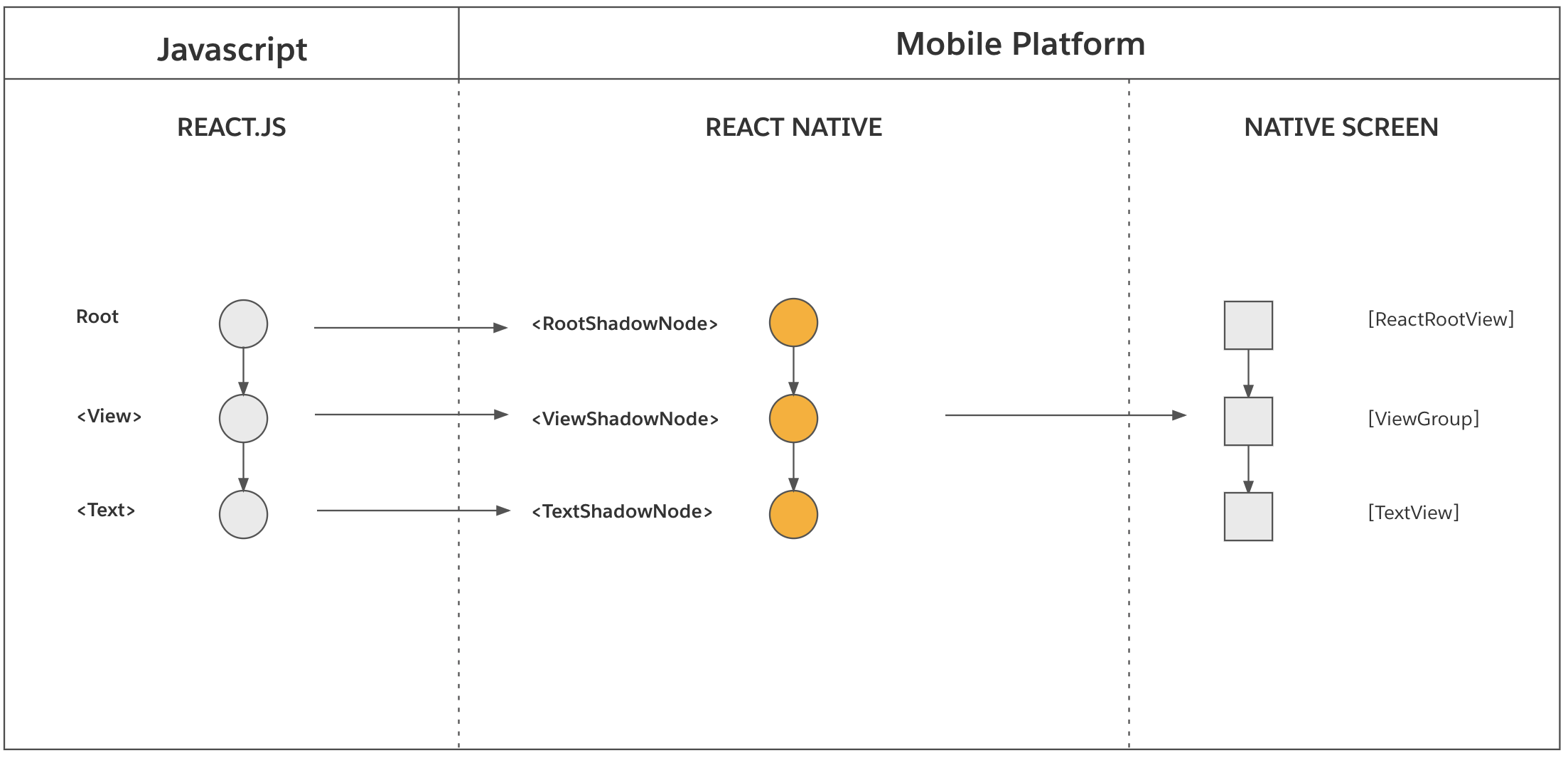
In more detail, the mounting phase consists of these three steps:
* **Tree Diffing:** This step computes the diff between the “previously rendered tree” and the “next tree” entirely in C++. The result is a list of atomic mutation operations to be performed on host views (e.g. `createView`, `updateView`, `removeView`, `deleteView`, etc). This step is also where the React Shadow Tree is flattened to avoid creating unnecessary host views. See [View Flattening](/architecture/view-flattening.md) for details about this algorithm.
* **Tree Promotion (Next Tree → Rendered Tree)**: This step atomically promotes the “next tree” to “previously rendered tree” so that the next mount phase computes a diff against the proper tree.
* **View Mounting**: This step applies the atomic mutation operations onto corresponding host views. This step executes in the *host platform* on UI thread.
**Additional Details**
* The operations are synchronously executed on UI thread. If the commit phase executes on background thread, the mounting phase is scheduled for the next “tick” of UI thread. On the other hand, if the commit phase executes on UI thread, mounting phase executes synchronously on the same thread.
* Scheduling, implementation, and execution of the mounting phase heavily depends on the *host platform*. For example, the renderer architecture of the mounting layer currently differs between Android and iOS.
* During the initial render, the “previously rendered tree” is empty. As such, the tree diffing step will result in a list of mutation operations that consists only of creating views, setting props, and adding views to each other. Tree diffing becomes more important for performance when processing [React State Updates](#react-state-updates).
* In current production tests, a *React Shadow Tree* typically consists of about 600-1000 *React Shadow Nodes* (before view flattening), the trees get reduced to \~200 nodes after view flattening. On iPad or desktop apps, this quantity may increase 10-fold.
***
## React State Updates[](#react-state-updates "Direct link to React State Updates")
Let’s explore each phase of the render pipeline when the state of a *React Element Tree* is updated. Let’s say, you’ve rendered the following component in an initial render:
jsx
```
function MyComponent() {
return (
);
}
```
Applying what was described in the [Initial Render](#initial-render) section, you would expect the following trees to be created:
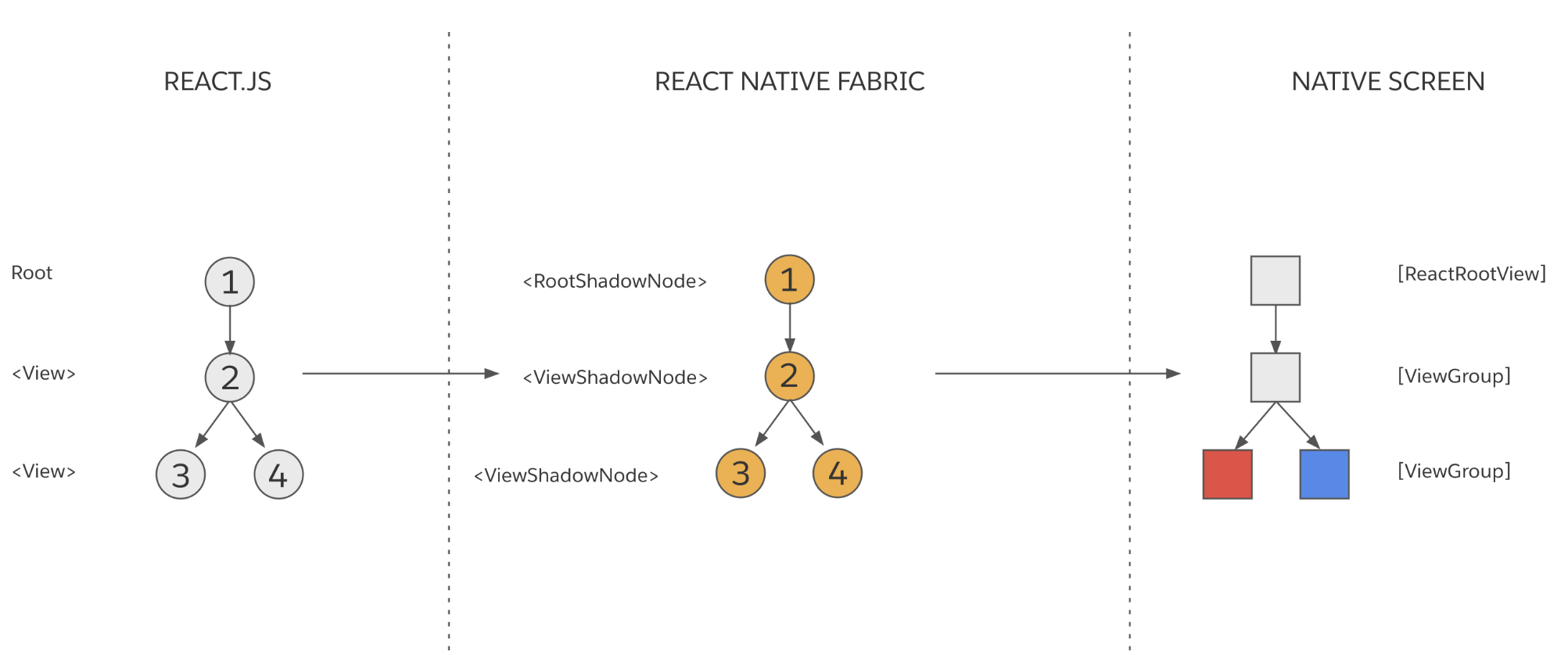
Notice that **Node 3** maps to a host view with a **red background**, and **Node 4** maps to a host view with a **blue background**. Assume that as the result of a state update in JavaScript product logic, the background of the first nested `` changes from `'red'` to `'yellow'`. This is what the new *React Element Tree* might look:
jsx
```
```
**How is this update processed by React Native?**
When a state update occurs, the renderer needs to conceptually update the *React Element Tree* in order to update the host views that are already mounted. But in order to preserve thread safety, both the *React Element Tree* as well as the *React Shadow Tree* must be immutable. This means that instead of mutating the current *React Element Tree* and *React Shadow Tree*, React must create a new copy of each tree which incorporates the new props, styles, and children.
Let’s explore each phase of the render pipeline during a state update.
### Phase 1. Render[](#phase-1-render-1 "Direct link to Phase 1. Render")

When React creates a new *React Element Tree* that incorporates the new state, it must clone every *React Element* and *React Shadow Node* that is impacted by the change. After cloning, the new *React Shadow Tree* is committed.
React Native renderer leverages structural sharing to minimize the overhead of immutability. When a *React Element* is cloned to include the new state, every *React Element* that is on the path up to the root is cloned. **React will only clone a React Element if it requires an update to its props, style, or children.** Any *React Elements* that are unchanged by the state update are shared by the old and new trees.
In the above example, React creates the new tree using these operations:
1. CloneNode(**Node 3**, `{backgroundColor: 'yellow'}`) → **Node 3'**
2. CloneNode(**Node 2**) → **Node 2'**
3. AppendChild(**Node 2'**, **Node 3'**)
4. AppendChild(**Node 2'**, **Node 4**)
5. CloneNode(**Node 1**) → **Node 1'**
6. AppendChild(**Node 1'**, **Node 2'**)
After these operations, **Node 1'** represents the root of the new *React Element Tree*. Let's assign **T** to the “previously rendered tree” and **T'** to the “new tree”:
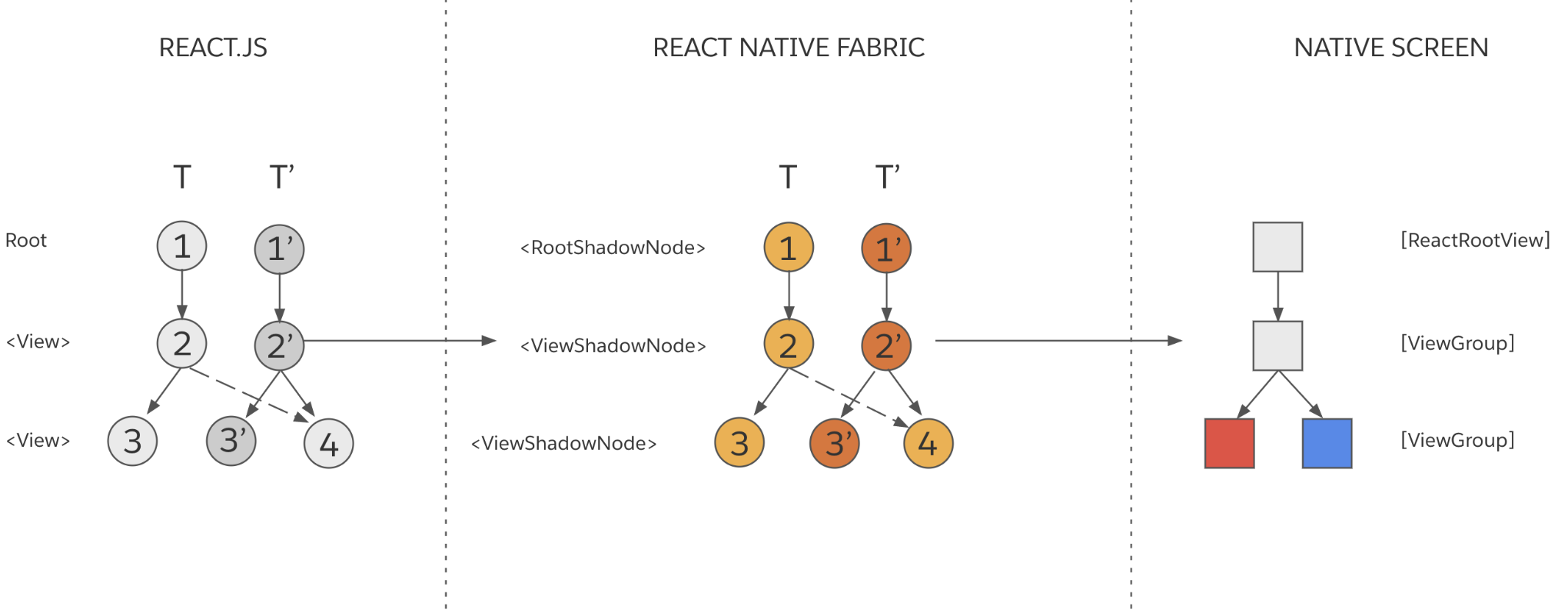
Notice how **T** and **T'** both share **Node 4**. Structural sharing improves performance and reduces memory usage.
### Phase 2. Commit[](#phase-2-commit-1 "Direct link to Phase 2. Commit")

After React creates the new *React Element Tree* and *React Shadow Tree*, it must commit them.
* **Layout Calculation:** Similar to Layout Calculation during [Initial Render](#initial-render). One important difference is that layout calculation may cause shared *React Shadow Nodes* to be cloned. This can happen because if the parent of a shared *React Shadow Node* incurs a layout change, the layout of the shared *React Shadow Node* may also change.
* **Tree Promotion (New Tree → Next Tree):** Similar to Tree Promotion during [Initial Render](#initial-render).
### Phase 3. Mount[](#phase-3-mount-1 "Direct link to Phase 3. Mount")

* **Tree Promotion (Next Tree → Rendered Tree)**: This step atomically promotes the “next tree” to “previously rendered tree” so that the next mount phase computes a diff against the proper tree.
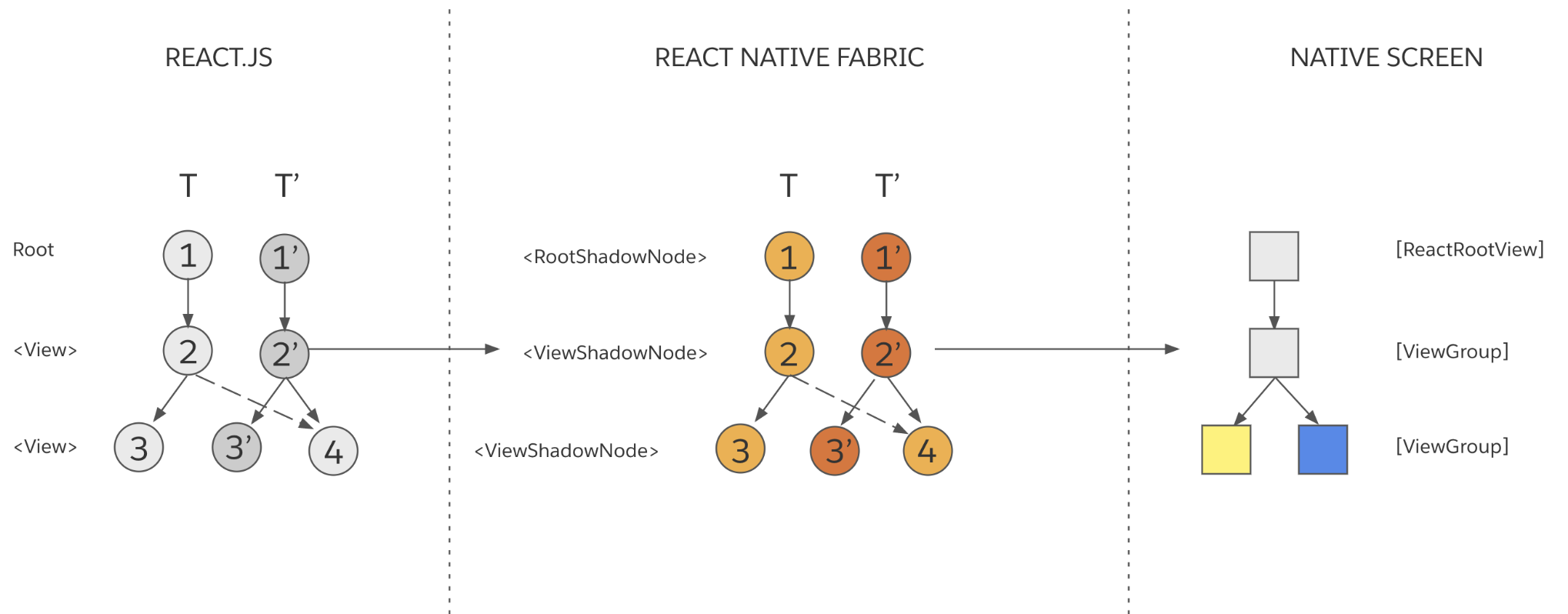
* **Tree Diffing:** This step computes the diff between the “previously rendered tree” (**T**) and the “next tree” (**T'**). The result is a list of atomic mutation operations to be performed on *host views*.
* In the above example, the operations consist of: `UpdateView(**Node 3**, {backgroundColor: 'yellow'})`
* The diff can be calculated for any currently mounted tree with any new tree. The renderer can skip some intermediate versions of the tree.
* **View Mounting**: This step applies the atomic mutation operations onto corresponding *host views*. In the above example, only the `backgroundColor` of **View 3** will be updated (to yellow).
***
## React Native Renderer State Updates[](#react-native-renderer-state-updates "Direct link to React Native Renderer State Updates")
For most information in the *Shadow Tree*, React is the single owner and single source of truth. All data originates from React and there is a single-direction flow of data.
However, there is one exception and important mechanism: components in C++ can contain state that is not directly exposed to JavaScript, and JavaScript is not the source of truth. C++ and *Host Platform* control this *C++ State*. Generally, this is only relevant if you are developing a complicated *Host Component* that needs *C++ State*. The vast majority of *Host Components* do not need this functionality.
For example, `ScrollView` uses this mechanism to let the renderer know what the current offset is. The update is triggered from the *host platform*, specifically from the host view that represents the `ScrollView` component. The information about offset is used in an API like [measure](https://reactnative.dev/docs/direct-manipulation#measurecallback). Since this update stems from the host platform, and does not affect the React Element Tree, this state data is held by *C++ State*.
Conceptually, *C++ State* updates are similar to the [React State Updates](/architecture/render-pipeline.md#react-state-updates) described above. With two important differences:
1. They skip the “render phase” since React is not involved.
2. The updates can originate and happen on any thread, including the main thread.
### Phase 2. Commit[](#phase-2-commit-2 "Direct link to Phase 2. Commit")

When performing a *C++ State* update, a block of code requests an update of a `ShadowNode` (**N**) to set *C++ State* to value **S**. React Native renderer will repeatedly attempt to get the latest committed version of **N**, clone it with a new state **S**, and commit **N’** to the tree. If React, or another *C++ State* update, has performed another commit during this time, the *C++ State* commit will fail and the renderer will retry the *C++ State* update many times until a commit succeeds. This prevents source-of-truth collisions and races.
### Phase 3. Mount[](#phase-3-mount-2 "Direct link to Phase 3. Mount")

The *Mount Phase* is practically identical to the [Mount Phase of React State Updates](#react-state-updates). The renderer still needs to recompute layout, perform a tree diff, etc. See the sections above for details.
---
# Threading Model
caution
This document refers to the [New Architecture](/architecture/fabric-renderer.md), that is in active roll-out.
#### The React Native renderer distributes the work of the [render pipeline](/architecture/render-pipeline.md) across multiple threads.[](#the-react-native-renderer-distributes-the-work-of-the-render-pipeline-across-multiple-threads "Direct link to the-react-native-renderer-distributes-the-work-of-the-render-pipeline-across-multiple-threads")
Here we define the threading model and provide some examples to illustrate thread usage of the render pipeline.
React Native renderer is designed to be thread safe. At a high level thread safety is guaranteed by using immutable data structures in the internals of the framework (enforced by C++ “const correctness” feature). This means that every update in React creates or clones new objects in the renderer instead of updating data structures. This allows the framework to expose thread safe and synchronous APIs to React.
The renderer uses two different threads:
* **UI thread** (often called main): The only thread that can manipulate host views.
* **JavaScript thread**: This is where React’s render phase, as well as layout, are executed.
Let’s review the supported scenarios of execution for each phase:
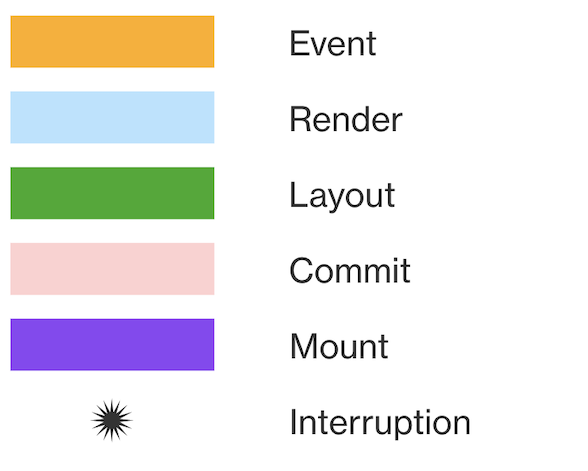
## Render Scenarios[](#render-scenarios "Direct link to Render Scenarios")
### Render in a JS Thread[](#render-in-a-js-thread "Direct link to Render in a JS Thread")
This is the most common scenario where most of the render pipeline happens on JavaScript thread.

***
### Render in the UI Thread[](#render-in-the-ui-thread "Direct link to Render in the UI Thread")
When there is a high priority event on the UI Thread, the renderer is able to execute all the render pipeline synchronously on the UI thread.

***
### Default or continuous event interruption[](#default-or-continuous-event-interruption "Direct link to Default or continuous event interruption")
This scenario shows the interruption of the render phase by a low priority event in the UI thread. React and the React Native renderer are able to interrupt the render phase and merge its state with a low priority event that is executed on the UI thread. In this case the render process continues executing in the JS thread.

***
### Discrete event interruption[](#discrete-event-interruption "Direct link to Discrete event interruption")
The render phase is interruptible. This scenario shows the interruption of the render phase by a high priority event in the UI thread. React and the renderer are able to interrupt the render phase and merge its state with a high priority event that was executed on the UI thread. The render phase executes synchronously on the UI thread.

***
### C++ State update[](#c-state-update "Direct link to C++ State update")
Update originating on UI thread and skips rendering phase. See [React Native Renderer State Updates](/architecture/render-pipeline.md#react-native-renderer-state-updates) for more details.

---
# View Flattening
caution
This document refers to the [New Architecture](/architecture/fabric-renderer.md), that is in active roll-out.
#### View Flattening is an optimization by the React Native renderer to avoid deep layout trees.[](#view-flattening-is-an-optimization-by-the-react-native-renderer-to-avoid-deep-layout-trees "Direct link to View Flattening is an optimization by the React Native renderer to avoid deep layout trees.")
The React API is designed to be declarative and reusable through composition. This provides a great model for intuitive development. However, in implementation, these qualities of the API lead to the creation of deep [React Element Trees](/architecture/glossary.md#react-element-tree-and-react-element), where a large majority of React Element Nodes only affect the layout of a View and don’t render anything on the screen. We call these types of nodes **“Layout-Only”** Nodes.
Conceptually, each of the Nodes of the React Element Tree have a 1:1 relationship with a view on the screen, therefore rendering a deep React Element Tree that is composed by a large amount of “Layout-Only” Node leads to poor performance during rendering.
Here is a common use case that is affected by the cost of "Layout Only" views.
Imagine you want to render an image and a title that is handled by the `TitleComponent`, and you include this component as a child of the `ContainerComponent` that has some margin styles. After decomposing the components, the React code would look like this:
jsx
```
function MyComponent() {
return (
// ReactAppComponent
// ContainerComponent
// TitleComponent
This is a title
);
}
```
As part of the render process, React Native will produce the following trees:
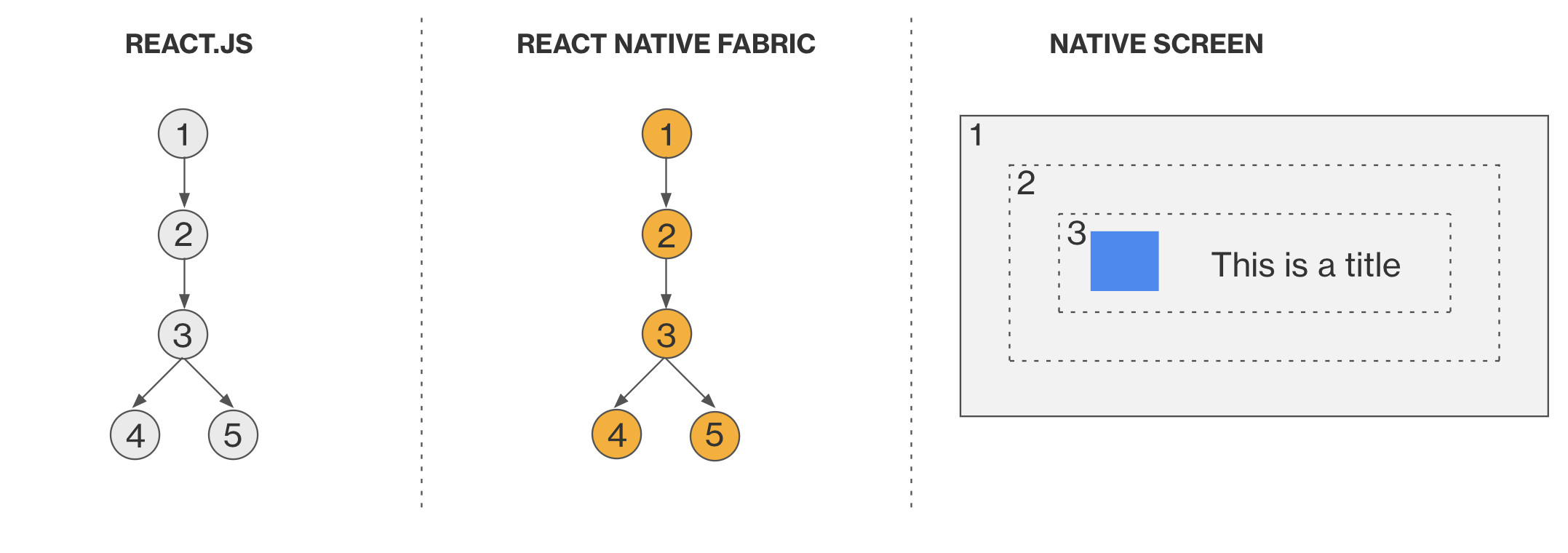
Note that the Views (2) and (3) are “Layout Only” views, because they are rendered on the screen but they only render a `margin` of `10 px` on top of their children.
To improve the performance of these types of React Element Trees, the renderer implements a View Flattening mechanism that merges or flattens these types of Nodes, reducing the depth of the [host view](/architecture/glossary.md#host-view-tree-and-host-view) hierarchy that is rendered on the screen. This algorithm takes into consideration props like: `margin`, `padding`, `backgroundColor`, `opacity`, etc.
The View Flattening algorithm is integrated by design as part of the diffing stage of the renderer, which means that we don’t use extra CPU cycles to optimize the React Element Tree flattening these types of views. As the rest of the core, the View flattening algorithm is implemented in C++ and its benefits are shared by default on all supported platforms.
In the case of the previous example, the Views (2) and (3) would be flattened as part of the “diffing algorithm” and as a result their styles will be merged into the View (1):
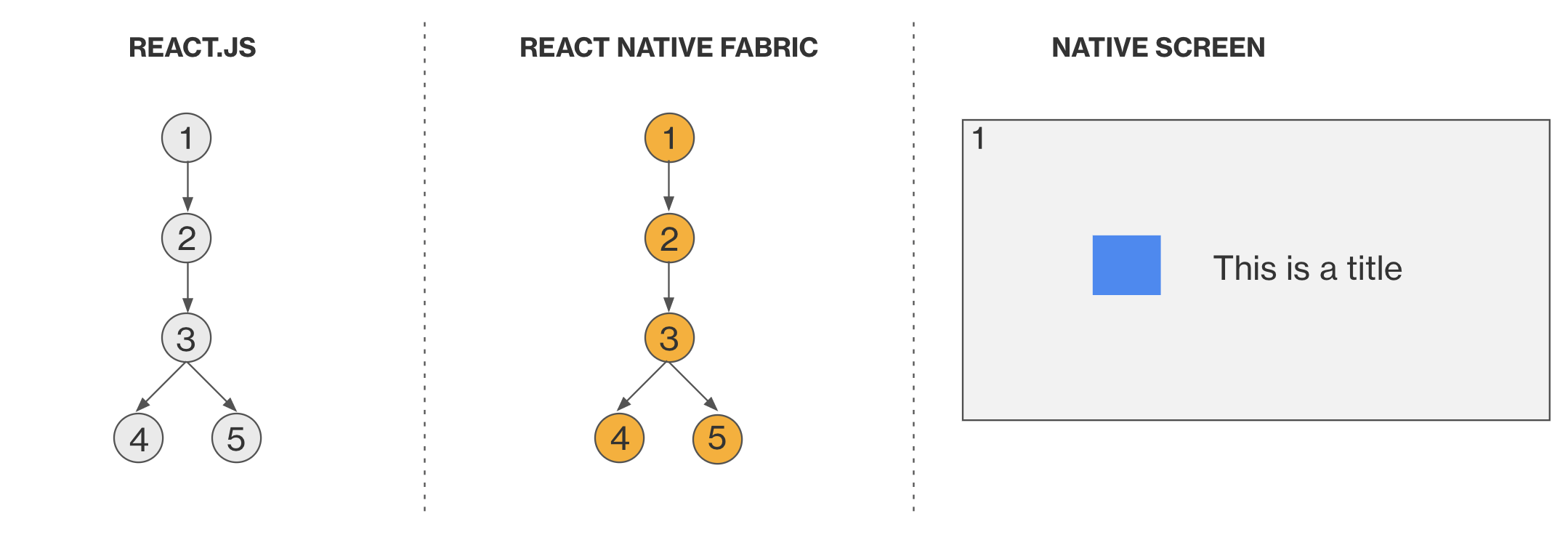
It is important to note that this optimization allows the renderer to avoid the creation and render of two host views. From the user’s perspective there are no visible changes on the screen.
---
# Cross Platform Implementation
caution
This document refers to the [New Architecture](/architecture/fabric-renderer.md), that is in active roll-out.
#### The React Native renderer utilizes a core render implementation to be shared across platforms[](#the-react-native-renderer-utilizes-a-core-render-implementation-to-be-shared-across-platforms "Direct link to The React Native renderer utilizes a core render implementation to be shared across platforms")
In the previous render system of React Native, the **[React Shadow Tree](/architecture/glossary.md#react-shadow-tree-and-react-shadow-node)**, layout logic, and **[View Flattening](/architecture/view-flattening.md)** algorithm were implemented once for each platform. The current renderer was designed to be a cross-platform solution by sharing a core C++ implementation.
The React Native team intends to incorporate an animation system into the render system and also extend the React Native render system to new platforms such as Windows, and operating systems in game consoles, televisions, and more.
Leveraging C++ for the core render system introduces several advantages. A single implementation reduces the cost of development and maintenance. It improves the performance of creating React Shadow Trees and layout calculation because the overhead of integrating [Yoga](/architecture/glossary.md#yoga-tree-and-yoga-node) with the renderer is minimized on Android (i.e. no more [JNI](/architecture/glossary.md#java-native-interface-jni) for Yoga). Finally, the memory footprint of each React Shadow Node is smaller in C++ than it would be if allocated from Kotlin or Swift.
The team is also leveraging C++ features that enforce immutability to ensure there are no issues related to concurrent access to shared but not protected resources.
It is important to recognize that the renderer use case for Android still incurs the cost of [JNI](/architecture/glossary.md#java-native-interface-jni) for two primary use cases:
* Layout calculation of complex views (e.g. `Text`, `TextInput`, etc.) requires sending props over JNI.
* The mount phase requires sending mutation operations over JNI.
The team is exploring replacing `ReadableMap` with a new mechanism to serialize data using `ByteBuffer` to reduce overhead of JNI. Our goal is to reduce overhead of JNI by 35–50%.
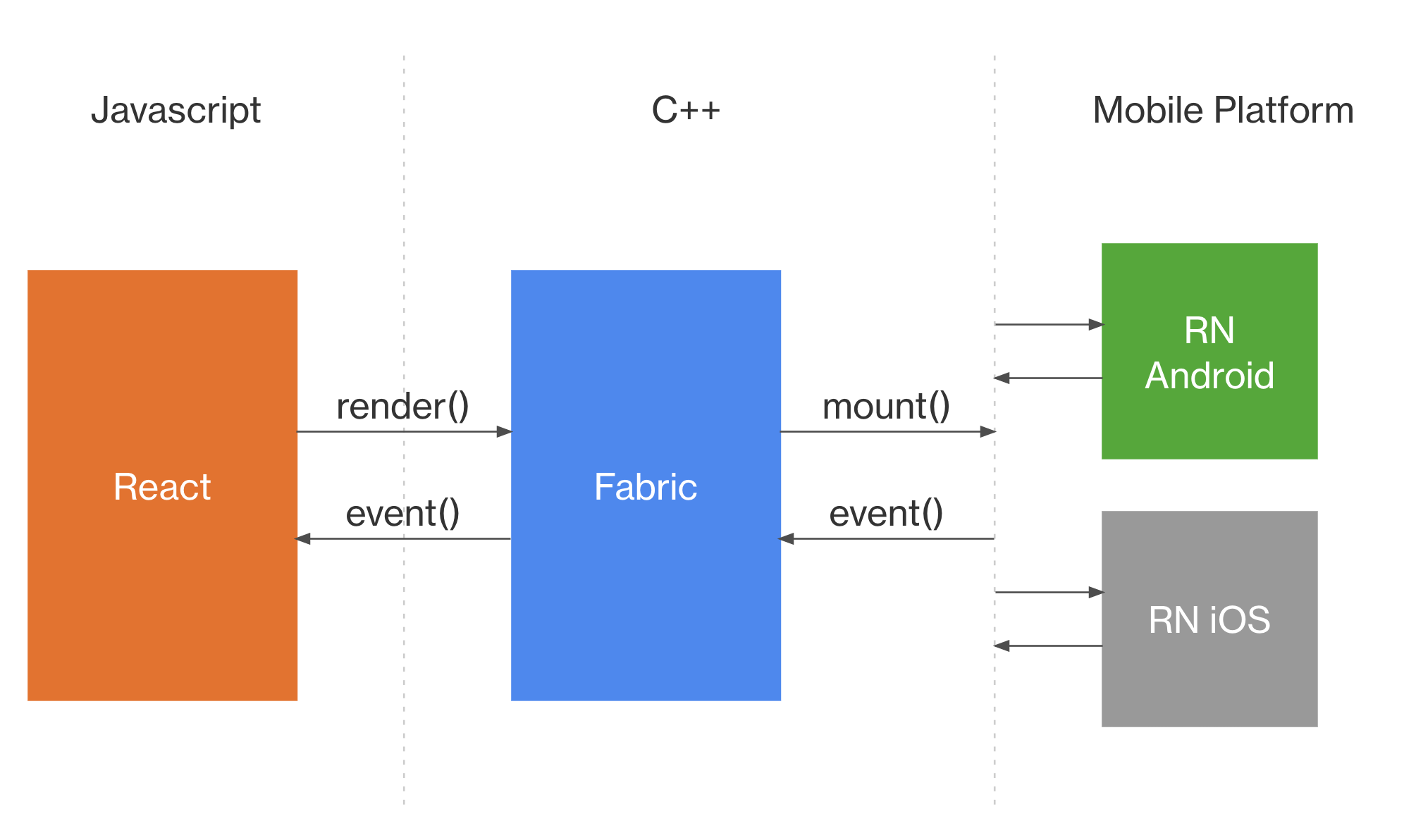
The renderer provides two sides of its C++ APIs:
* **(i)** to communicate with React
* **(ii)** to communicate with the host platform
For **(i)**, React communicates with the renderer to **render** a React Tree and to “listen” for **events** (e.g. `onLayout`, `onKeyPress`, touch, etc).
For **(ii)**, the React Native renderer communicates with the host platform to mount host views on the screen (create, insert, update or delete of host views) and it listens for **events** that are generated by the user on the host platform.
---
# Communities
The React Native ecosystem is far and wide, and people can be part of it in many forms; here you will find but a partial list of different ways one developer can be part of it. If you know of other, or want to help expand this page, [submit a PR](https://github.com/facebook/react-native-website/pulls?q=is%3Apr+is%3Aopen+sort%3Aupdated-desc)!
### Local communities[](#local-communities "Direct link to Local communities")
There are a lot of React Native gatherings that happen around the world. Often there is React Native content in React meetups as well, use tools like [Meetup](https://www.meetup.com/topics/react-native/) and [Eventbrite](https://www.eventbrite.co.uk/d/online/react-native/?page=1) to find out recent events in your area - or start one!
### Company-based communities[](#company-based-communities "Direct link to Company-based communities")
Some companies actively involved in the React Native have also their own communication channels focused towards the projects they maintain:
* [Callstack.io's](https://www.callstack.com/) [Discord server](https://discordapp.com/invite/zwR2Cdh)
* [Invertase.io's (e.g. React Native Firebase)](https://invertase.io/) [Discord server](https://discord.gg/C9aK28N)
* [Infinite Red's](https://infinite.red/) [Slack Group](https://community.infinite.red/)
* [Expo's](https://expo.dev/) [Discord server](https://chat.expo.dev/)
### Independent communities[](#independent-communities "Direct link to Independent communities")
Organic communities of React Native developers, not sponsored by a business with a commercial interest.
* [The Reactiflux community](https://reactiflux.com) on [Discord](https://discord.gg/reactiflux)
### Content sharing[](#content-sharing "Direct link to Content sharing")
React Native tagged content can be found on many platforms, such as:
* [DevTo community](https://dev.to/t/reactnative)
* [Medium](https://medium.com/tag/react-native)
* [Hashnode](https://hashnode.com/n/react-native)
* [Hacker News](https://hn.algolia.com/?q=react-native)
* [r/reactnative/](https://www.reddit.com/r/reactnative/)
These are places where you can share React Native projects, articles and tutorials as well as start discussions and ask for feedback on React Native related topics. (but remember to give some love to the [main documentation](https://github.com/facebook/react-native-website) too!)
---
# Overview
React Native is a widely used technology, empowered by a massive community of [hundreds of thousands of developers](https://github.com/facebook/react-native/stargazers) and downloaded [over 2 million times](https://www.npmjs.com/package/react-native) every week.
In this section you will find listed ways you can also be part of the React Native-related communities, depending on your wants and needs:
* [Staying up to date](/community/staying-updated.md)
* [Participating in the community](/community/communities.md)
* [Needing and providing help](/community/support.md)
We expect all folks participating in React Native' communities to adhere to the guidelines within our [Code of Conduct](https://github.com/facebook/react-native/blob/main/CODE_OF_CONDUCT.md).
---
# Staying up to date
### News[](#news "Direct link to News")
Twitter is one of the main communication channels used by the team to communicate updates, news and request for participation: follow the [React Native account](https://twitter.com/reactnative) to stay up to date - the [ReactJS account](https://twitter.com/reactjs) covers both React and React Native.
For long form news and announcements, keep an eye on the [blog](/blog.md) to find out what is happening in the world of React Native.
### Discussions and efforts[](#discussions-and-efforts "Direct link to Discussions and efforts")
React Native is a dynamic framework and there is always room for improvement. As an open source framework, large-scale coordination and discussion should remain publicly accessible. Here are some dedicated discussion groups you can participate in:
Expect important conversations to always be public; depending on the topic, you can find them in one of these places:
* [Framework discussions, proposals and RFCs](https://github.com/react-native-community/discussions-and-proposals/discussions)
* [Release status and issues](https://github.com/reactwg/react-native-releases/discussions)
* [New Architecture adoption and feedback](https://github.com/reactwg/react-native-new-architecture/discussions)
* [Improvements to the Developer Experience](https://github.com/react-native-community/developer-experience-wg)
### Packages & Integrations[](#packages--integrations "Direct link to Packages & Integrations")
In the [React Native Directory](https://reactnative.directory/) you will be able to see many libraries that are compatible with React Native. It is a community-driven effort to help developers browse and evaluate packages, plugins, state management libraries, and more.
### Conferences[](#conferences "Direct link to Conferences")
Over the years, many conferences organized by companies and partners have been organized around the world - it would be impossible to track them all here; moreover, often there is React Native content in React events as well.
Listed here are but a few of the main React Native related conferences, with links to past editions' recordings:
#### [ReactConf](https://conf.react.dev/), organized by Meta[](#reactconf-organized-by-meta "Direct link to reactconf-organized-by-meta")
* [React Conf 2025](https://www.youtube.com/watch?v=p9OcztRyDl0?t=2291)
* [React Conf 2024](https://www.youtube.com/watch?v=T8TZQ6k4SLE\&list=PLNG_1j3cPCaaY3NEriypd7FKyWqbBNuAB)
* [React Conf 2021](https://www.youtube.com/watch?v=FZ0cG47msEk\&list=PLNG_1j3cPCaZZ7etkzWA7JfdmKWT0pMsa)
* [React Conf 2019](https://www.youtube.com/playlist?list=PLPxbbTqCLbGHPxZpw4xj_Wwg8-fdNxJRh)
* [React Conf 2018](https://www.youtube.com/watch?v=WXYPpY_mElQ)
* [React Conf 2017](https://www.youtube.com/playlist?list=PLb0IAmt7-GS3fZ46IGFirdqKTIxlws7e0)
* [React Conf 2016](https://www.youtube.com/playlist?list=PLb0IAmt7-GS0M8Q95RIc2lOM6nc77q1IY)
* [React Conf 2015](https://www.youtube.com/watch?list=PLb0IAmt7-GS1cbw4qonlQztYV1TAW0sCr\&v=KVZ-P-ZI6W4)
#### [ChainReact](https://cr.infinite.red/), organized by [InfiniteRed](https://infinite.red/)[](#chainreact-organized-by-infinitered "Direct link to chainreact-organized-by-infinitered")
* [ChainReact 2024](https://www.youtube.com/playlist?list=PLFHvL21g9bk0XOO9XK6d6S9w1jBU6Dz_U)
* [ChainReact 2023](https://www.youtube.com/playlist?list=PLFHvL21g9bk30F2UaJfn6TqJn15MAoBOc)
* [ChainReact 2019](https://www.youtube.com/playlist?list=PLFHvL21g9bk2bTWTCP1BueiiIz8q258z9)
* [ChainReact 2018](https://www.youtube.com/playlist?list=PLFHvL21g9bk1skdjnKVGXREDmP_HVDj-u)
* [ChainReact 2017](https://www.youtube.com/playlist?list=PLFHvL21g9bk3RxJ1Ut5nR_uTZFVOxu522)
#### [AppJS](https://appjs.co/), organized by [Software Mansion](https://swmansion.com/)[](#appjs-organized-by-software-mansion "Direct link to appjs-organized-by-software-mansion")
* [AppJS 2025](https://www.youtube.com/playlist?list=PLSk21zn8fFZBD3Kxg8Rw_n4LPIuA6TGHd)
* [AppJS 2024](https://www.youtube.com/playlist?list=PLSk21zn8fFZDMGB9UCnqz4WqLbnOgLnp5)
* [AppJS 2023](https://www.youtube.com/playlist?list=PLSk21zn8fFZCfYEMpSqQOHMgyNKc8B7_s)
* [AppJS 2022](https://www.youtube.com/playlist?list=PLSk21zn8fFZC3UIvyRjDb4Uog3244BwM6)
* [AppJS 2019](https://www.youtube.com/playlist?list=PLSk21zn8fFZBKEJxmkdSzzmMJrxkfyjph)
#### [React Universe Conf](https://www.reactuniverseconf.com/), organized by [Callstack](https://www.callstack.com/)[](#react-universe-conf-organized-by-callstack "Direct link to react-universe-conf-organized-by-callstack")
* [React Universe Conf 2025](https://www.youtube.com/playlist?list=PLZ3MwD-soTTGHD999pxTX1r_6JORpOr0C)
* [React Universe Conf 2024](https://www.youtube.com/playlist?list=PLZ3MwD-soTTGAEY8kZD3tgXGTwojn5qYh)
#### [React Native Europe](https://www.react-native.eu/), organized by [Callstack](https://www.callstack.com/)[](#react-native-europe-organized-by-callstack "Direct link to react-native-europe-organized-by-callstack")
* [React Native Europe 2023](https://www.youtube.com/playlist?list=PLZ3MwD-soTTEvs1qbdUtm52vlgUlKPDOX)
* [React Native Europe 2022](https://www.youtube.com/playlist?list=PLZ3MwD-soTTE-qcA0MrcvZBdmkHJSIjJX)
* [React Native Europe 2021](https://www.youtube.com/playlist?list=PLZ3MwD-soTTG-8Ix3lQ8zHvk94juXpYjl)
* [React Native Europe 2020](https://www.youtube.com/playlist?list=PLZ3MwD-soTTEGG42-BvoqD0qK0vKV2ygm)
* [React Native Europe 2019](https://www.youtube.com/playlist?list=PLZ3MwD-soTTHy9_88QPLF8DEJkvoB5Tl-)
* [React Native Europe 2018](https://www.youtube.com/playlist?list=PLZ3MwD-soTTEOWXU2I8Y8C3AfqvJdn3M_)
* [React Native Europe 2017](https://www.youtube.com/playlist?list=PLZ3MwD-soTTF76yq91JdPrFshTm_ZNNsf)
---
# Where to get help
If you need help with your React Native app, the right place to go depends on the type of help that you need.
### Repository[](#repository "Direct link to Repository")
The core of **React Native** is worked on full-time by Meta's React Native team. But there are far more people in the community who make key contributions and fix things. If the issue you are facing is code related, you should check the open issues in the [main repository](https://github.com/facebook/react-native/issues).
If you cannot find an existing issue, please refer to [How to report a bug](/contributing/how-to-report-a-bug.md).
### Upgrade support[](#upgrade-support "Direct link to Upgrade support")
Many times, when upgrading your apps and libraries from a version of React Native to a newer one, you might need some help; the community has rallied together to create a couple of important resources:
* [upgrade-helper](https://react-native-community.github.io/upgrade-helper/) is a tool that will show the full set of changes happening between any two versions to help you see what changes you need to do in your code.
* [upgrade support](https://github.com/react-native-community/upgrade-support) is a community-driven repository to request and give help when upgrading your app.
### Stack Overflow[](#stack-overflow "Direct link to Stack Overflow")
Many members of the community use Stack Overflow to ask questions. Read through the [existing questions](https://stackoverflow.com/questions/tagged/react-native?sort=frequent) tagged with **react-native** or [ask your own](https://stackoverflow.com/questions/ask?tags=react-native)!
### Reactiflux Chat[](#reactiflux-chat "Direct link to Reactiflux Chat")
If you need an answer right away, check out the [Reactiflux Discord](https://discord.gg/JuTwWB8rsy) community. There are usually a number of React Native experts there who can help out or point you to somewhere you might want to look.
---
# Bots Reference
## pull-bot[](#pull-bot "Direct link to pull-bot")
This pull request linter bot performs basic sanity checks whenever a pull request is created. It might leave a comment on a pull request if it is unable to find a test plan or a changelog in the description, or if it notices that the pull request was not opened against the `main` branch. This bot uses [Danger](https://danger.systems), and its configuration can be found in the [`dangerfile.js`](https://github.com/facebook/react-native/blob/main/packages/react-native-bots/dangerfile.js).
## analysis-bot[](#analysis-bot "Direct link to analysis-bot")
The code analysis bot collects feedback from tools such as Prettier, eslint, and Flow whenever a commit is added to a pull request. If any of these tools finds issues with the code, the bot will add these as inline review comments on the pull request. Its configuration can be found in the [`analyze_code.sh`](https://github.com/facebook/react-native/blob/main/scripts/circleci/analyze_code.sh) file in core repository.
## label-actions[](#label-actions "Direct link to label-actions")
A bot that acts on an issue or pull request based on a label. Configured in [`.github/workflows/on-issue-labeled.yml`](https://github.com/facebook/react-native/blob/main/.github/workflows/on-issue-labeled.yml).
## github-actions[](#github-actions "Direct link to github-actions")
A bot that performs actions defined in a GitHub workflow. Workflows are configured in [`.github/workflows`](https://github.com/facebook/react-native/tree/main/.github/workflows).
## facebook-github-bot[](#facebook-github-bot "Direct link to facebook-github-bot")
The Facebook GitHub Bot is used across several open source projects at Meta. In the case of React Native, you will most likely encounter it when it pushes a merge commit to `main` after a pull request is successfully imported to Facebook's internal source control. It will also let authors know if they are missing a Contributor License Agreement.
## react-native-bot[](#react-native-bot "Direct link to react-native-bot")
The React Native bot is a tool that helps us automate several processes described in this wiki. Configured in [`hramos/react-native-bot`](https://github.com/hramos/react-native-bot).
---
# Changelogs in Pull Requests
The changelog entry in your pull request serves as a sort of "tl;dr:" for your changes: do they affect Android? are these breaking changes? is something new being added?
Providing a changelog using a standardized format helps release coordinators write release notes. Please include a changelog as part of your pull request description. Your pull request description will be used as the commit message should the pull request get merged.
### Format[](#format "Direct link to Format")
A changelog entry has the following format
```
## Changelog:
[Category] [Type] - Message
```
The "Category" field may be one of:
* **Android**, for changes that affect Android.
* **iOS**, for changes that affect iOS.
* **General**, for changes that do not fit any of the other categories.
* **Internal**, for changes that would not be relevant to developers consuming the release notes.
The "Type" field may be one of:
* **Breaking**, for breaking changes.
* **Added**, for new features.
* **Changed**, for changes in existing functionality.
* **Deprecated**, for soon-to-be removed features.
* **Removed**, for now removed features.
* **Fixed**, for any bug fixes.
* **Security**, in case of vulnerabilities.
Finally, the "Message" field may answer "what and why" on a feature level. Use this to briefly tell React Native users about notable changes.
For more detail, see [How do I make a good changelog?](https://keepachangelog.com/en/1.0.0/#how) and [Why keep a changelog?](https://keepachangelog.com/en/1.0.0/#why)
### Examples[](#examples "Direct link to Examples")
* `[General] [Added] - Add snapToOffsets prop to ScrollView component`
* `[General] [Fixed] - Fix various issues in snapToInterval on ScrollView component`
* `[iOS] [Fixed] - Fix crash in RCTImagePicker`
### FAQ[](#faq "Direct link to FAQ")
#### What if my pull request contains changes to both Android and JavaScript?[](#what-if-my-pull-request-contains-changes-to-both-android-and-javascript "Direct link to What if my pull request contains changes to both Android and JavaScript?")
Use the Android category.
#### What if my pull request contains changes to both Android and iOS?[](#what-if-my-pull-request-contains-changes-to-both-android-and-ios "Direct link to What if my pull request contains changes to both Android and iOS?")
Use the General category if the change is made in a single pull request.
#### What if my pull request contains changes to Android, iOS, and JavaScript?[](#what-if-my-pull-request-contains-changes-to-android-ios-and-javascript "Direct link to What if my pull request contains changes to Android, iOS, and JavaScript?")
Use the General category if the change is made in a single pull request.
#### What if...?[](#what-if "Direct link to What if...?")
Any changelog entry is better than none. If you are unsure if you have picked the right category, use the "message" field to succinctly describe your change.
These entries are used by the [`@rnx-kit/rn-changelog-generator`](https://github.com/microsoft/rnx-kit/tree/main/incubator/rn-changelog-generator) script to build a rough draft, which is then edited by a release coordinator.
Your notes will be used to add your change to the correct location in the final release notes.
---
# Contribution License Agreement
You must sign a Contribution License Agreement (CLA) before your pull request can be merged. This a one-time requirement for Meta projects in GitHub. You can read more about [Contributor License Agreements (CLA)](https://en.wikipedia.org/wiki/Contributor_License_Agreement) on Wikipedia.
However, you don't have to do this up-front. We welcome you to follow, fork, and submit a pull request.
When your pull request is created, it is classified by the Facebook GitHub bot. If you have not signed a CLA, the bot will provide instructions for [signing a CLA](https://code.facebook.com/cla) before your pull request can be considered eligible for merging. Once you have done so, the current and all future pull requests will be labelled as "CLA Signed".
Signing the CLA might sound scary, but it's actually very simple and can be done in less than a minute.
---
# How to Build from Source
You will need to build React Native from source if you want to work on a new feature/bug fix, try out the latest features which are not released yet, or maintain your own fork with patches that cannot be merged to the core.
## Android[](#android "Direct link to Android")
### Prerequisites[](#prerequisites "Direct link to Prerequisites")
To build from source, you need to have the Android SDK installed. If you followed the [Setting up the development environment](/docs/environment-setup.md) guide, you should already be set up.
There is no need to install other tools like specific version of NDK or CMake as the Android SDK will **automatically download** whatever is needed for the build from source.
### Point your project to a nightly[](#point-your-project-to-a-nightly "Direct link to Point your project to a nightly")
To use the latest fixes and features of React Native, you can update your project to use a nightly version of React Native with:
```
yarn add react-native@nightly
```
This will update your project to use a nightly version of React Native that gets released every night with the latest changes.
### Update your project to build from source[](#update-your-project-to-build-from-source "Direct link to Update your project to build from source")
Both with stable releases and nightlies, you will be consuming **precompiled** artifacts. If instead you want to switch to building from source, so you can test your changes to the framework directly, you will have to edit the `android/settings.gradle` file as follows:
diff
```
// ...
include ':app'
includeBuild('../node_modules/@react-native/gradle-plugin')
+ includeBuild('../node_modules/react-native') {
+ dependencySubstitution {
+ substitute(module("com.facebook.react:react-android")).using(project(":packages:react-native:ReactAndroid"))
+ substitute(module("com.facebook.react:react-native")).using(project(":packages:react-native:ReactAndroid"))
+ substitute(module("com.facebook.react:hermes-android")).using(project(":packages:react-native:ReactAndroid:hermes-engine"))
+ substitute(module("com.facebook.react:hermes-engine")).using(project(":packages:react-native:ReactAndroid:hermes-engine"))
+ }
+ }
```
### Additional notes[](#additional-notes "Direct link to Additional notes")
Building from source can take a long time, especially for the first build, as it needs to download \~200 MB of artifacts and compile the native code.
Every time you update the `react-native` version from your repo, the build directory may get deleted, and all the files are re-downloaded. To avoid this, you might want to change your build directory path by editing the `~/.gradle/init.gradle` file:
groovy
```
gradle.projectsLoaded {
rootProject.allprojects {
buildDir = "/path/to/build/directory/${rootProject.name}/${project.name}"
}
}
```
## Rationale[](#rationale "Direct link to Rationale")
The recommended approach to working with React Native is to always update to the latest version. The support we provide for older versions is [described in our support policy](https://github.com/reactwg/react-native-releases/#releases-support-policy).
The build from source approach should be used to end-to-end test a fix before submitting a pull request to React Native, and we're not encouraging its usages in the long run. Especially forking React Native or switching your setup to always use a build from source, will result in projects that are harder to update and generally a worse developer experience.
---
# How to Contribute Code
Thank you for your interest in contributing to React Native! From commenting on and triaging issues, to reviewing and sending PRs, [all contributions are welcome](/contributing/overview.md). In this document, we'll cover the steps to contributing code to React Native.
If you are eager to start contributing code right away, we have a list of [`Good first issues`](https://github.com/facebook/react-native/labels/good%20first%20issue) that contain bugs which have a relatively limited scope. Issues labeled [`Help wanted`](https://github.com/facebook/react-native/issues?utf8=%E2%9C%93\&q=is%3Aissue+is%3Aopen+label%3A%22help+wanted+%3Aoctocat%3A%22+sort%3Aupdated-desc+) are good issues to submit a PR for.
## Prerequisites[](#prerequisites "Direct link to Prerequisites")
info
Please refer to the [Environment Setup](/docs/environment-setup.md) guide to setup required tools and the development environment based on the platform us use and platform which you want to develop for.
## Development Workflow[](#development-workflow "Direct link to Development Workflow")
After cloning React Native, open the directory and run `yarn` to install its dependencies.
Now you are set up to run several commands:
* `yarn start` starts the Metro packager server.
* `yarn lint` checks the code style.
* `yarn format` automatically formats your code.
* `yarn test` runs the Jest-based JavaScript test suite.
* `yarn test --watch` runs an interactive JavaScript test watcher.
* `yarn test ` runs JavaScript tests with matching filenames.
* `yarn flow` runs the [Flow](https://flowtype.org/) typechecks.
* `yarn flow-check-android` does a full Flow check over `*.android.js` files.
* `yarn flow-check-ios` does a full Flow check over `*.ios.js` files.
* `yarn test-typescript` runs the [TypeScript](https://www.typescriptlang.org/) typechecks.
* `yarn test-ios` runs the iOS test suite (macOS required).
* `yarn build` builds all configured packages — in general, this command only needs to be run by CI ahead of publishing.
* Packages which require a build are configured in [scripts/build/config.js](https://github.com/facebook/react-native/blob/main/scripts/build/config.js).
* `yarn build-types` generates TypeScript types for the public API and updates the snapshot.
## Testing your Changes[](#testing-your-changes "Direct link to Testing your Changes")
Tests help us prevent regressions from being introduced to the codebase. We recommend running `yarn test` or the platform-specific scripts above to make sure you don't introduce any regressions as you work on your change.
The GitHub repository is [continuously tested](/contributing/how-to-run-and-write-tests.md#continuous-testing) using CircleCI, the results of which are available through the Checks functionality on [commits](https://github.com/facebook/react-native/commits/main) and pull requests.
You can learn more about running and writing tests on the [How to Run and Write Tests](/contributing/how-to-run-and-write-tests.md) page.
## Coding Style[](#coding-style "Direct link to Coding Style")
We use Prettier to format our JavaScript code. This saves you time and energy as you can let Prettier fix up any formatting issues automatically through its editor integrations, or by manually running `yarn run prettier`. We also use a linter to catch styling issues that may exist in your code. You can check the status of your code styling by running `yarn run lint`.
However, there are still some styles that the linter cannot pick up, notably in Java or Objective-C code.
### Objective-C[](#objective-c "Direct link to Objective-C")
* Space after `@property` declarations
* Brackets on *every* `if`, on the *same* line
* `- method`, `@interface`, and `@implementation` brackets on the following line
* *Try* to keep it around 80 characters line length (sometimes it's not possible...)
* `*` operator goes with the variable name (e.g. `NSObject *variableName;`)
### Java[](#java "Direct link to Java")
* If a method call spans multiple lines closing bracket is on the same line as the last argument.
* If a method header doesn't fit on one line each argument goes on a separate line.
* 100 character line length
## Sending a Pull Request[](#sending-a-pull-request "Direct link to Sending a Pull Request")
Code-level contributions to React Native generally come in the form of [a pull request](https://help.github.com/en/articles/about-pull-requests). The process of proposing a change to React Native can be summarized as follows:
1. Fork the React Native repository and create your branch from `main`.
2. If you've added code that should be tested, add tests.
3. If you've changed APIs, update the documentation.
4. Ensure the test suite passes, either locally or on CI once you opened a pull request.
5. Make sure your code lints (for example via `yarn lint --fix`).
6. Verify if your code modifies the JS public API with `yarn build-types --validate`. If so, regenerate the snapshot using `yarn build-types`.
7. Push the changes to your fork.
8. Create a pull request to the React Native repository.
9. Review and address comments on your pull request.
10. A bot may comment with suggestions. Generally we ask you to resolve these first before a maintainer will review your code.
11. If you haven't already, submit the [Contributor License Agreement ("CLA")](#contributor-license-agreement).
If all goes well, your pull request will be merged. If it is not merged, maintainers will do their best to explain their reasoning.
If this is your first time sending a pull request, we have created a [step-by-step guide to help you get started](/contributing/how-to-open-a-pull-request.md). For more detailed information on how pull requests are handled, see the [Managing Pull Requests page](/contributing/managing-pull-requests.md).
### Contributor License Agreement[](#contributor-license-agreement "Direct link to Contributor License Agreement")
In order to accept your pull request, we need you to submit a [Contributor License Agreement (CLA)](/contributing/contribution-license-agreement.md). You only need to do this once to work on any of Meta's open source projects. It only takes a minute, so you can do it while you wait for your dependencies to install.
## License[](#license "Direct link to License")
By contributing to React Native, you agree that your contributions will be licensed under the [LICENSE](https://github.com/facebook/react-native/blob/main/LICENSE) file in the root directory of the React Native repository.
---
# How to Open a Pull Request
These instructions provide the step-by-step process to set up your machine to make contributions to the core React Native repository, and create your first pull request.
## Prologue: Getting Ready[](#prologue-getting-ready "Direct link to Prologue: Getting Ready")
You will need a few tools and dependencies in order to build and develop for React Native. These are covered as part of the [Environment Setup](/docs/environment-setup.md) guide under the "Building Projects with Native Code" section.
In order to accept your pull request, we need you to submit a [Contributor License Agreement (CLA)](/contributing/contribution-license-agreement.md). You only need to do this once to work on any of Meta's open source projects. It only takes a minute, so you can do it while you wait for your dependencies to install.
## Chapter I: Welcome to Open Source[](#chapter-i-welcome-to-open-source "Direct link to Chapter I: Welcome to Open Source")
### 1. Install `git`[](#1-install-git "Direct link to 1-install-git")
The React Native source code is hosted on GitHub. You can interact with the git version control through the `git` command line program. We recommend you follow [GitHub's instructions](https://help.github.com/articles/set-up-git/) to set up git on your machine.
### 2. Get the source code[](#2-get-the-source-code "Direct link to 2. Get the source code")
While you can browse the source code for React Native on [GitHub](https://github.com/facebook/react-native), we recommend you set up a fork on your local machine.
1. Go to .
2. Click on "Fork" button on the upper right.
3. When asked, select your username as the host for this fork.
You will now have a fork of React Native on GitHub at . Next, you will grab a copy of the source code for your local machine. Open a shell and type the following commands:
```
git clone https://github.com/facebook/react-native.git
cd react-native
git remote add fork https://github.com/your_username/react-native.git
```
note
If the above seems new to you, do not be scared. You can access a shell through the Terminal application on macOS and Linux, or PowerShell on Windows.
A new `react-native` directory will be created with the contents of the core React Native repository. This directory is actually a clone of the React Native git repository. It is set up with two remotes:
* `origin` for the upstream repository
* `fork` for the fork of React Native on your own GitHub account.
### 3. Create a branch[](#3-create-a-branch "Direct link to 3. Create a branch")
We recommend creating a new branch in your fork to keep track of your changes:
```
git checkout -b my_feature_branch --track origin/main
```
## Chapter II: Implementing your Changes[](#chapter-ii-implementing-your-changes "Direct link to Chapter II: Implementing your Changes")
### 1. Install dependencies[](#1-install-dependencies "Direct link to 1. Install dependencies")
React Native is a JavaScript monorepo managed by [Yarn Workspaces (Yarn Classic)](https://classic.yarnpkg.com/lang/en/docs/workspaces/).
Run a project-level install:
sh
```
yarn
```
You will also need to build the `react-native-codegen` package once:
sh
```
yarn --cwd packages/react-native-codegen build
```
### 2. Make changes to the code[](#2-make-changes-to-the-code "Direct link to 2. Make changes to the code")
You can now open the project using your code editor of choice. [Visual Studio Code](https://code.visualstudio.com/) is popular with JavaScript developers, and recommended if you are making general changes to React Native.
IDE project configurations:
* **VS Code**: Open the `react-native.code-workspace` file. This should open with extension recommendations, and configure the Flow Language Service and other editor settings correctly.
* **Android Studio**: Open the repo root folder (containing the `.idea` config directory).
* **Xcode**: Open `packages/rn-tester/RNTesterPods.xcworkspace`.
### 3. Run your changes[](#3-run-your-changes "Direct link to 3. Run your changes")
The package rn-tester can be used to run and validate your changes. You can learn more in [RNTester readme](https://github.com/facebook/react-native/blob/main/packages/rn-tester/README.md).
### 4. Test your changes[](#4-test-your-changes "Direct link to 4. Test your changes")
Make sure your changes are correct and do not introduce any test failures. You can learn more in [Running and Writing Tests](/contributing/how-to-run-and-write-tests.md).
### 5. Lint your code[](#5-lint-your-code "Direct link to 5. Lint your code")
We understand it can take a while to ramp up and get a sense of the style followed for each of the languages in use in the core React Native repository. Developers should not need to worry about minor nits, so whenever possible, we use tools that automate the process of rewriting your code to follow conventions.
For example, we use [Prettier](https://prettier.io/) to format our JavaScript code. This saves you time and energy as you can let Prettier fix up any formatting issues automatically through its editor integrations, or by manually running `yarn run prettier`.
We also use a linter to catch styling issues that may exist in your code. You can check the status of your code styling by running `yarn run lint`.
To learn more about coding conventions, refer to the [Coding Style guide](/contributing/how-to-contribute-code.md#coding-style).
### 6. View your changes[](#6-view-your-changes "Direct link to 6. View your changes")
Many popular editors integrate with source control in some way. You can also use `git status` and `git diff` on the command line to keep track of what has changed.
## Chapter III: Proposing your Changes[](#chapter-iii-proposing-your-changes "Direct link to Chapter III: Proposing your Changes")
### 1. Commit your changes[](#1-commit-your-changes "Direct link to 1. Commit your changes")
Make sure to add your changes to version control using `git`:
```
git add
git commit -m
```
You can use a short descriptive sentence as your commit message.
note
Worried about writing good git commit messages? Do not fret. Later, when your pull request is merged, all your commits will be squashed into a single commit. It is your pull request description which will be used to populate the message for this squashed commit.
This guide covers enough information to help you along with your first contribution. GitHub has several resources to help you get started with git:
* [Using Git](https://help.github.com/en/categories/using-git)
* [The GitHub Flow](https://guides.github.com/introduction/flow/)
### 2. Push your changes to GitHub[](#2-push-your-changes-to-github "Direct link to 2. Push your changes to GitHub")
Once your changes have been commited to version control, you can push them to GitHub.
```
git push fork
```
If all goes well, you will see a message encouraging you to open a pull request:
```
remote:
remote: Create a pull request for 'your_feature_branch' on GitHub by visiting:
remote: https://github.com/your_username/react-native/pull/new/your_feature_branch
remote:
```
Visit the provided URL to proceed to the next step.
### 3. Create your pull request[](#3-create-your-pull-request "Direct link to 3. Create your pull request")
You are almost there! The next step is to fill out the pull request. Use a descriptive title that is not too long. Then, make sure to fill out all of the fields provided by the default pull request template:
* **Summary:** Use this field to provide your motivation for sending this pull request. What are you fixing?
* **[Changelog](/contributing/changelogs-in-pull-requests.md):** Help release maintainers write release notes by providing a short description of what will be changed should the pull request get merged.
* **Test Plan:** Let reviewers know how you tested your changes. Did you consider any edge cases? Which steps did you follow to make sure your changes have the desired effect? See [What is a Test Plan?](https://medium.com/@martinkonicek/what-is-a-test-plan-8bfc840ec171) to learn more.
### 4. Review and address feedback[](#4-review-and-address-feedback "Direct link to 4. Review and address feedback")
Keep an eye on any comments and review feedback left on your pull request on GitHub. Maintainers will do their best to provide constructive, actionable feedback to help get your changes ready to be merged into the core React Native repository.
---
# How to Report a Bug
Reporting a bug for React Native is one of the best way to start contributing to the project. We use [GitHub issues](https://github.com/facebook/react-native/issues) as the main channel for handling new bug reports.
Before opening a new bug, please [search if the bug already exists](https://github.com/facebook/react-native/issues?q=sort%3Aupdated-desc%20is%3Aissue) in our issue tracker. Most of the time, that's the fastest way to find a response as someone else already experienced the same problem.
If you can't find your bug in the issue tracker, you can open a new one. Once you create a new issue, make sure you:
* Add a description of the problem.
* Follow the instructions on the [issue template](https://github.com/facebook/react-native/issues/new?template=bug_report.yml).
* Add the React Native version you're using.
* Add the output of the `npx @react-native-community/cli info` command.
* Add screenshots and videos of the problem if applicable.
All the bug reports should also include a **reproducer**: the code necessary for us to understand what is going on and help us with the debugging.
warning
Due to high number of issues we receive, reproducers are **mandatory**. Issues without reproducer cannot be investigated and will most likely be closed.
## Providing a Reproducers[](#providing-a-reproducers "Direct link to Providing a Reproducers")
The goal of a reproducer is to provide a way to *reproduce* your bug. Without a reproducer, we won't be able to understand the bug, and we also won't be able to fix it.
The reproducer should be **minimal**: having as little dependencies as possible (ideally none other than `react-native`) as this will help us better isolate the bug. When someone on GitHub is asking for a reproducer, they're **not** asking for all of your source code.
You need instead to create a **minimal** project that reproduces the same crash/bug/issue you're reporting.
This process is crucial, as often issues are actually solved by creating a reproducer. By creating a reproducer, it will be easier to understand if the issue is related to your specific setup or if it's actually a bug inside React Native.
Due to the amount of traffic we have on React Native, we can accept only one of those as a valid reproducer:
1. For majority of bugs: send us a Pull Request with the [RNTesterPlayground.js](https://github.com/facebook/react-native/blob/main/packages/rn-tester/js/examples/Playground/RNTesterPlayground.js) edited to reproduce your bug.
2. If your bug is UI related: a [Snack](https://snack.expo.dev).
3. If your bug is build/upgrade related: a project using our [Reproducer Template](https://github.com/react-native-community/reproducer-react-native/generate).
### RNTesterPlayground.js[](#rntesterplaygroundjs "Direct link to RNTesterPlayground.js")
The best way for you to provide a reproducer is to open a Pull Request against React Native that edits the [`RNTesterPlayground.js`](https://github.com/facebook/react-native/blob/main/packages/rn-tester/js/examples/Playground/RNTesterPlayground.js) file.
tip
This reproducer will run your code against `main` of `react-native` and is the **fastest** way we have to investigate and fix your bugs.
The `RNTesterPlayground.js` file is located inside the RN-Tester application, our reference App. You can read more about it how it works and how to build it inside its [dedicated README file](https://github.com/facebook/react-native/blob/main/packages/rn-tester/README.md).
An example of such type of reproducer is here: [Reproduce modal layout issues #50704](https://github.com/facebook/react-native/pull/50704/).
Once you edit the `RNTesterPlayground.js`, you'll be able to see your code running inside the **Playground** Tab of RNTester:
### Expo Snack[](#expo-snack "Direct link to Expo Snack")
For most UI related bugs, you reproduce them using an [Expo Snack](https://snack.expo.dev/).
With Expo Snack, you can run React Native code in your browser, and see it rendering right away.
Once you are able to reproduce your issue in an Expo Snack, click the **Save** button to get a shareble link to attach to your issue report
### Reproducer Template[](#reproducer-template "Direct link to Reproducer Template")
For most build-related bugs instead, you should reproduce them using the [community reproducer template](https://github.com/react-native-community/reproducer-react-native).
This template creates a small project that runs with the React Native Community CLI and that can be used to showcase build issues.
The template also comes with its own CI already set up with GitHub Actions, as this will help spotting any build issues you might be having.
To use this template:
1. Click the [Use this template](https://github.com/new?template_name=reproducer-react-native\&template_owner=react-native-community) button on GitHub to create a new project starting from the template.
2. Clone your newly created repository locally.
3. Apply the modifications to reproduce your issue.
4. Attach your repository link to the new bug report you're creating.
---
# How to Run and Write Tests
## Running Tests[](#running-tests "Direct link to Running Tests")
This section is about testing your changes to React Native as a contributor. If you haven't yet, go through the steps to set up your development environment for [building projects with native code](/docs/environment-setup.md).
### JavaScript Tests[](#javascript-tests "Direct link to JavaScript Tests")
The simplest way to run the JavaScript test suite is by using the following command at the root of your React Native checkout:
```
yarn test
```
This will run tests using [Jest](https://jestjs.io).
You should also make sure your code passes [Flow](https://flowtype.org/) and lint tests:
```
yarn flow
yarn lint
```
### iOS Tests[](#ios-tests "Direct link to iOS Tests")
Follow the [README.md](https://github.com/facebook/react-native/blob/main/packages/rn-tester/README.md) instructions in the `packages/rn-tester` directory.
Then, go back to the root of your React Native checkout and run `yarn`. This will set up your JavaScript dependencies.
At this point, you can run iOS tests by invoking the following script from the root of your React Native checkout:
```
./scripts/objc-test.sh test
```
You can also use Xcode to run iOS tests. Open `RNTester/RNTesterPods.xcworkspace` and run tests locally by pressing `Command + U` or selecting `Product` then `Test` from the menubar.
Xcode also allows running individual tests through its Test Navigator. You can also use `Command + 6` shortcut.
note
`objc-test.sh` ensures your test environment is set up to run all tests. It also disables tests that are known to be flaky or broken. Keep this in mind when running tests using Xcode. If you see an unexpected failure, see if it's disabled in `objc-test.sh` first.
#### iOS Podfile/Ruby tests[](#ios-podfileruby-tests "Direct link to iOS Podfile/Ruby tests")
If you are making modifications to `Podfile` configurations then there are Ruby tests that can verify these.
To run the ruby tests:
```
cd scripts
sh run_ruby_tests.sh
```
### Android Tests[](#android-tests "Direct link to Android Tests")
The Android Unit tests do not run in an emulator, but they run on the JVM on your local machine.
To run the Android Unit tests, invoke the following script from the root of your React Native checkout:
```
./gradlew test
```
## Writing Tests[](#writing-tests "Direct link to Writing Tests")
Whenever you are fixing a bug or adding new functionality to React Native, it is a good idea to add a test that covers it. Depending on the change you're making, there are different types of tests that may be appropriate.
### JavaScript Tests[](#javascript-tests-1 "Direct link to JavaScript Tests")
The JavaScript tests can be found inside `__test__` directories, colocated next to the files that are being tested. See [`TouchableHighlight-test.js`](https://github.com/facebook/react-native/blob/main/Libraries/Components/Touchable/__tests__/TouchableHighlight-test.js) for a basic example. You can also follow Jest's [Testing React Native Apps](https://jestjs.io/docs/en/tutorial-react-native) tutorial to learn more.
### iOS Integration Tests[](#ios-integration-tests "Direct link to iOS Integration Tests")
React Native provides facilities to make it easier to test integrated components that require both native and JS components to communicate across the bridge.
The two main components are `RCTTestRunner` and `RCTTestModule`. `RCTTestRunner` sets up the React Native environment and provides facilities to run the tests as `XCTestCase`s in Xcode (`runTest:module` is the simplest method). `RCTTestModule` is exported to JavaScript as `NativeModules.TestModule`.
The tests themselves are written in JS, and must call `TestModule.markTestCompleted()` when they are done, otherwise the test will timeout and fail.
Test failures are primarily indicated by throwing a JS exception. It is also possible to test error conditions with `runTest:module:initialProps:expectErrorRegex:` or `runTest:module:initialProps:expectErrorBlock:` which will expect an error to be thrown and verify the error matches the provided criteria.
See the following for example usage and integration points:
* [`IntegrationTestHarnessTest.js`](https://github.com/facebook/react-native/blob/main/IntegrationTests/IntegrationTestHarnessTest.js)
* [`RNTesterIntegrationTests.m`](https://github.com/facebook/react-native/blob/main/RNTester/RNTesterIntegrationTests/RNTesterIntegrationTests.m)
* [`IntegrationTestsApp.js`](https://github.com/facebook/react-native/blob/main/IntegrationTests/IntegrationTestsApp.js)
### iOS Snapshot Tests[](#ios-snapshot-tests "Direct link to iOS Snapshot Tests")
A common type of integration test is the snapshot test. These tests render a component, and verify snapshots of the screen against reference images using `TestModule.verifySnapshot()`, using the [`FBSnapshotTestCase`](https://github.com/facebook/ios-snapshot-test-case) library behind the scenes. Reference images are recorded by setting `recordMode = YES` on the `RCTTestRunner`, then running the tests.
Snapshots will differ slightly between 32 and 64 bit, and various OS versions, so it's recommended that you enforce tests are run with the [correct configuration](https://github.com/facebook/react-native/blob/main/scripts/.tests.env).
It's also highly recommended that all network data be mocked out, along with other potentially troublesome dependencies. See [`SimpleSnapshotTest`](https://github.com/facebook/react-native/blob/main/IntegrationTests/SimpleSnapshotTest.js) for a basic example.
If you make a change that affects a snapshot test in a pull request, such as adding a new example case to one of the examples that is snapshotted, you'll need to re-record the snapshot reference image.
To do this, change `recordMode` flag to `_runner.recordMode = YES;` in [RNTester/RNTesterSnapshotTests.m](https://github.com/facebook/react-native/blob/136666e2e7d2bb8d3d51d599fc1384a2f68c43d3/RNTester/RNTesterIntegrationTests/RNTesterSnapshotTests.m#L29), re-run the failing tests, then flip record back to `NO` and submit/update your pull request and wait to see if the CircleCI build passes.
### Android Unit Tests[](#android-unit-tests "Direct link to Android Unit Tests")
It's a good idea to add an Android unit test whenever you are working on code that can be tested by Java/Kotlin code alone. The Android unit tests are located in `packages/react-native/ReactAndroid/src/test/`.
We recommend browsing through these to get an idea of what a good unit test might look like.
## Continuous Testing[](#continuous-testing "Direct link to Continuous Testing")
We use [CircleCI](https://github.com/facebook/react-native/blob/main/.circleci/config.yml) to automatically run our open source tests. CircleCI will run these tests whenever a commit is added to a pull request, as a way to help maintainers understand whether a code change introduces a regression. The tests also run on commits to the `main` and `*-stable` branches in order to keep track of the health of these branches.
There's another set of tests that run within Meta's internal test infrastructure. Some of these tests are integration tests defined by internal consumers of React Native (e.g. unit tests for a React Native surface in the Facebook app).
These tests run on every commit to the copy of React Native hosted on Facebook's source control. They also run when a pull request is imported to Facebook's source control.
If one of these tests fail, you'll need someone at Meta to take a look. Since pull requests can only be imported by Meta employees, whoever imported the pull request should be able to facilitate any details.
note
**Running CI tests locally:** Most open source collaborators rely on CircleCI to see the results of these tests. If you'd rather verify your changes locally using the same configuration as CircleCI, CircleCI provides a [command line interface](https://circleci.com/docs/local-cli) with the ability to run jobs locally.
### F.A.Q.[](#faq "Direct link to F.A.Q.")
#### How do I upgrade the Xcode version used in CI tests?[](#how-do-i-upgrade-the-xcode-version-used-in-ci-tests "Direct link to How do I upgrade the Xcode version used in CI tests?")
When upgrading to a new version of Xcode, first make sure it is [supported by CircleCI](https://circleci.com/docs/testing-ios#supported-xcode-versions).
You will also need to update the test environment config to make sure tests run on an iOS Simulator that comes installed in the CircleCI machine.
This can also be found in [CircleCI's Xcode version reference](https://circleci.com/docs/2.0/testing-ios/#supported-xcode-versions) by clicking the desired version and looking under Runtimes.
You can then edit these two files:
* `.circleci/config.yml`
Edit the `xcode:` line under `macos:` (search for `_XCODE_VERSION`).
* `scripts/.tests.env`
Edit the `IOS_TARGET_OS` envvar to match the desired iOS Runtime.
If you intend to merge this change on GitHub, please make sure to notify a Meta employee as they'll need to update the value of `_XCODE_VERSION` used in the internal Sandcastle RN OSS iOS test in `react_native_oss.py` when they import your pull request.
---
# Labeling GitHub Issues
Most of [our labels](https://github.com/facebook/react-native/issues/labels) have a prefix that provides a hint of their purpose.
You'll notice right away there's two label prefixes that dominate the list, [API:](https://github.com/facebook/react-native/labels?utf8=%E2%9C%93\&q=API%3A), and [Component:](https://github.com/facebook/react-native/labels?utf8=%E2%9C%93\&q=Component%3A).
These generally denote issues and pull requests related to an API or Component in the core React Native library. It helps us understand, at a glance, which components are in dire need of documentation or support.
These labels are added automatically by one of our [bots](/contributing/bots-reference.md), but feel free to adjust them if the bot mis-attributes an issue.
* The `p:` class of labels denote a company with whom with maintain some sort of [relationship](https://github.com/facebook/react-native/blob/main/ECOSYSTEM.md). These include Microsoft and Expo, for example. These are also added automatically by our tooling, based on the issue author.
* The `DX:` class of labels denote areas that deal with the developer experience. Use these for issues that negatively impact people who use React Native.
* The `Tool:` class of labels denote tooling. CocoaPods, Buck...
* The `Resolution:` labels help us communicate the status of an issue. Does it need more information? What needs to be done before it can move forward?
* The `Type:` labels are added by a bot, based on the changelog field in a pull request. They may also refer to types of issues that are not bug reports.
* The `Platform:` labels help us identify which development platform or target OS is affected by the issue.
When unsure of the meaning of a particular label, go to and look at the description field. We'll do our best to properly document these.
### Label Actions[](#label-actions "Direct link to Label Actions")
Applying one of the following labels may result in a bot interaction. The goal of these is to ease aid in issue triage by providing a canned response when deemed necessary.
* Labels that instruct the bot to leave a comment with next steps:
* `Needs: Issue Template`
* `Needs: Environment Info`
* `Needs: Verify on Latest Version`
* `Needs: Repro`
* Labels that instruct the bot to close the issue after leaving an explanatory comment:
* `Resolution: For Stack Overflow`
* `Type: Question`
* `Type: Docs`
* Labels that flat out close an issue with no comment:
* `Type: Invalid`
---
# Managing Pull Requests
Reviewing a pull request can take a considerable amount of time. In some cases, the review might require more time to perform than it took someone to write and submit their changes! It's therefore necessary to do some preliminary work to ensure each pull request is in a good state to be reviewed.
A pull request should consist of three main sections:
* A summary. This helps us understand the motivation behind the changes.
* A changelog. This helps us write the release notes. It also serves as a brief summary of your changes.
* A test plan. This might be the most important part of your pull request. A test plan should be a reproducible step-by-step guide so that a reviewer can verify your change is working as intended. It's also a good idea to attach screenshots or videos for user visible changes.
Any pull request may require a deeper understanding of some area of React Native that you may not be familiar with. Even if you don't feel like you are the right person to review a pull request, you may still help by adding labels or asking the author for more information.
## Reviewing PRs[](#reviewing-prs "Direct link to Reviewing PRs")
Pull Requests need to be reviewed and approved using GitHub's review feature before they can be merged. While anyone has the ability to review and approve a pull request, we typically only consider a pull request ready to be merged when the approval comes from one of the [contributors](https://github.com/facebook/react-native/blob/main/ECOSYSTEM.md).
So you've found a pull request that you feel confident reviewing. Please make use of the GitHub Review feature, and clearly and politely communicate any suggested changes.
Consider starting with pull requests that have been flagged as lacking a changelog or test plan.
* [PRs that appear to lack a changelog](https://github.com/facebook/react-native/pulls?utf8=%E2%9C%93\&q=is%3Apr+is%3Aopen+label%3A%22Missing+Changelog%22+) - take a look and see if you can add the changelog yourself by editing the PR. After doing so, remove the "Missing Changelog" label.
* [PRs that are missing a test plan](https://github.com/facebook/react-native/pulls?q=is%3Apr+label%3A%22Missing+Test+Plan%22+is%3Aclosed) - open the pull request and look for a test plan. If the test plan looks sufficient, remove the "Missing Test Plan"" label. If there is no test plan, or it looks incomplete, add a comment politely asking the author to consider adding a test plan.
A pull request must pass all the tests before it can be merged. They run on every commit on `main` and pull request. A quick way to help us get pull requests ready for review is to [search for pull requests that are failing the pre-commit tests](https://github.com/facebook/react-native/pulls?utf8=%E2%9C%93\&q=is%3Apr+is%3Aopen+label%3A%22CLA+Signed%22+status%3Afailure+) and determine if they need to be revised. The failing test is usually listed near the bottom of the thread, under "Some checks were not successful."
* Take a quick glance at the [latest tests runs on main](https://circleci.com/gh/facebook/react-native/tree/main). Is `main` green? If so,
* Does it look like the failure may be related to the changes in this pull request? Ask the author to investigate.
* Even if `main` is currently green, consider the possibility that the commits in the pull requests may be based off a commit from a point in time when `main` was broken. If you believe this may be the case, ask the author to rebase their changes on top of `main` in order to pull in any fixes that may have landed after they started working on the pull request.
* If `main` appears to be broken, look for any [issues labeled as "CI Test Failure"](https://github.com/facebook/react-native/issues?utf8=%E2%9C%93\&q=is%3Aissue+is%3Aopen+label%3A%22%E2%9D%8CCI+Test+Failure%22+).
* If you find an issue that seems related to the failure on `main`, go back to the pull request and thank the author for proposing these changes, and let them know that the test failure may be unrelated to their particular change (do not forget to link back to the CI Test Failure issue, as this will help the author know when they can try running tests again).
* If you cannot find an existing CI Test Failure issue that describes the problem you've observed on `main`, please submit a new issue and use the "CI Test Failure" label to let others know that `main` is broken (see [this issue](https://github.com/facebook/react-native/issues/23108) for an example).
## How we prioritize PRs[](#how-we-prioritize-prs "Direct link to How we prioritize PRs")
Members of the React Native team at Meta aim to review pull requests quickly and most PRs will get a response within a week.
## How does a PR get merged?[](#how-does-a-pr-get-merged "Direct link to How does a PR get merged?")
The React Native GitHub repository is actually a mirror of a subdirectory from one of Meta's monorepos. Pull requests are therefore not merged in the traditional sense. Instead, they need to be imported into Meta's internal code review system as a ["diff"](https://www.phacility.com/phabricator/differential/).
Once imported, the changes will go through a suite of tests. Some of these tests are land-blocking, meaning they need to succeed before the contents of the diff can be merged. Meta always runs React Native from `main` and some changes may require a Facebook employee to attach internal changes to your pull request before it can be merged. For example, if you rename a module name, all Facebook internal callsites have to be updated in the same change in order to merge it. If the diff lands successfully, the changes will eventually get synced back to GitHub by [ShipIt](https://github.com/facebook/fbshipit) as a single commit.
Meta employees are using a custom browser extension for GitHub that can import a pull request in one of two ways: the pull request can be "landed to fbsource", meaning it will be imported and the resulting diff will be approved automatically, and barring any failures, the changes will eventually sync back to `main`. A pull request may also be "imported to Phabricator", meaning the changes will be copied to an internal diff that will require further review and approval before it can land.
Screenshot of the custom browser extension. The button "Import to fbsource" is used to import a Pull Request internally.
## Bots[](#bots "Direct link to Bots")
As you review and work on pull requests, you might encounter comments left by a handful of GitHub bot accounts. These bots have been set up to aid in the pull request review process. See the [Bots Reference](/contributing/bots-reference.md) to learn more.
## Pull Request Labels[](#pull-request-labels "Direct link to Pull Request Labels")
* `Merged`: Applied to a closed PR to indicate that its changes have been incorporated into the core repository. This label is necessary because pull requests are not merged directly on GitHub. Instead, a patch with the PR's changes is imported and queued up for code review. Once approved, the result of applying those changes on top of Meta's internal monorepository gets synced out to GitHub as a new commit. GitHub does not attribute that commit back to the original PR, hence the need for a label that communicates the PR's true status.
* `Blocked on FB`: The PR has been imported, but the changes have not yet been applied.
---
# Contributing Overview
Thank you for your interest in contributing to React Native! From commenting on and triaging issues, to reviewing and sending Pull Requests, all contributions are welcome. We aim to build a vibrant and inclusive [ecosystem of partners, core contributors, and community](https://github.com/facebook/react-native/blob/main/ECOSYSTEM.md) that goes beyond the main React Native GitHub repository.
The [Open Source Guides](https://opensource.guide/) website has a collection of resources for individuals, communities, and companies who want to learn how to run and contribute to an open source project.
Contributors and people new to open source alike will find the following guides especially useful:
* [How to Contribute to Open Source](https://opensource.guide/how-to-contribute/)
* [Building Welcoming Communities](https://opensource.guide/building-community/)
### Code of Conduct[](#code-of-conduct "Direct link to Code of Conduct")
As a reminder, all contributors are expected to adhere to the [Code of Conduct](https://github.com/facebook/react-native/blob/HEAD/CODE_OF_CONDUCT.md).
## Versioning Policy[](#versioning-policy "Direct link to Versioning Policy")
In order to fully understand the versioning of React Native, we recommend you to check out the [Versioning Policy](/docs/releases/versioning-policy.md) page. In that page we describe which versions of React Native are supported, how often they're released and which one you should use based on your circumstances.
## Ways to Contribute[](#ways-to-contribute "Direct link to Ways to Contribute")
If you are eager to start contributing code right away, we have a list of [good first issues](https://github.com/facebook/react-native/labels/good%20first%20issue) that contain bugs which have a relatively limited scope. As you gain more experience and demonstrate a commitment to evolving React Native, you may be granted issue management permissions in the repository.
There are other ways you can contribute without writing a single line of code. Here are a few things you can do to help out:
1. **Replying and handling open issues.**
We get a lot of issues every day, and some of them may lack necessary information. You can help out by guiding people through the process of filling out the issue template, asking for clarifying information, or pointing them to existing issues that match their description of the problem. We cover more about this process on the [Triaging GitHub Issues](/contributing/triaging-github-issues.md) page.
2. **Reviewing pull requests for the docs.**
Reviewing [documentation updates](https://github.com/facebook/react-native-website/pulls) can be as simple as checking for spelling and grammar. If you encounter situations that can be explained better in the docs, click **Edit** at the top of most docs pages to get started with your own contribution.
3. **Help people write test plans.**
Some pull requests sent to the main repository may lack a proper test plan. These help reviewers understand how the change was tested, and can speed up the time it takes for a contribution to be accepted.
Each of these tasks is highly impactful, and maintainers will greatly appreciate your help.
### Our Development Process[](#our-development-process "Direct link to Our Development Process")
We use GitHub issues and pull requests to keep track of bug reports and contributions from the community. All changes from engineers at Meta will sync to [GitHub](https://github.com/facebook/react-native) through a bridge with Meta's internal source control. Changes from the community are handled through GitHub pull requests.
Once a change made on GitHub is approved, it will first be imported into Facebook's internal source control and tested against Facebook's codebase. Once merged at Facebook, the change will eventually sync back to GitHub as a single commit once it has passed Facebook's internal tests.
You can learn more about the contribution process in the following documents:
* [Triaging GitHub Issues](/contributing/triaging-github-issues.md)
* [Managing Pull Requests](/contributing/managing-pull-requests.md)
We also have a thriving community of contributors who would be happy to help you get set up. You can reach out to the React Native team through [@ReactNative](https://twitter.com/reactnative).
### Repositories[](#repositories "Direct link to Repositories")
The main repository contains the React Native framework itself, and it is here where we keep track of bug reports and manage pull requests.
There are a few other repositories you might want to familiarize yourself with:
* **React Native website** which contains the source code for the website, including the documentation, located [in this repository](https://github.com/facebook/react-native-website).
* **Releases** conversations are happening [in this discussion repo](https://github.com/reactwg/react-native-releases/discussions).
* **Changelog** for the releases can be found [here](https://github.com/facebook/react-native/blob/main/CHANGELOG.md).
* **Discussions** about React Native take place in the [Discussions and Proposals](https://github.com/react-native-community/discussions-and-proposals) repository.
* **Discussions** about the new architecture of React Native take place in the [React Native New Architecture Working Group](https://github.com/reactwg/react-native-new-architecture) repository.
* **High-quality plugins** for React Native can be found throughout the [React Native Directory](https://reactnative.directory) website.
Browsing through these repositories should provide some insight into how the React Native open source project is managed.
## GitHub Issues[](#github-issues "Direct link to GitHub Issues")
We use GitHub issues to track bugs exclusively. We have documented our issue handling processes in the [Triaging Issues Page](/contributing/triaging-github-issues.md).
### Security Bugs[](#security-bugs "Direct link to Security Bugs")
Meta has a [bounty program](https://www.facebook.com/whitehat/) for the safe disclosure of security bugs. In those cases, please go through the process outlined on that page and do not file a public issue.
## Helping with Documentation[](#helping-with-documentation "Direct link to Helping with Documentation")
The React Native documentation is hosted as part of the React Native website repository. The website is built using [Docusaurus](https://docusaurus.io/). If there's anything you'd like to change in the docs, you can get started by clicking on the "Edit" button located on the upper right of most pages in the website.
If you are adding new functionality or introducing a change in behavior, we will ask you to update the documentation to reflect your changes.
### Contributing to the Blog[](#contributing-to-the-blog "Direct link to Contributing to the Blog")
The React Native blog is generated [from the Markdown sources for the blog](https://github.com/facebook/react-native-website/tree/HEAD/website/blog).
Please open an issue in the React Native website repository or tag us on [@ReactNative on Twitter](https://twitter.com/reactnative) and get the go-ahead from a maintainer before writing an article intended for the React Native blog. In most cases, you might want to share your article on your own blog or writing medium instead. It's worth asking, though, in case we find your article is a good fit for the blog.
We recommend referring to the `react-native-website` repository [Readme file](https://github.com/facebook/react-native-website#-contributing) to learn more about contributing to the website in general.
## Contributing Code[](#contributing-code "Direct link to Contributing Code")
Code-level contributions to React Native generally come in the form of [pull requests](https://help.github.com/en/articles/about-pull-requests). These are done by forking the repo and making changes locally.
### Step-by-step Guide[](#step-by-step-guide "Direct link to Step-by-step Guide")
Whenever you are ready to contribute code, check out our [step-by-step guide to sending your first pull request](/contributing/how-to-open-a-pull-request.md), or read the [How to Contribute Code](/contributing/how-to-contribute-code.md) page for more details.
### Tests[](#tests "Direct link to Tests")
Tests help us prevent regressions from being introduced to the codebase. The GitHub repository is continuously tested using CircleCI, the results of which are available through the Checks functionality on [commits](https://github.com/facebook/react-native/commits/HEAD) and pull requests.
You can learn more about running and writing tests on the [How to Run and Write Tests](/contributing/how-to-run-and-write-tests.md) page.
## Community Contributions[](#community-contributions "Direct link to Community Contributions")
Contributions to React Native are not limited to GitHub. You can help others by sharing your experience using React Native, whether that is through blog posts, presenting talks at conferences, or simply sharing your thoughts on Twitter and tagging [@ReactNative](https://twitter.com/reactnative).
---
# Triaging GitHub Issues
Start out by looking at issues that need triage, as identified by the ["Needs: Triage" label](https://github.com/facebook/react-native/issues?q=is%3Aissue+is%3Aopen+label%3A%22Needs%3A+Triage+%3Amag%3A%22).
* Is this a request for code-level help with an individual app? Would this be a better fit for Stack Overflow? If so, apply the "Resolution: For Stack Overflow" label.
* Does this issue make appropriate use of the template? If not, apply the "Needs: Template" label.
* Does this issue mention the React Native version that was used? If not, apply the "Needs: Environment Info" label.
* Does this issue include a Snack, a code example, OR a list of steps to reproduce the issue? If not, apply the "Needs: Repro" label.
note
We sometimes get issues that are quite not appropriate for the GitHub issue tracker. Add the "Type: Invalid" label, and a bot will close the issue automatically.
Once you get to this point, you can transition to parsing the content of the issue itself. Does this issue include a **clear description** of the problem?
If not, *politely* ask the issue author to update their issue with the necessary information, and apply a "Needs: Author Feedback" label.
We aim to always be friendly and helpful and expect the same from every member of our community.
## Improving an Issue[](#improving-an-issue "Direct link to Improving an Issue")
If the issue contains all the necessary information, take a moment to consider if the issue can still be improved in some way. Is the formatting alright? You may lightly edit the issue to improve readability as needed.
If the issue contains an unformatted block of code, surround it with three back ticks (\`\`\`) to convert it into a markdown code block.
Are there any labels you can add to help categorize it better? If the issue only affects Android apps, you may add a "Platform: Android" label. Perhaps the issue only manifests itself when developing on Windows, in which case you might add the "Platform: Windows" label.
We have a long list of [labels](https://github.com/facebook/react-native/issues/labels), please take a look and see if anything might apply!
## Handling Duplicates[](#handling-duplicates "Direct link to Handling Duplicates")
As you work through these issues, you will start to get a better understanding of the type of problems that get reported. You may even start noticing the same issue gets reported.
In these cases, you can close the issue and add a comment that says "Duplicate of #issue". By following this convention, GitHub will automatically mark the issue as a duplicate.
## Assessing Impact[](#assessing-impact "Direct link to Assessing Impact")
Next up, we need to determine how severe the issue is.
### Is this a potential **release blocker**?[](#is-this-a-potential-release-blocker "Direct link to is-this-a-potential-release-blocker")
These issues should be addressed within the next week or two, as they may prevent release coordinators from cutting a clean release candidate.
Issues that might be labeled as such could be regressions that break one of our pre-commit tests. Avoid flagging an issue as a release blocker if it has been around for some time (if the issue is already present in one or more releases, it cannot be a RC blocker by definition).
### Does this cause the app to **crash**?[](#does-this-cause-the-app-to-crash "Direct link to does-this-cause-the-app-to-crash")
These are issues that cause a React Native to crash unexpectedly. These may lead to a poor user experience if not caught early.
### Is this a **bug**?[](#is-this-a-bug "Direct link to is-this-a-bug")
Describes something that is not working as expected. It'd be nice to get it fixed at some point, but it's not serious enough to block the release train. Even if the issue causes a crash, if there's a reasonable workaround available, it can be classified as a regular bug.
### Is this a **good first issue**?[](#is-this-a-good-first-issue "Direct link to is-this-a-good-first-issue")
These are issues that do not require a deep understanding and familiarity with the repo. GitHub will surface these issues to folks interested in becoming contributors. Keep in mind that issues labeled this way may not end up getting fixed right away.
---
# Accessibility
Both Android and iOS provide APIs for integrating apps with assistive technologies like the bundled screen readers VoiceOver (iOS) and TalkBack (Android). React Native has complementary APIs that let your app accommodate all users.
info
Android and iOS differ slightly in their approaches, and thus the React Native implementations may vary by platform.
## Accessibility properties[](#accessibility-properties "Direct link to Accessibility properties")
### `accessible`[](#accessible "Direct link to accessible")
When `true`, indicates that the view is discoverable by assistive technologies such as screen readers and hardware keyboards. Note that this does not necessarily mean that the view will be focused by VoiceOver or TalkBack. There are a number of reasons for this, such as VoiceOver disallowing nested accessibility elements, or TalkBack opting to focus some parent element instead.
By default, all touchable elements are accessible.
On Android, `accessible` will be translated into native [`focusable`](https://developer.android.com/reference/android/view/View#setFocusable\(boolean\)). On iOS, it translates into native [`isAccessibilityElement`](https://developer.apple.com/documentation/uikit/uiaccessibilityelement/isaccessibilityelement?language=objc).
tsx
```
```
In the above example, accessibility focus is only available on the first child view with the `accessible` property, and not for the parent or sibling without `accessible`.
### `accessibilityLabel`[](#accessibilitylabel "Direct link to accessibilitylabel")
When a view is marked as accessible, it is a good practice to set an `accessibilityLabel` on the view, so that people who use VoiceOver or TalkBack know what element they have selected. A screen reader will verbalize this string when the associated element is selected.
To use, set the `accessibilityLabel` property to a custom string on your View, Text, or Touchable:
tsx
```
Press me!
```
In the above example, the `accessibilityLabel` on the TouchableOpacity element would default to "Press me!". The label is constructed by concatenating all Text node children separated by spaces.
### `accessibilityLabelledBy`Android[](#accessibilitylabelledby-android "Direct link to accessibilitylabelledby-android")
A reference to another element [nativeID](/docs/view.md#nativeid) used to build complex forms. The value of `accessibilityLabelledBy` should match the `nativeID` of the related element:
tsx
```
Label for Input Field
```
In the above example, the screen reader announces `Input, Edit Box for Label for Input Field` when focusing on the TextInput.
### `accessibilityHint`[](#accessibilityhint "Direct link to accessibilityhint")
An accessibility hint can be used to provide additional context to the user on the result of the action when it is not clear from the accessibility label alone.
Provide the `accessibilityHint` property a custom string on your View, Text, or Touchable:
tsx
```
Back
```
iOS
In the above example, VoiceOver will read the hint after the label, if the user has hints enabled in the device's VoiceOver settings. Read more about guidelines for `accessibilityHint` in the [iOS Developer Docs](https://developer.apple.com/documentation/objectivec/nsobject/1615093-accessibilityhint)
Android
In the above example, TalkBack will read the hint after the label. At this time, hints cannot be turned off on Android.
### `accessibilityLanguage`iOS[](#accessibilitylanguage-ios "Direct link to accessibilitylanguage-ios")
By using the `accessibilityLanguage` property, the screen reader will understand which language to use while reading the element's **label**, **value**, and **hint**. The provided string value must follow the [BCP 47 specification](https://www.rfc-editor.org/info/bcp47).
tsx
```
🍕
```
### `accessibilityIgnoresInvertColors`iOS[](#accessibilityignoresinvertcolors-ios "Direct link to accessibilityignoresinvertcolors-ios")
Inverting screen colors is an accessibility feature available in iOS and iPadOS for people with color blindness, low vision, or vision impairment. If there's a view you don't want to invert when this setting is on, possibly a photo, set this property to `true`.
### `accessibilityLiveRegion`Android[](#accessibilityliveregion-android "Direct link to accessibilityliveregion-android")
When components dynamically change, we want TalkBack to alert the end user. This is made possible by the `accessibilityLiveRegion` property. It can be set to `none`, `polite`, and `assertive`:
* **none** Accessibility services should not announce changes to this view.
* **polite** Accessibility services should announce changes to this view.
* **assertive** Accessibility services should interrupt ongoing speech to immediately announce changes to this view.
tsx
```
Click me
Clicked {count} times
```
In the above example method `addOne` changes the state variable `count`. When the TouchableWithoutFeedback is triggered, TalkBack reads the text in the Text view because of its `accessibilityLiveRegion="polite"` property.
### `accessibilityRole`[](#accessibilityrole "Direct link to accessibilityrole")
`accessibilityRole` communicates the purpose of a component to the user of assistive technology.
`accessibilityRole` can be one of the following:
* **adjustable** Used when an element can be "adjusted" (e.g. a slider).
* **alert** Used when an element contains important text to be presented to the user.
* **button** Used when the element should be treated as a button.
* **checkbox** Used when an element represents a checkbox that can be checked, unchecked, or have a mixed checked state.
* **combobox** Used when an element represents a combo box, which allows the user to select among several choices.
* **header** Used when an element acts as a header for a content section (e.g. the title of a navigation bar).
* **image** Used when the element should be treated as an image. Can be combined with a button or link.
* **imagebutton** Used when the element should be treated as a button and is also an image.
* **keyboardkey** Used when the element acts as a keyboard key.
* **link** Used when the element should be treated as a link.
* **menu** Used when the component is a menu of choices.
* **menubar** Used when a component is a container of multiple menus.
* **menuitem** Used to represent an item within a menu.
* **none** Used when the element has no role.
* **progressbar** Used to represent a component that indicates the progress of a task.
* **radio** Used to represent a radio button.
* **radiogroup** Used to represent a group of radio buttons.
* **scrollbar** Used to represent a scroll bar.
* **search** Used when a text field element should also be treated as a search field.
* **spinbutton** Used to represent a button that opens a list of choices.
* **summary** Used when an element can be used to provide a quick summary of current conditions in the app when the app first launches.
* **switch** Used to represent a switch that can be turned on and off.
* **tab** Used to represent a tab.
* **tablist** Used to represent a list of tabs.
* **text** Used when the element should be treated as static text that cannot change.
* **timer** Used to represent a timer.
* **togglebutton** Used to represent a toggle button. Should be used with accessibilityState checked to indicate if the button is toggled on or off.
* **toolbar** Used to represent a toolbar (a container of action buttons or components).
* **grid** Used with ScrollView, VirtualizedList, FlatList, or SectionList to represent a grid. Adds the in/out of grid announcements to Android's GridView.
### `accessibilityShowsLargeContentViewer`iOS[](#accessibilityshowslargecontentviewer-ios "Direct link to accessibilityshowslargecontentviewer-ios")
A boolean value that determines whether the large content viewer is shown when the user performs a long press on the element.
Available in iOS 13.0 and later.
### `accessibilityLargeContentTitle`iOS[](#accessibilitylargecontenttitle-ios "Direct link to accessibilitylargecontenttitle-ios")
A string that will be used as the title of the large content viewer when it is shown.
Requires `accessibilityShowsLargeContentViewer` to be set to `true`.
tsx
```
Home
```
### `accessibilityState`[](#accessibilitystate "Direct link to accessibilitystate")
Describes the current state of a component to the assistive technology user.
`accessibilityState` is an object. It contains the following fields:
| Name | Description | Type | Required |
| -------- | ------------------------------------------------------------------------------------------------------------------------------------- | ------------------ | -------- |
| disabled | Indicates whether the element is disabled or not. | boolean | No |
| selected | Indicates whether a selectable element is currently selected or not. | boolean | No |
| checked | Indicates the state of a checkable element. This field can either take a boolean or the "mixed" string to represent mixed checkboxes. | boolean or 'mixed' | No |
| busy | Indicates whether an element is currently busy or not. | boolean | No |
| expanded | Indicates whether an expandable element is currently expanded or collapsed. | boolean | No |
To use, set the `accessibilityState` to an object with a specific definition.
### `accessibilityValue`[](#accessibilityvalue "Direct link to accessibilityvalue")
Represents the current value of a component. It can be a textual description of a component's value, or for range-based components, such as sliders and progress bars, it contains range information (minimum, current, and maximum).
`accessibilityValue` is an object. It contains the following fields:
| Name | Description | Type | Required |
| ---- | ---------------------------------------------------------------------------------------------- | ------- | ------------------------- |
| min | The minimum value of this component's range. | integer | Required if `now` is set. |
| max | The maximum value of this component's range. | integer | Required if `now` is set. |
| now | The current value of this component's range. | integer | No |
| text | A textual description of this component's value. Will override `min`, `now`, and `max` if set. | string | No |
### `accessibilityViewIsModal`iOS[](#accessibilityviewismodal-ios "Direct link to accessibilityviewismodal-ios")
A boolean value that indicates whether VoiceOver should ignore the elements within views that are siblings of the receiver.
For example, in a window that contains sibling views `A` and `B`, setting `accessibilityViewIsModal` to `true` on view `B` causes VoiceOver to ignore the elements in view `A`. On the other hand, if view `B` contains a child view `C` and you set `accessibilityViewIsModal` to `true` on view `C`, VoiceOver does not ignore the elements in view `A`.
### `accessibilityElementsHidden`iOS[](#accessibilityelementshidden-ios "Direct link to accessibilityelementshidden-ios")
A boolean value indicating whether the given accessibility element, and any accessibility elements it contains, are hidden.
For example, in a window that contains sibling views `A` and `B`, setting `accessibilityElementsHidden` to `true` on view `B` causes VoiceOver to ignore the `B` view and any elements it contains. This is similar to the Android property `importantForAccessibility="no-hide-descendants"`.
### `aria-valuemax`[](#aria-valuemax "Direct link to aria-valuemax")
Represents the maximum value for range-based components, such as sliders and progress bars.
### `aria-valuemin`[](#aria-valuemin "Direct link to aria-valuemin")
Represents the minimum value for range-based components, such as sliders and progress bars.
### `aria-valuenow`[](#aria-valuenow "Direct link to aria-valuenow")
Represents the current value for range-based components, such as sliders and progress bars.
### `aria-valuetext`[](#aria-valuetext "Direct link to aria-valuetext")
Represents the textual description of the component.
### `aria-busy`[](#aria-busy "Direct link to aria-busy")
Indicates an element is being modified and that assistive technologies may want to wait until the changes are complete before informing the user about the update.
| Type | Default |
| ------- | ------- |
| boolean | false |
### `aria-checked`[](#aria-checked "Direct link to aria-checked")
Indicates the state of a checkable element. This field can either take a boolean or the "mixed" string to represent mixed checkboxes.
| Type | Default |
| ---------------- | ------- |
| boolean, 'mixed' | false |
### `aria-disabled`[](#aria-disabled "Direct link to aria-disabled")
Indicates that the element is perceivable but disabled, so it is not editable or otherwise operable.
| Type | Default |
| ------- | ------- |
| boolean | false |
### `aria-expanded`[](#aria-expanded "Direct link to aria-expanded")
Indicates whether an expandable element is currently expanded or collapsed.
| Type | Default |
| ------- | ------- |
| boolean | false |
### `aria-hidden`[](#aria-hidden "Direct link to aria-hidden")
Indicates whether the element is hidden from assistive technologies.
For example, in a window that contains sibling views `A` and `B`, setting `aria-hidden` to `true` on view `B` causes VoiceOver to ignore the `B` element and its children.
| Type | Default |
| ------- | ------- |
| boolean | false |
### `aria-label`[](#aria-label "Direct link to aria-label")
Defines a string value that can be used to name an element.
| Type |
| ------ |
| string |
### `aria-labelledby`Android[](#aria-labelledby-android "Direct link to aria-labelledby-android")
Identifies the element that labels the element it is applied to. The value of `aria-labelledby` should match the [`nativeID`](/docs/view.md#nativeid) of the related element:
tsx
```
Label for Input Field
```
| Type |
| ------ |
| string |
### `aria-live`Android[](#aria-live-android "Direct link to aria-live-android")
Indicates that an element will be updated and describes the types of updates the user agents, assistive technologies, and user can expect from the live region.
* **off** Accessibility services should not announce changes to this view.
* **polite** Accessibility services should announce changes to this view.
* **assertive** Accessibility services should interrupt ongoing speech to immediately announce changes to this view.
| Type | Default |
| ---------------------------------------- | ------- |
| enum(`'assertive'`, `'off'`, `'polite'`) | `'off'` |
***
### `aria-modal`iOS[](#aria-modal-ios "Direct link to aria-modal-ios")
Boolean value indicating whether VoiceOver should ignore the elements within views that are siblings of the receiver.
| Type | Default |
| ------- | ------- |
| boolean | false |
### `aria-selected`[](#aria-selected "Direct link to aria-selected")
Indicates whether a selectable element is currently selected or not.
| Type |
| ------- |
| boolean |
### `experimental_accessibilityOrder`[](#experimental_accessibilityorder "Direct link to experimental_accessibilityorder")
:::important Experimental 🧪
**This API is experimental.** Experimental APIs may contain bugs and are likely to change in a future version of React Native. Don't use them in production.
:::
note
For the sake of brevity, layout is excluded in the following examples even though it dictates the default focus order. Assume the document order matches the layout order.
`experimental_accessibilityOrder` lets you define the order in which assistive technologies focus descendant components. It is an array of [`nativeIDs`](/docs/view.md#nativeid) that are set on the components whose order you are controlling. For example:
```
```
Assistive technologies will focus the `View` with `nativeID` of `B`, then `C`, then `A`.
`experimental_accessibilityOrder` will not “turn on” accessibility for the components it references, that still needs to be done. So if we remove `accessible={true}` on `C` above like so
```
```
then the new order will be `B` then `A`, even though `C` is still in `experimental_accessibilityOrder`.
`experimental_accessibilityOrder` will “turn off” accessibility of components it doesn’t reference, however.
```
```
The order of the above example would be `B`, `C`, `A`. `D` will never get focused. In this sense `experimental_accessibilityOrder` is *exhaustive*.
There are still valid reasons to include an non-accessible component in `experimental_accessibilityOrder`. Consider
```
```
The focus order will be `B`, `D`, `E`, `F`, `A`. Even though `D`, `E`, and `F` are not directly referenced in `experimental_accessibilityOrder`, `C` is directly referenced. In this instance `C` in an *accessibility container* - it contains accessible elements, but is not accessible itself. If an accessibility container is referenced in `experimental_accessibilityOrder` then the default order of the elements it contains is applied. In this sense `experimental_accessibilityOrder` is *nestable*.
`experimental_accessibilityOrder` can also reference another component with `experimental_accessibilityOrder`
```
```
The focus order will be `B`, `F`, `E`, `D`, `A`.
A component cannot be both an accessibility container and an accessibility element (`accessible={true}`). So if we have
```
```
The focus order would be `B`, `C`, `A`. `D`, `E`, and `F` are no longer in a container, so the exhaustive nature of `experimental_accessibilityOrder` means they will be excluded.
### `importantForAccessibility`Android[](#importantforaccessibility-android "Direct link to importantforaccessibility-android")
In the case of two overlapping UI components with the same parent, default accessibility focus can have unpredictable behavior. The `importantForAccessibility` property will resolve this by controlling if a view fires accessibility events and if it is reported to accessibility services. It can be set to `auto`, `yes`, `no` and `no-hide-descendants` (the last value will force accessibility services to ignore the component and all of its children).
tsx
```
First layoutSecond layout
```
In the above example, the `yellow` layout and its descendants are completely invisible to TalkBack and all other accessibility services. So we can use overlapping views with the same parent without confusing TalkBack.
### `onAccessibilityEscape`iOS[](#onaccessibilityescape-ios "Direct link to onaccessibilityescape-ios")
Assign this property to a custom function which will be called when someone performs the "escape" gesture, which is a two finger Z shaped gesture. An escape function should move back hierarchically in the user interface. This can mean moving up or back in a navigation hierarchy or dismissing a modal user interface. If the selected element does not have an `onAccessibilityEscape` function, the system will attempt to traverse up the view hierarchy until it finds a view that does or bonk to indicate it was unable to find one.
### `onAccessibilityTap`iOS[](#onaccessibilitytap-ios "Direct link to onaccessibilitytap-ios")
Use this property to assign a custom function to be called when someone activates an accessible element by double tapping on it while it's selected.
### `onMagicTap`iOS[](#onmagictap-ios "Direct link to onmagictap-ios")
Assign this property to a custom function which will be called when someone performs the "magic tap" gesture, which is a double-tap with two fingers. A magic tap function should perform the most relevant action a user could take on a component. In the Phone app on iPhone, a magic tap answers a phone call or ends the current one. If the selected element does not have an `onMagicTap` function, the system will traverse up the view hierarchy until it finds a view that does.
### `role`[](#role "Direct link to role")
`role` communicates the purpose of a component and has precedence over the [`accessibilityRole`](/docs/accessibility.md#accessibilityrole) prop.
`role` can be one of the following:
* **alert** Used when an element contains important text to be presented to the user.
* **button** Used when the element should be treated as a button.
* **checkbox** Used when an element represents a checkbox that can be checked, unchecked, or have a mixed checked state.
* **combobox** Used when an element represents a combo box, which allows the user to select among several choices.
* **grid** Used with ScrollView, VirtualizedList, FlatList, or SectionList to represent a grid. Adds the in/out of grid announcements to the android GridView.
* **heading** Used when an element acts as a header for a content section (e.g. the title of a navigation bar).
* **img** Used when the element should be treated as an image. Can be combined with a button or link, for example.
* **link** Used when the element should be treated as a link.
* **list** Used to identify a list of items.
* **listitem** Used to itentify an item in a list.
* **menu** Used when the component is a menu of choices.
* **menubar** Used when a component is a container of multiple menus.
* **menuitem** Used to represent an item within a menu.
* **none** Used when the element has no role.
* **presentation** Used when the element has no role.
* **progressbar** Used to represent a component that indicates the progress of a task.
* **radio** Used to represent a radio button.
* **radiogroup** Used to represent a group of radio buttons.
* **scrollbar** Used to represent a scroll bar.
* **searchbox** Used when the text field element should also be treated as a search field.
* **slider** Used when an element can be "adjusted" (e.g. a slider).
* **spinbutton** Used to represent a button that opens a list of choices.
* **summary** Used when an element can be used to provide a quick summary of current conditions in the app when the app first launches.
* **switch** Used to represent a switch that can be turned on and off.
* **tab** Used to represent a tab.
* **tablist** Used to represent a list of tabs.
* **timer** Used to represent a timer.
* **toolbar** Used to represent a toolbar (a container of action buttons or components).
## Accessibility Actions[](#accessibility-actions "Direct link to Accessibility Actions")
Accessibility actions allow assistive technology to programmatically invoke the action(s) of a component. To support accessibility actions, a component must do two things:
* Define the list of actions it supports via the `accessibilityActions` property.
* Implement an `onAccessibilityAction` function to handle action requests.
The `accessibilityActions` property should contain a list of action objects. Each action object should contain the following fields:
| Name | Type | Required |
| ----- | ------ | -------- |
| name | string | Yes |
| label | string | No |
Actions either represent standard actions, such as clicking a button or adjusting a slider, or custom actions specific to a given component such as deleting an email message. The `name` field is required for both standard and custom actions, but `label` is optional for standard actions.
When adding support for standard actions, `name` must be one of the following:
* `'magicTap'` - iOS only - While VoiceOver focus is on or inside the component, the user double tapped with two fingers.
* `'escape'` - iOS only - While VoiceOver focus is on or inside the component, the user performed a two-finger scrub gesture (left, right, left).
* `'activate'` - Activate the component. This should perform the same action with, or without, assistive technology. Engaged when a screen reader user double taps the component.
* `'increment'` - Increment an adjustable component. On iOS, VoiceOver generates this action when the component has a role of `'adjustable'` and the user places focus on it and swipes upward. On Android, TalkBack generates this action when the user places accessibility focus on the component and presses the volume-up button.
* `'decrement'` - Decrement an adjustable component. On iOS, VoiceOver generates this action when the component has a role of `'adjustable'` and the user places focus on it and swipes downward. On Android, TalkBack generates this action when the user places accessibility focus on the component and presses the volume-down button.
* `'longpress'` - Android only - This action is generated when the user places accessibility focus on the component, then double-taps and holds one finger on the screen. This should perform the same action with, or without, assistive technology.
* `'expand'` - Android only - This action "expands" the component so that TalkBack will announce an "expanded" hint.
* `'collapse'` - Android only - This action "collapses" the component so that TalkBack will announce a "collapsed" hint.
The `label` field is optional for standard actions and is often unused by assistive technologies. For custom actions, it is a localized string containing a description of the action to be presented to the user.
To handle action requests, a component must implement an `onAccessibilityAction` function. The only argument to this function is an event containing the name of the action to perform. The below example from RNTester shows how to create a component that defines and handles several custom actions.
tsx
```
{
switch (event.nativeEvent.actionName) {
case 'cut':
Alert.alert('Alert', 'cut action success');
break;
case 'copy':
Alert.alert('Alert', 'copy action success');
break;
case 'paste':
Alert.alert('Alert', 'paste action success');
break;
}
}}
/>
```
## Checking if a Screen Reader is Enabled[](#checking-if-a-screen-reader-is-enabled "Direct link to Checking if a Screen Reader is Enabled")
The `AccessibilityInfo` API allows you to determine whether or not a screen reader is currently active. See the [AccessibilityInfo documentation](/docs/accessibilityinfo.md) for details.
## Sending Accessibility EventsAndroid[](#sending-accessibility-events-android "Direct link to sending-accessibility-events-android")
Sometimes it is useful to trigger an accessibility event on a UI component (i.e. when a custom view appears on a screen or set accessibility focus to a view). Native UIManager module exposes a method ‘sendAccessibilityEvent’ for this purpose. It takes two arguments: a view tag and a type of event. The supported event types are `typeWindowStateChanged`, `typeViewFocused`, and `typeViewClicked`.
tsx
```
import {Platform, UIManager, findNodeHandle} from 'react-native';
if (Platform.OS === 'android') {
UIManager.sendAccessibilityEvent(
findNodeHandle(this),
UIManager.AccessibilityEventTypes.typeViewFocused,
);
}
```
## Testing TalkBack SupportAndroid[](#testing-talkback-support-android "Direct link to testing-talkback-support-android")
To enable TalkBack, go to the Settings app on your Android device or emulator. Tap Accessibility, then TalkBack. Toggle the "Use service" switch to enable or disable it.
Android emulators don't have TalkBack installed by default. You can install TalkBack on your emulator via the Google Play Store. Make sure to choose an emulator with the Google Play store installed. These are available in Android Studio.
You can use the volume key shortcut to toggle TalkBack. To turn on the volume key shortcut, go to the Settings app, then Accessibility. At the top, turn on the volume key shortcut.
To use the volume key shortcut, press both volume keys for 3 seconds to start an accessibility tool.
Additionally, if you prefer, you can toggle TalkBack via the command line with:
```
# disable
adb shell settings put secure enabled_accessibility_services com.android.talkback/com.google.android.marvin.talkback.TalkBackService
# enable
adb shell settings put secure enabled_accessibility_services com.google.android.marvin.talkback/com.google.android.marvin.talkback.TalkBackService
```
## Testing VoiceOver SupportiOS[](#testing-voiceover-support-ios "Direct link to testing-voiceover-support-ios")
To enable VoiceOver on your iOS or iPadOS device, go to the Settings app, tap General, then Accessibility. There you will find many tools available for people to enable their devices to be more usable, including VoiceOver. To enable VoiceOver, tap on VoiceOver under "Vision" and toggle the switch that appears at the top.
At the very bottom of the Accessibility settings, there is an "Accessibility Shortcut". You can use this to toggle VoiceOver by triple-clicking the Home button.
VoiceOver isn't available via the simulator, but you can use Accessibility Inspector from Xcode to use the macOS VoiceOver through an application. Note it's always best to test with a device as macOS's VoiceOver may result in varied experiences.
## Additional Resources[](#additional-resources "Direct link to Additional Resources")
* [Making React Native Apps Accessible](https://engineering.fb.com/ios/making-react-native-apps-accessible/)
---
# AccessibilityInfo
Sometimes it's useful to know whether or not the device has a screen reader that is currently active. The `AccessibilityInfo` API is designed for this purpose. You can use it to query the current state of the screen reader as well as to register to be notified when the state of the screen reader changes.
## Example[](#example "Direct link to Example")
***
# Reference
## Methods[](#methods "Direct link to Methods")
### `addEventListener()`[](#addeventlistener "Direct link to addeventlistener")
tsx
```
static addEventListener(
eventName: AccessibilityChangeEventName | AccessibilityAnnouncementEventName,
handler: (
event: AccessibilityChangeEvent | AccessibilityAnnouncementFinishedEvent,
) => void,
): EmitterSubscription;
```
Add an event handler. Supported events:
| Event name | Description |
| ------------------------------------------ | --------------------------------------------------------------------------------------------------------------------------------------------------------------------------------------------------------------------------------------------------------------------------------------- |
| `accessibilityServiceChanged` Android | Fires when some services such as TalkBack, other Android assistive technologies, and third-party accessibility services are enabled. The argument to the event handler is a boolean. The boolean is `true` when a some accessibility services is enabled and `false` otherwise. |
| `announcementFinished` iOS | Fires when the screen reader has finished making an announcement. The argument to the event handler is a dictionary with these keys:- `announcement`: The string announced by the screen reader. - `success`: A boolean indicating whether the announcement was successfully made. |
| `boldTextChanged` iOS | Fires when the state of the bold text toggle changes. The argument to the event handler is a boolean. The boolean is `true` when bold text is enabled and `false` otherwise. |
| `grayscaleChanged` iOS | Fires when the state of the gray scale toggle changes. The argument to the event handler is a boolean. The boolean is `true` when a gray scale is enabled and `false` otherwise. |
| `invertColorsChanged` iOS | Fires when the state of the invert colors toggle changes. The argument to the event handler is a boolean. The boolean is `true` when invert colors is enabled and `false` otherwise. |
| `reduceMotionChanged` | Fires when the state of the reduce motion toggle changes. The argument to the event handler is a boolean. The boolean is `true` when a reduce motion is enabled (or when "Transition Animation Scale" in "Developer options" is "Animation off") and `false` otherwise. |
| `reduceTransparencyChanged` iOS | Fires when the state of the reduce transparency toggle changes. The argument to the event handler is a boolean. The boolean is `true` when reduce transparency is enabled and `false` otherwise. |
| `screenReaderChanged` | Fires when the state of the screen reader changes. The argument to the event handler is a boolean. The boolean is `true` when a screen reader is enabled and `false` otherwise. |
***
### `announceForAccessibility()`[](#announceforaccessibility "Direct link to announceforaccessibility")
tsx
```
static announceForAccessibility(announcement: string);
```
Post a string to be announced by the screen reader.
***
### `announceForAccessibilityWithOptions()`[](#announceforaccessibilitywithoptions "Direct link to announceforaccessibilitywithoptions")
tsx
```
static announceForAccessibilityWithOptions(
announcement: string,
options: {queue?: boolean},
);
```
Post a string to be announced by the screen reader with modification options. By default announcements will interrupt any existing speech, but on iOS they can be queued behind existing speech by setting `queue` to `true` in the options object.
**Parameters:**
| Name | Type | Description |
| -------------------- | ------ | ---------------------------------------------------------- |
| announcementRequired | string | The string to be announced |
| optionsRequired | object | `queue` - queue the announcement behind existing speechiOS |
***
### `getRecommendedTimeoutMillis()`Android[](#getrecommendedtimeoutmillis-android "Direct link to getrecommendedtimeoutmillis-android")
tsx
```
static getRecommendedTimeoutMillis(originalTimeout: number): Promise;
```
Gets the timeout in millisecond that the user needs. This value is set in "Time to take action (Accessibility timeout)" of "Accessibility" settings.
**Parameters:**
| Name | Type | Description |
| ----------------------- | ------ | ------------------------------------------------------------------------------------- |
| originalTimeoutRequired | number | The timeout to return if "Accessibility timeout" is not set. Specify in milliseconds. |
***
### `isAccessibilityServiceEnabled()`Android[](#isaccessibilityserviceenabled-android "Direct link to isaccessibilityserviceenabled-android")
tsx
```
static isAccessibilityServiceEnabled(): Promise;
```
Check whether any accessibility service is enabled. This includes TalkBack but also any third-party accessibility app that may be installed. To only check whether TalkBack is enabled, use [isScreenReaderEnabled](#isscreenreaderenabled). Returns a promise which resolves to a boolean. The result is `true` when some accessibility services is enabled and `false` otherwise.
note
Please use [`isScreenReaderEnabled`](#isscreenreaderenabled) if you only want to check the status of TalkBack.
***
### `isBoldTextEnabled()`iOS[](#isboldtextenabled-ios "Direct link to isboldtextenabled-ios")
tsx
```
static isBoldTextEnabled(): Promise:
```
Query whether a bold text is currently enabled. Returns a promise which resolves to a boolean. The result is `true` when bold text is enabled and `false` otherwise.
***
### `isGrayscaleEnabled()`iOS[](#isgrayscaleenabled-ios "Direct link to isgrayscaleenabled-ios")
tsx
```
static isGrayscaleEnabled(): Promise;
```
Query whether grayscale is currently enabled. Returns a promise which resolves to a boolean. The result is `true` when grayscale is enabled and `false` otherwise.
***
### `isInvertColorsEnabled()`iOS[](#isinvertcolorsenabled-ios "Direct link to isinvertcolorsenabled-ios")
tsx
```
static isInvertColorsEnabled(): Promise;
```
Query whether invert colors is currently enabled. Returns a promise which resolves to a boolean. The result is `true` when invert colors is enabled and `false` otherwise.
***
### `isReduceMotionEnabled()`[](#isreducemotionenabled "Direct link to isreducemotionenabled")
tsx
```
static isReduceMotionEnabled(): Promise;
```
Query whether reduce motion is currently enabled. Returns a promise which resolves to a boolean. The result is `true` when reduce motion is enabled and `false` otherwise.
***
### `isReduceTransparencyEnabled()`iOS[](#isreducetransparencyenabled-ios "Direct link to isreducetransparencyenabled-ios")
tsx
```
static isReduceTransparencyEnabled(): Promise;
```
Query whether reduce transparency is currently enabled. Returns a promise which resolves to a boolean. The result is `true` when a reduce transparency is enabled and `false` otherwise.
***
### `isScreenReaderEnabled()`[](#isscreenreaderenabled "Direct link to isscreenreaderenabled")
tsx
```
static isScreenReaderEnabled(): Promise;
```
Query whether a screen reader is currently enabled. Returns a promise which resolves to a boolean. The result is `true` when a screen reader is enabled and `false` otherwise.
***
### `isHighTextContrastEnabled()`Android[](#ishightextcontrastenabled-android "Direct link to ishightextcontrastenabled-android")
tsx
```
static isHighTextContrastEnabled(): Promise
```
Query whether high text contrast is currently enabled. Returns a promise which resolves to a boolean. The result is `true` when high text contrast is enabled and `false` otherwise.
***
### `isDarkerSystemColorsEnabled()`iOS[](#isdarkersystemcolorsenabled-ios "Direct link to isdarkersystemcolorsenabled-ios")
tsx
```
static isDarkerSystemColorsEnabled(): Promise
```
Query whether dark system colors is currently enabled. Returns a promise which resolves to a boolean. The result is `true` when dark system colors is enabled and `false` otherwise.
***
### `prefersCrossFadeTransitions()`iOS[](#preferscrossfadetransitions-ios "Direct link to preferscrossfadetransitions-ios")
tsx
```
static prefersCrossFadeTransitions(): Promise;
```
Query whether reduce motion and prefer cross-fade transitions settings are currently enabled. Returns a promise which resolves to a boolean. The result is `true` when prefer cross-fade transitions is enabled and `false` otherwise.
***
### 🗑️ `setAccessibilityFocus()`[](#️-setaccessibilityfocus "Direct link to ️-setaccessibilityfocus")
Deprecated
Prefer using `sendAccessibilityEvent` with eventType `focus` instead.
tsx
```
static setAccessibilityFocus(reactTag: number);
```
Set accessibility focus to a React component.
On Android, this calls `UIManager.sendAccessibilityEvent` method with passed `reactTag` and `UIManager.AccessibilityEventTypes.typeViewFocused` arguments.
note
Make sure that any `View` you want to receive the accessibility focus has `accessible={true}`.
***
### `sendAccessibilityEvent()`[](#sendaccessibilityevent "Direct link to sendaccessibilityevent")
tsx
```
static sendAccessibilityEvent(host: HostInstance, eventType: AccessibilityEventTypes);
```
Imperatively trigger an accessibility event on a React component, like changing the focused element for a screen reader.
note
Make sure that any `View` you want to receive the accessibility focus has `accessible={true}`.
| Name | Type | Description |
| ----------------- | ----------------------- | ---------------------------------------------------------------------------------------------------------------------- |
| hostRequired | HostInstance | The component ref to send the event to. |
| eventTypeRequired | AccessibilityEventTypes | One of `'click'` (Android only), `'focus'`, `'viewHoverEnter'` (Android only), or `'windowStateChange'` (Android only) |
---
# ActionSheetIOS
Displays native to iOS [Action Sheet](https://developer.apple.com/design/human-interface-guidelines/action-sheets) component.
## Example[](#example "Direct link to Example")
# Reference
## Methods[](#methods "Direct link to Methods")
### `showActionSheetWithOptions()`[](#showactionsheetwithoptions "Direct link to showactionsheetwithoptions")
tsx
```
static showActionSheetWithOptions: (
options: ActionSheetIOSOptions,
callback: (buttonIndex: number) => void,
);
```
Display an iOS action sheet. The `options` object must contain one or more of:
* `options` (array of strings) - a list of button titles (required)
* `cancelButtonIndex` (int) - index of cancel button in `options`
* `cancelButtonTintColor` (string) - the [color](/docs/colors.md) used for the change the text color of the cancel button
* `destructiveButtonIndex` (int or array of ints) - indices of destructive buttons in `options`
* `title` (string) - a title to show above the action sheet
* `message` (string) - a message to show below the title
* `anchor` (number) - the node to which the action sheet should be anchored (used for iPad)
* `tintColor` (string) - the [color](/docs/colors.md) used for non-destructive button titles
* `disabledButtonIndices` (array of numbers) - a list of button indices which should be disabled
* `userInterfaceStyle` (string) - the interface style used for the action sheet, can be set to `light` or `dark`, otherwise the default system style will be used
The 'callback' function takes one parameter, the zero-based index of the selected item.
Minimal example:
tsx
```
ActionSheetIOS.showActionSheetWithOptions(
{
options: ['Cancel', 'Remove'],
destructiveButtonIndex: 1,
cancelButtonIndex: 0,
},
buttonIndex => {
if (buttonIndex === 1) {
/* destructive action */
}
},
);
```
***
### `dismissActionSheet()`[](#dismissactionsheet "Direct link to dismissactionsheet")
tsx
```
static dismissActionSheet();
```
Dismisses the most upper iOS action sheet presented, if no action sheet is present a warning is displayed.
***
### `showShareActionSheetWithOptions()`[](#showshareactionsheetwithoptions "Direct link to showshareactionsheetwithoptions")
tsx
```
static showShareActionSheetWithOptions: (
options: ShareActionSheetIOSOptions,
failureCallback: (error: Error) => void,
successCallback: (success: boolean, method: string) => void,
);
```
Display the iOS share sheet. The `options` object should contain one or both of `message` and `url` and can additionally have a `subject` or `excludedActivityTypes`:
* `url` (string) - a URL to share
* `message` (string) - a message to share
* `subject` (string) - a subject for the message
* `excludedActivityTypes` (array) - the activities to exclude from the ActionSheet
note
If `url` points to a local file, or is a base64-encoded uri, the file it points to will be loaded and shared directly. In this way, you can share images, videos, PDF files, etc. If `url` points to a remote file or address it must conform to URL format as described in [RFC 2396](https://www.ietf.org/rfc/rfc2396.txt). For example, a web URL without a proper protocol (HTTP/HTTPS) will not be shared.
The 'failureCallback' function takes one parameter, an error object. The only property defined on this object is an optional `stack` property of type `string`.
The 'successCallback' function takes two parameters:
* a boolean value signifying success or failure
* a string that, in the case of success, indicates the method of sharing
---
# ActivityIndicator
Displays a circular loading indicator.
## Example[](#example "Direct link to Example")
# Reference
## Props[](#props "Direct link to Props")
### [View Props](/docs/view.md#props)[](#view-props "Direct link to view-props")
Inherits [View Props](/docs/view.md#props).
***
### `animating`[](#animating "Direct link to animating")
Whether to show the indicator (`true`) or hide it (`false`).
| Type | Default |
| ---- | ------- |
| bool | `true` |
***
### `color`[](#color "Direct link to color")
The foreground color of the spinner.
| Type | Default |
| ------------------------ | ------------------------------------------------------------ |
| [color](/docs/colors.md) | `null` (system accent default color)Android***`'#999999'`iOS |
***
### `hidesWhenStopped`iOS[](#hideswhenstopped-ios "Direct link to hideswhenstopped-ios")
Whether the indicator should hide when not animating.
| Type | Default |
| ---- | ------- |
| bool | `true` |
***
### `ref`[](#ref "Direct link to ref")
A ref setter that will be assigned an [element node](/docs/element-nodes.md) when mounted.
***
### `size`[](#size "Direct link to size")
Size of the indicator.
| Type | Default |
| ------------------------------------------ | --------- |
| enum(`'small'`, `'large'`)***numberAndroid | `'small'` |
---
# Alert
Launches an alert dialog with the specified title and message.
Optionally provide a list of buttons. Tapping any button will fire the respective onPress callback and dismiss the alert. By default, the only button will be an 'OK' button.
This is an API that works both on Android and iOS and can show static alerts. Alert that prompts the user to enter some information is available on iOS only.
## Example[](#example "Direct link to Example")
## iOS[](#ios "Direct link to iOS")
On iOS you can specify any number of buttons. Each button can optionally specify a style or be emphasized, available options are represented by the [AlertButtonStyle](#alertbuttonstyle-ios) enum and the `isPreferred` field on [AlertButton](/docs/alert.md#alertbutton).
## Android[](#android "Direct link to Android")
On Android at most three buttons can be specified. Android has a concept of a neutral, negative and a positive button:
* If you specify one button, it will be the 'positive' one (such as 'OK')
* Two buttons mean 'negative', 'positive' (such as 'Cancel', 'OK')
* Three buttons mean 'neutral', 'negative', 'positive' (such as 'Later', 'Cancel', 'OK')
Alerts on Android can be dismissed by tapping outside of the alert box. It is disabled by default and can be enabled by providing an optional [AlertOptions](/docs/alert.md#alertoptions) parameter with the cancelable property set to `true` i.e. `{cancelable: true}`.
The cancel event can be handled by providing an `onDismiss` callback property inside the `options` parameter.
### ExampleAndroid[](#example-android "Direct link to example-android")
***
# Reference
## Methods[](#methods "Direct link to Methods")
### `alert()`[](#alert "Direct link to alert")
tsx
```
static alert (
title: string,
message?: string,
buttons?: AlertButton[],
options?: AlertOptions,
);
```
**Parameters:**
| Name | Type | Description |
| ------------- | -------------------------------------------- | ----------------------------------------------------------------------- |
| titleRequired | string | The dialog's title. Passing `null` or empty string will hide the title. |
| message | string | An optional message that appears below the dialog's title. |
| buttons | [AlertButton](/docs/alert.md#alertbutton)\[] | An optional array containing buttons configuration. |
| options | [AlertOptions](/docs/alert.md#alertoptions) | An optional Alert configuration. |
***
### `prompt()`iOS[](#prompt-ios "Direct link to prompt-ios")
tsx
```
static prompt: (
title: string,
message?: string,
callbackOrButtons?: ((text: string) => void) | AlertButton[],
type?: AlertType,
defaultValue?: string,
keyboardType?: string,
);
```
Create and display a prompt to enter some text in form of Alert.
**Parameters:**
| Name | Type | Description |
| ----------------- | ------------------------------------------------------- | ---------------------------------------------------------------------------------------------------------------------------------------------------------------------------------------------------- |
| titleRequired | string | The dialog's title. |
| message | string | An optional message that appears above the text input. |
| callbackOrButtons | function***[AlertButton](/docs/alert.md#alertButton)\[] | If passed a function, it will be called with the prompt's value `(text: string) => void`, when the user taps 'OK'.***If passed an array, buttons will be configured based on the array content. |
| type | [AlertType](/docs/alert.md#alerttype-ios) | This configures the text input. |
| defaultValue | string | The default text in text input. |
| keyboardType | string | The keyboard type of first text field (if exists). One of TextInput [keyboardTypes](/docs/textinput.md#keyboardtype). |
| options | [AlertOptions](/docs/alert.md#alertoptions) | An optional Alert configuration. |
***
## Type Definitions[](#type-definitions "Direct link to Type Definitions")
### AlertButtonStyleiOS[](#alertbuttonstyle-ios "Direct link to alertbuttonstyle-ios")
An iOS Alert button style.
| Type |
| ---- |
| enum |
**Constants:**
| Value | Description |
| --------------- | ------------------------- |
| `'default'` | Default button style. |
| `'cancel'` | Cancel button style. |
| `'destructive'` | Destructive button style. |
***
### AlertTypeiOS[](#alerttype-ios "Direct link to alerttype-ios")
An iOS Alert type.
| Type |
| ---- |
| enum |
**Constants:**
| Value | Description |
| ------------------ | ---------------------------- |
| `'default'` | Default alert with no inputs |
| `'plain-text'` | Plain text input alert |
| `'secure-text'` | Secure text input alert |
| `'login-password'` | Login and password alert |
***
### AlertButton[](#alertbutton "Direct link to AlertButton")
An object describing the configuration of a button in the alert.
| Type |
| ---------------- |
| array of objects |
**Objects properties:**
| Name | Type | Description |
| -------------- | ------------------------------------------------------- | ------------------------------------------------------------------------------ |
| text | string | Button label. |
| onPress | function | Callback function when button is pressed. |
| styleiOS | [AlertButtonStyle](/docs/alert.md#alertbuttonstyle-ios) | Button style, on Android this property will be ignored. |
| isPreferrediOS | boolean | Whether button should be emphasized, on Android this property will be ignored. |
***
### AlertOptions[](#alertoptions "Direct link to AlertOptions")
| Type |
| ------ |
| object |
**Properties:**
| Name | Type | Description |
| --------------------- | -------- | ------------------------------------------------------------------------------------------------------------------------- |
| cancelableAndroid | boolean | Defines if alert can be dismissed by tapping outside of the alert box. |
| userInterfaceStyleiOS | string | The interface style used for the alert, can be set to `light` or `dark`, otherwise the default system style will be used. |
| onDismissAndroid | function | Callback function fired when alert has been dismissed. |
---
# ❌ AlertIOS
Removed from React Native
Use [`Alert`](/docs/alert.md) instead.
---
# Animated
The `Animated` library is designed to make animations fluid, powerful, and painless to build and maintain. `Animated` focuses on declarative relationships between inputs and outputs, configurable transforms in between, and `start`/`stop` methods to control time-based animation execution.
The core workflow for creating an animation is to create an `Animated.Value`, hook it up to one or more style attributes of an animated component, and then drive updates via animations using `Animated.timing()`.
note
Don't modify the animated value directly. You can use the [`useRef` Hook](https://react.dev/reference/react/useRef) to return a mutable ref object. This ref object's `current` property is initialized as the given argument and persists throughout the component lifecycle.
## Example[](#example "Direct link to Example")
The following example contains a `View` which will fade in and fade out based on the animated value `fadeAnim`
Refer to the [Animations](/docs/animations.md#animated-api) guide to see additional examples of `Animated` in action.
## Overview[](#overview "Direct link to Overview")
There are two value types you can use with `Animated`:
* [`Animated.Value()`](/docs/animated.md#value) for single values
* [`Animated.ValueXY()`](/docs/animated.md#valuexy) for vectors
`Animated.Value` can bind to style properties or other props, and can be interpolated as well. A single `Animated.Value` can drive any number of properties.
### Configuring animations[](#configuring-animations "Direct link to Configuring animations")
`Animated` provides three types of animation types. Each animation type provides a particular animation curve that controls how your values animate from their initial value to the final value:
* [`Animated.decay()`](/docs/animated.md#decay) starts with an initial velocity and gradually slows to a stop.
* [`Animated.spring()`](/docs/animated.md#spring) provides a basic spring physics model.
* [`Animated.timing()`](/docs/animated.md#timing) animates a value over time using [easing functions](/docs/easing.md).
In most cases, you will be using `timing()`. By default, it uses a symmetric easeInOut curve that conveys the gradual acceleration of an object to full speed and concludes by gradually decelerating to a stop.
### Working with animations[](#working-with-animations "Direct link to Working with animations")
Animations are started by calling `start()` on your animation. `start()` takes a completion callback that will be called when the animation is done. If the animation finished running normally, the completion callback will be invoked with `{finished: true}`. If the animation is done because `stop()` was called on it before it could finish (e.g. because it was interrupted by a gesture or another animation), then it will receive `{finished: false}`.
tsx
```
Animated.timing({}).start(({finished}) => {
/* completion callback */
});
```
### Using the native driver[](#using-the-native-driver "Direct link to Using the native driver")
By using the native driver, we send everything about the animation to native before starting the animation, allowing native code to perform the animation on the UI thread without having to go through the bridge on every frame. Once the animation has started, the JS thread can be blocked without affecting the animation.
You can use the native driver by specifying `useNativeDriver: true` in your animation configuration. See the [Animations](/docs/animations.md#using-the-native-driver) guide to learn more.
### Animatable components[](#animatable-components "Direct link to Animatable components")
Only animatable components can be animated. These unique components do the magic of binding the animated values to the properties, and do targeted native updates to avoid the cost of the React render and reconciliation process on every frame. They also handle cleanup on unmount so they are safe by default.
* [`createAnimatedComponent()`](/docs/animated.md#createanimatedcomponent) can be used to make a component animatable.
`Animated` exports the following animatable components using the above wrapper:
* `Animated.Image`
* `Animated.ScrollView`
* `Animated.Text`
* `Animated.View`
* `Animated.FlatList`
* `Animated.SectionList`
### Composing animations[](#composing-animations "Direct link to Composing animations")
Animations can also be combined in complex ways using composition functions:
* [`Animated.delay()`](/docs/animated.md#delay) starts an animation after a given delay.
* [`Animated.parallel()`](/docs/animated.md#parallel) starts a number of animations at the same time.
* [`Animated.sequence()`](/docs/animated.md#sequence) starts the animations in order, waiting for each to complete before starting the next.
* [`Animated.stagger()`](/docs/animated.md#stagger) starts animations in order and in parallel, but with successive delays.
Animations can also be chained together by setting the `toValue` of one animation to be another `Animated.Value`. See [Tracking dynamic values](/docs/animations.md#tracking-dynamic-values) in the Animations guide.
By default, if one animation is stopped or interrupted, then all other animations in the group are also stopped.
### Combining animated values[](#combining-animated-values "Direct link to Combining animated values")
You can combine two animated values via addition, subtraction, multiplication, division, or modulo to make a new animated value:
* [`Animated.add()`](/docs/animated.md#add)
* [`Animated.subtract()`](/docs/animated.md#subtract)
* [`Animated.divide()`](/docs/animated.md#divide)
* [`Animated.modulo()`](/docs/animated.md#modulo)
* [`Animated.multiply()`](/docs/animated.md#multiply)
### Interpolation[](#interpolation "Direct link to Interpolation")
The `interpolate()` function allows input ranges to map to different output ranges. By default, it will extrapolate the curve beyond the ranges given, but you can also have it clamp the output value. It uses linear interpolation by default but also supports easing functions.
* [`interpolate()`](/docs/animatedvalue.md#interpolate)
Read more about interpolation in the [Animation](/docs/animations.md#interpolation) guide.
### Handling gestures and other events[](#handling-gestures-and-other-events "Direct link to Handling gestures and other events")
Gestures, like panning or scrolling, and other events can map directly to animated values using `Animated.event()`. This is done with a structured map syntax so that values can be extracted from complex event objects. The first level is an array to allow mapping across multiple args, and that array contains nested objects.
* [`Animated.event()`](/docs/animated.md#event)
For example, when working with horizontal scrolling gestures, you would do the following in order to map `event.nativeEvent.contentOffset.x` to `scrollX` (an `Animated.Value`):
tsx
```
onScroll={Animated.event(
// scrollX = e.nativeEvent.contentOffset.x
[{nativeEvent: {
contentOffset: {
x: scrollX
}
}
}]
)}
```
***
# Reference
## Methods[](#methods "Direct link to Methods")
When the given value is a ValueXY instead of a Value, each config option may be a vector of the form `{x: ..., y: ...}` instead of a scalar.
### `decay()`[](#decay "Direct link to decay")
tsx
```
static decay(value, config): CompositeAnimation;
```
Animates a value from an initial velocity to zero based on a decay coefficient.
Config is an object that may have the following options:
* `velocity`: Initial velocity. Required.
* `deceleration`: Rate of decay. Default 0.997.
* `isInteraction`: Whether or not this animation creates an "interaction handle" on the `InteractionManager`. Default true.
* `useNativeDriver`: Uses the native driver when true. Required.
***
### `timing()`[](#timing "Direct link to timing")
tsx
```
static timing(value, config): CompositeAnimation;
```
Animates a value along a timed easing curve. The [`Easing`](/docs/easing.md) module has tons of predefined curves, or you can use your own function.
Config is an object that may have the following options:
* `duration`: Length of animation (milliseconds). Default 500.
* `easing`: Easing function to define curve. Default is `Easing.inOut(Easing.ease)`.
* `delay`: Start the animation after delay (milliseconds). Default 0.
* `isInteraction`: Whether or not this animation creates an "interaction handle" on the `InteractionManager`. Default true.
* `useNativeDriver`: Uses the native driver when true. Required.
***
### `spring()`[](#spring "Direct link to spring")
tsx
```
static spring(value, config): CompositeAnimation;
```
Animates a value according to an analytical spring model based on [damped harmonic oscillation](https://en.wikipedia.org/wiki/Harmonic_oscillator#Damped_harmonic_oscillator). Tracks velocity state to create fluid motions as the `toValue` updates, and can be chained together.
Config is an object that may have the following options.
Note that you can only define one of bounciness/speed, tension/friction, or stiffness/damping/mass, but not more than one:
The friction/tension or bounciness/speed options match the spring model in [`Facebook Pop`](https://github.com/facebook/pop), [Rebound](https://github.com/facebookarchive/rebound), and [Origami](https://origami.design/).
* `friction`: Controls "bounciness"/overshoot. Default 7.
* `tension`: Controls speed. Default 40.
* `speed`: Controls speed of the animation. Default 12.
* `bounciness`: Controls bounciness. Default 8.
Specifying stiffness/damping/mass as parameters makes `Animated.spring` use an analytical spring model based on the motion equations of a [damped harmonic oscillator](https://en.wikipedia.org/wiki/Harmonic_oscillator#Damped_harmonic_oscillator). This behavior is slightly more precise and faithful to the physics behind spring dynamics, and closely mimics the implementation in iOS's CASpringAnimation.
* `stiffness`: The spring stiffness coefficient. Default 100.
* `damping`: Defines how the spring’s motion should be damped due to the forces of friction. Default 10.
* `mass`: The mass of the object attached to the end of the spring. Default 1.
Other configuration options are as follows:
* `velocity`: The initial velocity of the object attached to the spring. Default 0 (object is at rest).
* `overshootClamping`: Boolean indicating whether the spring should be clamped and not bounce. Default false.
* `restDisplacementThreshold`: The threshold of displacement from rest below which the spring should be considered at rest. Default 0.001.
* `restSpeedThreshold`: The speed at which the spring should be considered at rest in pixels per second. Default 0.001.
* `delay`: Start the animation after delay (milliseconds). Default 0.
* `isInteraction`: Whether or not this animation creates an "interaction handle" on the `InteractionManager`. Default true.
* `useNativeDriver`: Uses the native driver when true. Required.
***
### `add()`[](#add "Direct link to add")
tsx
```
static add(a: Animated, b: Animated): AnimatedAddition;
```
Creates a new Animated value composed from two Animated values added together.
***
### `subtract()`[](#subtract "Direct link to subtract")
tsx
```
static subtract(a: Animated, b: Animated): AnimatedSubtraction;
```
Creates a new Animated value composed by subtracting the second Animated value from the first Animated value.
***
### `divide()`[](#divide "Direct link to divide")
tsx
```
static divide(a: Animated, b: Animated): AnimatedDivision;
```
Creates a new Animated value composed by dividing the first Animated value by the second Animated value.
***
### `multiply()`[](#multiply "Direct link to multiply")
tsx
```
static multiply(a: Animated, b: Animated): AnimatedMultiplication;
```
Creates a new Animated value composed from two Animated values multiplied together.
***
### `modulo()`[](#modulo "Direct link to modulo")
tsx
```
static modulo(a: Animated, modulus: number): AnimatedModulo;
```
Creates a new Animated value that is the (non-negative) modulo of the provided Animated value
***
### `diffClamp()`[](#diffclamp "Direct link to diffclamp")
tsx
```
static diffClamp(a: Animated, min: number, max: number): AnimatedDiffClamp;
```
Create a new Animated value that is limited between 2 values. It uses the difference between the last value so even if the value is far from the bounds it will start changing when the value starts getting closer again. (`value = clamp(value + diff, min, max)`).
This is useful with scroll events, for example, to show the navbar when scrolling up and to hide it when scrolling down.
***
### `delay()`[](#delay "Direct link to delay")
tsx
```
static delay(time: number): CompositeAnimation;
```
Starts an animation after the given delay.
***
### `sequence()`[](#sequence "Direct link to sequence")
tsx
```
static sequence(animations: CompositeAnimation[]): CompositeAnimation;
```
Starts an array of animations in order, waiting for each to complete before starting the next. If the current running animation is stopped, no following animations will be started.
***
### `parallel()`[](#parallel "Direct link to parallel")
tsx
```
static parallel(
animations: CompositeAnimation[],
config?: ParallelConfig
): CompositeAnimation;
```
Starts an array of animations all at the same time. By default, if one of the animations is stopped, they will all be stopped. You can override this with the `stopTogether` flag.
***
### `stagger()`[](#stagger "Direct link to stagger")
tsx
```
static stagger(
time: number,
animations: CompositeAnimation[]
): CompositeAnimation;
```
Array of animations may run in parallel (overlap), but are started in sequence with successive delays. Nice for doing trailing effects.
***
### `loop()`[](#loop "Direct link to loop")
tsx
```
static loop(
animation: CompositeAnimation[],
config?: LoopAnimationConfig
): CompositeAnimation;
```
Loops a given animation continuously, so that each time it reaches the end, it resets and begins again from the start. Will loop without blocking the JS thread if the child animation is set to `useNativeDriver: true`. In addition, loops can prevent `VirtualizedList`-based components from rendering more rows while the animation is running. You can pass `isInteraction: false` in the child animation config to fix this.
Config is an object that may have the following options:
* `iterations`: Number of times the animation should loop. Default `-1` (infinite).
***
### `event()`[](#event "Direct link to event")
tsx
```
static event(
argMapping: Mapping[],
config?: EventConfig
): (...args: any[]) => void;
```
Takes an array of mappings and extracts values from each arg accordingly, then calls `setValue` on the mapped outputs. e.g.
tsx
```
onScroll={Animated.event(
[{nativeEvent: {contentOffset: {x: this._scrollX}}}],
{listener: (event: ScrollEvent) => console.log(event)}, // Optional async listener
)}
...
onPanResponderMove: Animated.event(
[
null, // raw event arg ignored
{dx: this._panX},
], // gestureState arg
{
listener: (
event: GestureResponderEvent,
gestureState: PanResponderGestureState
) => console.log(event, gestureState),
} // Optional async listener
);
```
Config is an object that may have the following options:
* `listener`: Optional async listener.
* `useNativeDriver`: Uses the native driver when true. Required.
***
### `forkEvent()`[](#forkevent "Direct link to forkevent")
jsx
```
static forkEvent(event: AnimatedEvent, listener: Function): AnimatedEvent;
```
Advanced imperative API for snooping on animated events that are passed in through props. It permits to add a new javascript listener to an existing `AnimatedEvent`. If `animatedEvent` is a javascript listener, it will merge the 2 listeners into a single one, and if `animatedEvent` is null/undefined, it will assign the javascript listener directly. Use values directly where possible.
***
### `unforkEvent()`[](#unforkevent "Direct link to unforkevent")
jsx
```
static unforkEvent(event: AnimatedEvent, listener: Function);
```
***
### `start()`[](#start "Direct link to start")
tsx
```
static start(callback?: (result: {finished: boolean}) => void);
```
Animations are started by calling start() on your animation. start() takes a completion callback that will be called when the animation is done or when the animation is done because stop() was called on it before it could finish.
**Parameters:**
| Name | Type | Required | Description |
| -------- | --------------------------------------- | -------- | --------------------------------------------------------------------------------------------------------------------------------------------------------------- |
| callback | `(result: {finished: boolean}) => void` | No | Function that will be called after the animation finished running normally or when the animation is done because stop() was called on it before it could finish |
Start example with callback:
tsx
```
Animated.timing({}).start(({finished}) => {
/* completion callback */
});
```
***
### `stop()`[](#stop "Direct link to stop")
tsx
```
static stop();
```
Stops any running animation.
***
### `reset()`[](#reset "Direct link to reset")
tsx
```
static reset();
```
Stops any running animation and resets the value to its original.
## Properties[](#properties "Direct link to Properties")
### `Value`[](#value "Direct link to value")
Standard value class for driving animations. Typically initialized with `useAnimatedValue(0);` or `new Animated.Value(0);` in class components.
You can read more about `Animated.Value` API on the separate [page](/docs/animatedvalue.md).
***
### `ValueXY`[](#valuexy "Direct link to valuexy")
2D value class for driving 2D animations, such as pan gestures.
You can read more about `Animated.ValueXY` API on the separate [page](/docs/animatedvaluexy.md).
***
### `Interpolation`[](#interpolation-1 "Direct link to interpolation-1")
Exported to use the Interpolation type in flow.
***
### `Node`[](#node "Direct link to node")
Exported for ease of type checking. All animated values derive from this class.
***
### `createAnimatedComponent`[](#createanimatedcomponent "Direct link to createanimatedcomponent")
Make any React component Animatable. Used to create `Animated.View`, etc.
***
### `attachNativeEvent`[](#attachnativeevent "Direct link to attachnativeevent")
Imperative API to attach an animated value to an event on a view. Prefer using `Animated.event` with `useNativeDriver: true` if possible.
---
# Animated.Value
Standard value for driving animations. One `Animated.Value` can drive multiple properties in a synchronized fashion, but can only be driven by one mechanism at a time. Using a new mechanism (e.g. starting a new animation, or calling `setValue`) will stop any previous ones.
Typically initialized with `useAnimatedValue(0);` or `new Animated.Value(0);` in class components.
***
# Reference
## Methods[](#methods "Direct link to Methods")
### `setValue()`[](#setvalue "Direct link to setvalue")
tsx
```
setValue(value: number);
```
Directly set the value. This will stop any animations running on the value and update all the bound properties.
**Parameters:**
| Name | Type | Required | Description |
| ----- | ------ | -------- | ----------- |
| value | number | Yes | Value |
***
### `setOffset()`[](#setoffset "Direct link to setoffset")
tsx
```
setOffset(offset: number);
```
Sets an offset that is applied on top of whatever value is set, whether via `setValue`, an animation, or `Animated.event`. Useful for compensating things like the start of a pan gesture.
**Parameters:**
| Name | Type | Required | Description |
| ------ | ------ | -------- | ------------ |
| offset | number | Yes | Offset value |
***
### `flattenOffset()`[](#flattenoffset "Direct link to flattenoffset")
tsx
```
flattenOffset();
```
Merges the offset value into the base value and resets the offset to zero. The final output of the value is unchanged.
***
### `extractOffset()`[](#extractoffset "Direct link to extractoffset")
tsx
```
extractOffset();
```
Sets the offset value to the base value, and resets the base value to zero. The final output of the value is unchanged.
***
### `addListener()`[](#addlistener "Direct link to addlistener")
tsx
```
addListener(callback: (state: {value: number}) => void): string;
```
Adds an asynchronous listener to the value so you can observe updates from animations. This is useful because there is no way to synchronously read the value because it might be driven natively.
Returns a string that serves as an identifier for the listener.
**Parameters:**
| Name | Type | Required | Description |
| -------- | -------- | -------- | ------------------------------------------------------------------------------------------- |
| callback | function | Yes | The callback function which will receive an object with a `value` key set to the new value. |
***
### `removeListener()`[](#removelistener "Direct link to removelistener")
tsx
```
removeListener(id: string);
```
Unregister a listener. The `id` param shall match the identifier previously returned by `addListener()`.
**Parameters:**
| Name | Type | Required | Description |
| ---- | ------ | -------- | ---------------------------------- |
| id | string | Yes | Id for the listener being removed. |
***
### `removeAllListeners()`[](#removealllisteners "Direct link to removealllisteners")
tsx
```
removeAllListeners();
```
Remove all registered listeners.
***
### `stopAnimation()`[](#stopanimation "Direct link to stopanimation")
tsx
```
stopAnimation(callback?: (value: number) => void);
```
Stops any running animation or tracking. `callback` is invoked with the final value after stopping the animation, which is useful for updating state to match the animation position with layout.
**Parameters:**
| Name | Type | Required | Description |
| -------- | -------- | -------- | --------------------------------------------- |
| callback | function | No | A function that will receive the final value. |
***
### `resetAnimation()`[](#resetanimation "Direct link to resetanimation")
tsx
```
resetAnimation(callback?: (value: number) => void);
```
Stops any animation and resets the value to its original.
**Parameters:**
| Name | Type | Required | Description |
| -------- | -------- | -------- | ------------------------------------------------ |
| callback | function | No | A function that will receive the original value. |
***
### `interpolate()`[](#interpolate "Direct link to interpolate")
tsx
```
interpolate(config: InterpolationConfigType);
```
Interpolates the value before updating the property, e.g. mapping 0-1 to 0-10.
See `AnimatedInterpolation.js`
**Parameters:**
| Name | Type | Required | Description |
| ------ | ------ | -------- | ----------- |
| config | object | Yes | See below. |
The `config` object is composed of the following keys:
* `inputRange`: an array of numbers
* `outputRange`: an array of numbers or strings
* `easing` (optional): a function that returns a number, given an input number
* `extrapolate` (optional): a string such as 'extend', 'identity', or 'clamp'
* `extrapolateLeft` (optional): a string such as 'extend', 'identity', or 'clamp'
* `extrapolateRight` (optional): a string such as 'extend', 'identity', or 'clamp'
***
### `animate()`[](#animate "Direct link to animate")
tsx
```
animate(animation, callback);
```
Typically only used internally, but could be used by a custom Animation class.
**Parameters:**
| Name | Type | Required | Description |
| --------- | --------- | -------- | ------------------- |
| animation | Animation | Yes | See `Animation.js`. |
| callback | function | Yes | Callback function. |
---
# Animated.ValueXY
2D Value for driving 2D animations, such as pan gestures. Almost identical API to normal [`Animated.Value`](/docs/animatedvalue.md), but multiplexed. Contains two regular `Animated.Value`s under the hood.
## Example[](#example "Direct link to Example")
***
# Reference
## Methods[](#methods "Direct link to Methods")
### `setValue()`[](#setvalue "Direct link to setvalue")
tsx
```
setValue(value: {x: number; y: number});
```
Directly set the value. This will stop any animations running on the value and update all the bound properties.
**Parameters:**
| Name | Type | Required | Description |
| ----- | ------------------------ | -------- | ----------- |
| value | `{x: number; y: number}` | Yes | Value |
***
### `setOffset()`[](#setoffset "Direct link to setoffset")
tsx
```
setOffset(offset: {x: number; y: number});
```
Sets an offset that is applied on top of whatever value is set, whether via `setValue`, an animation, or `Animated.event`. Useful for compensating things like the start of a pan gesture.
**Parameters:**
| Name | Type | Required | Description |
| ------ | ------------------------ | -------- | ------------ |
| offset | `{x: number; y: number}` | Yes | Offset value |
***
### `flattenOffset()`[](#flattenoffset "Direct link to flattenoffset")
tsx
```
flattenOffset();
```
Merges the offset value into the base value and resets the offset to zero. The final output of the value is unchanged.
***
### `extractOffset()`[](#extractoffset "Direct link to extractoffset")
tsx
```
extractOffset();
```
Sets the offset value to the base value, and resets the base value to zero. The final output of the value is unchanged.
***
### `addListener()`[](#addlistener "Direct link to addlistener")
tsx
```
addListener(callback: (value: {x: number; y: number}) => void);
```
Adds an asynchronous listener to the value so you can observe updates from animations. This is useful because there is no way to synchronously read the value because it might be driven natively.
Returns a string that serves as an identifier for the listener.
**Parameters:**
| Name | Type | Required | Description |
| -------- | -------- | -------- | ------------------------------------------------------------------------------------------- |
| callback | function | Yes | The callback function which will receive an object with a `value` key set to the new value. |
***
### `removeListener()`[](#removelistener "Direct link to removelistener")
tsx
```
removeListener(id: string);
```
Unregister a listener. The `id` param shall match the identifier previously returned by `addListener()`.
**Parameters:**
| Name | Type | Required | Description |
| ---- | ------ | -------- | ---------------------------------- |
| id | string | Yes | Id for the listener being removed. |
***
### `removeAllListeners()`[](#removealllisteners "Direct link to removealllisteners")
tsx
```
removeAllListeners();
```
Remove all registered listeners.
***
### `stopAnimation()`[](#stopanimation "Direct link to stopanimation")
tsx
```
stopAnimation(callback?: (value: {x: number; y: number}) => void);
```
Stops any running animation or tracking. `callback` is invoked with the final value after stopping the animation, which is useful for updating state to match the animation position with layout.
**Parameters:**
| Name | Type | Required | Description |
| -------- | -------- | -------- | --------------------------------------------- |
| callback | function | No | A function that will receive the final value. |
***
### `resetAnimation()`[](#resetanimation "Direct link to resetanimation")
tsx
```
resetAnimation(callback?: (value: {x: number; y: number}) => void);
```
Stops any animation and resets the value to its original.
**Parameters:**
| Name | Type | Required | Description |
| -------- | -------- | -------- | ------------------------------------------------ |
| callback | function | No | A function that will receive the original value. |
***
### `getLayout()`[](#getlayout "Direct link to getlayout")
tsx
```
getLayout(): {left: Animated.Value, top: Animated.Value};
```
Converts `{x, y}` into `{left, top}` for use in style, e.g.
tsx
```
style={this.state.anim.getLayout()}
```
***
### `getTranslateTransform()`[](#gettranslatetransform "Direct link to gettranslatetransform")
tsx
```
getTranslateTransform(): [
{translateX: Animated.Value},
{translateY: Animated.Value},
];
```
Converts `{x, y}` into a useable translation transform, e.g.
tsx
```
style={{
transform: this.state.anim.getTranslateTransform()
}}
```
---
# Animations
Animations are very important to create a great user experience. Stationary objects must overcome inertia as they start moving. Objects in motion have momentum and rarely come to a stop immediately. Animations allow you to convey physically believable motion in your interface.
React Native provides two complementary animation systems: [`Animated`](/docs/animations.md#animated-api) for granular and interactive control of specific values, and [`LayoutAnimation`](/docs/animations.md#layoutanimation-api) for animated global layout transactions.
## `Animated` API[](#animated-api "Direct link to animated-api")
The [`Animated`](/docs/animated.md) API is designed to concisely express a wide variety of interesting animation and interaction patterns in a very performant way. `Animated` focuses on declarative relationships between inputs and outputs, with configurable transforms in between, and `start`/`stop` methods to control time-based animation execution.
`Animated` exports six animatable component types: `View`, `Text`, `Image`, `ScrollView`, `FlatList` and `SectionList`, but you can also create your own using `Animated.createAnimatedComponent()`.
For example, a container view that fades in when it is mounted may look like this:
* TypeScript
* JavaScript
Let's break down what's happening here. In the `FadeInView` render method, a new `Animated.Value` called `fadeAnim` is initialized with `useRef`. The opacity property on the `View` is mapped to this animated value. Behind the scenes, the numeric value is extracted and used to set opacity.
When the component mounts, the opacity is set to 0. Then, an easing animation is started on the `fadeAnim` animated value, which will update all of its dependent mappings (in this case, only the opacity) on each frame as the value animates to the final value of 1.
This is done in an optimized way that is faster than calling `setState` and re-rendering. Because the entire configuration is declarative, we will be able to implement further optimizations that serialize the configuration and runs the animation on a high-priority thread.
### Configuring animations[](#configuring-animations "Direct link to Configuring animations")
Animations are heavily configurable. Custom and predefined easing functions, delays, durations, decay factors, spring constants, and more can all be tweaked depending on the type of animation.
`Animated` provides several animation types, the most commonly used one being [`Animated.timing()`](/docs/animated.md#timing). It supports animating a value over time using one of various predefined easing functions, or you can use your own. Easing functions are typically used in animation to convey gradual acceleration and deceleration of objects.
By default, `timing` will use an easeInOut curve that conveys gradual acceleration to full speed and concludes by gradually decelerating to a stop. You can specify a different easing function by passing an `easing` parameter. Custom `duration` or even a `delay` before the animation starts is also supported.
For example, if we want to create a 2-second long animation of an object that slightly backs up before moving to its final position:
tsx
```
Animated.timing(this.state.xPosition, {
toValue: 100,
easing: Easing.back(),
duration: 2000,
useNativeDriver: true,
}).start();
```
Take a look at the [Configuring animations](/docs/animated.md#configuring-animations) section of the `Animated` API reference to learn more about all the config parameters supported by the built-in animations.
### Composing animations[](#composing-animations "Direct link to Composing animations")
Animations can be combined and played in sequence or in parallel. Sequential animations can play immediately after the previous animation has finished, or they can start after a specified delay. The `Animated` API provides several methods, such as `sequence()` and `delay()`, each of which take an array of animations to execute and automatically calls `start()`/`stop()` as needed.
For example, the following animation coasts to a stop, then it springs back while twirling in parallel:
tsx
```
Animated.sequence([
// decay, then spring to start and twirl
Animated.decay(position, {
// coast to a stop
velocity: {x: gestureState.vx, y: gestureState.vy}, // velocity from gesture release
deceleration: 0.997,
useNativeDriver: true,
}),
Animated.parallel([
// after decay, in parallel:
Animated.spring(position, {
toValue: {x: 0, y: 0}, // return to start
useNativeDriver: true,
}),
Animated.timing(twirl, {
// and twirl
toValue: 360,
useNativeDriver: true,
}),
]),
]).start(); // start the sequence group
```
If one animation is stopped or interrupted, then all other animations in the group are also stopped. `Animated.parallel` has a `stopTogether` option that can be set to `false` to disable this.
You can find a full list of composition methods in the [Composing animations](/docs/animated.md#composing-animations) section of the `Animated` API reference.
### Combining animated values[](#combining-animated-values "Direct link to Combining animated values")
You can [combine two animated values](/docs/animated.md#combining-animated-values) via addition, multiplication, division, or modulo to make a new animated value.
There are some cases where an animated value needs to invert another animated value for calculation. An example is inverting a scale (2x --> 0.5x):
tsx
```
const a = new Animated.Value(1);
const b = Animated.divide(1, a);
Animated.spring(a, {
toValue: 2,
useNativeDriver: true,
}).start();
```
### Interpolation[](#interpolation "Direct link to Interpolation")
Each property can be run through an interpolation first. An interpolation maps input ranges to output ranges, typically using a linear interpolation but also supports easing functions. By default, it will extrapolate the curve beyond the ranges given, but you can also have it clamp the output value.
A basic mapping to convert a 0-1 range to a 0-100 range would be:
tsx
```
value.interpolate({
inputRange: [0, 1],
outputRange: [0, 100],
});
```
For example, you may want to think about your `Animated.Value` as going from 0 to 1, but animate the position from 150px to 0px and the opacity from 0 to 1. This can be done by modifying `style` from the example above like so:
tsx
```
style={{
opacity: this.state.fadeAnim, // Binds directly
transform: [{
translateY: this.state.fadeAnim.interpolate({
inputRange: [0, 1],
outputRange: [150, 0] // 0 : 150, 0.5 : 75, 1 : 0
}),
}],
}}
```
[`interpolate()`](/docs/animated.md#interpolate) supports multiple range segments as well, which is handy for defining dead zones and other handy tricks. For example, to get a negation relationship at -300 that goes to 0 at -100, then back up to 1 at 0, and then back down to zero at 100 followed by a dead-zone that remains at 0 for everything beyond that, you could do:
tsx
```
value.interpolate({
inputRange: [-300, -100, 0, 100, 101],
outputRange: [300, 0, 1, 0, 0],
});
```
Which would map like so:
```
Input | Output
------|-------
-400| 450
-300| 300
-200| 150
-100| 0
-50| 0.5
0| 1
50| 0.5
100| 0
101| 0
200| 0
```
`interpolate()` also supports mapping to strings, allowing you to animate colors as well as values with units. For example, if you wanted to animate a rotation you could do:
tsx
```
value.interpolate({
inputRange: [0, 360],
outputRange: ['0deg', '360deg'],
});
```
`interpolate()` also supports arbitrary easing functions, many of which are already implemented in the [`Easing`](/docs/easing.md) module. `interpolate()` also has configurable behavior for extrapolating the `outputRange`. You can set the extrapolation by setting the `extrapolate`, `extrapolateLeft`, or `extrapolateRight` options. The default value is `extend` but you can use `clamp` to prevent the output value from exceeding `outputRange`.
### Tracking dynamic values[](#tracking-dynamic-values "Direct link to Tracking dynamic values")
Animated values can also track other values by setting the `toValue` of an animation to another animated value instead of a plain number. For example, a "Chat Heads" animation like the one used by Messenger on Android could be implemented with a `spring()` pinned on another animated value, or with `timing()` and a `duration` of 0 for rigid tracking. They can also be composed with interpolations:
tsx
```
Animated.spring(follower, {toValue: leader}).start();
Animated.timing(opacity, {
toValue: pan.x.interpolate({
inputRange: [0, 300],
outputRange: [1, 0],
}),
useNativeDriver: true,
}).start();
```
The `leader` and `follower` animated values would be implemented using `Animated.ValueXY()`. `ValueXY` is a handy way to deal with 2D interactions, such as panning or dragging. It is a basic wrapper that contains two `Animated.Value` instances and some helper functions that call through to them, making `ValueXY` a drop-in replacement for `Value` in many cases. It allows us to track both x and y values in the example above.
### Tracking gestures[](#tracking-gestures "Direct link to Tracking gestures")
Gestures, like panning or scrolling, and other events can map directly to animated values using [`Animated.event`](/docs/animated.md#event). This is done with a structured map syntax so that values can be extracted from complex event objects. The first level is an array to allow mapping across multiple args, and that array contains nested objects.
For example, when working with horizontal scrolling gestures, you would do the following in order to map `event.nativeEvent.contentOffset.x` to `scrollX` (an `Animated.Value`):
tsx
```
onScroll={Animated.event(
// scrollX = e.nativeEvent.contentOffset.x
[{nativeEvent: {
contentOffset: {
x: scrollX
}
}
}]
)}
```
The following example implements a horizontal scrolling carousel where the scroll position indicators are animated using the `Animated.event` used in the `ScrollView`
#### ScrollView with Animated Event Example[](#scrollview-with-animated-event-example "Direct link to ScrollView with Animated Event Example")
When using `PanResponder`, you could use the following code to extract the x and y positions from `gestureState.dx` and `gestureState.dy`. We use a `null` in the first position of the array, as we are only interested in the second argument passed to the `PanResponder` handler, which is the `gestureState`.
tsx
```
onPanResponderMove={Animated.event(
[null, // ignore the native event
// extract dx and dy from gestureState
// like 'pan.x = gestureState.dx, pan.y = gestureState.dy'
{dx: pan.x, dy: pan.y}
])}
```
#### PanResponder with Animated Event Example[](#panresponder-with-animated-event-example "Direct link to PanResponder with Animated Event Example")
### Responding to the current animation value[](#responding-to-the-current-animation-value "Direct link to Responding to the current animation value")
You may notice that there is no clear way to read the current value while animating. This is because the value may only be known in the native runtime due to optimizations. If you need to run JavaScript in response to the current value, there are two approaches:
* `spring.stopAnimation(callback)` will stop the animation and invoke `callback` with the final value. This is useful when making gesture transitions.
* `spring.addListener(callback)` will invoke `callback` asynchronously while the animation is running, providing a recent value. This is useful for triggering state changes, for example snapping a bobble to a new option as the user drags it closer, because these larger state changes are less sensitive to a few frames of lag compared to continuous gestures like panning which need to run at 60 fps.
`Animated` is designed to be fully serializable so that animations can be run in a high performance way, independent of the normal JavaScript event loop. This does influence the API, so keep that in mind when it seems a little trickier to do something compared to a fully synchronous system. Check out `Animated.Value.addListener` as a way to work around some of these limitations, but use it sparingly since it might have performance implications in the future.
### Using the native driver[](#using-the-native-driver "Direct link to Using the native driver")
The `Animated` API is designed to be serializable. By using the [native driver](/blog/2017/02/14/using-native-driver-for-animated), we send everything about the animation to native before starting the animation, allowing native code to perform the animation on the UI thread without having to go through the bridge on every frame. Once the animation has started, the JS thread can be blocked without affecting the animation.
Using the native driver for normal animations can be accomplished by setting `useNativeDriver: true` in animation config when starting it. Animations without a `useNativeDriver` property will default to false for legacy reasons, but emit a warning (and typechecking error in TypeScript).
tsx
```
Animated.timing(this.state.animatedValue, {
toValue: 1,
duration: 500,
useNativeDriver: true, // <-- Set this to true
}).start();
```
Animated values are only compatible with one driver so if you use native driver when starting an animation on a value, make sure every animation on that value also uses the native driver.
The native driver also works with `Animated.event`. This is especially useful for animations that follow the scroll position as without the native driver, the animation will always run a frame behind the gesture due to the async nature of React Native.
tsx
```
{content}
```
You can see the native driver in action by running the [RNTester app](https://github.com/facebook/react-native/blob/main/packages/rn-tester/), then loading the Native Animated Example. You can also take a look at the [source code](https://github.com/facebook/react-native/blob/main/packages/rn-tester/js/examples/NativeAnimation/NativeAnimationsExample.js) to learn how these examples were produced.
#### Caveats[](#caveats "Direct link to Caveats")
Not everything you can do with `Animated` is currently supported by the native driver. The main limitation is that you can only animate non-layout properties: things like `transform` and `opacity` will work, but Flexbox and position properties will not. When using `Animated.event`, it will only work with direct events and not bubbling events. This means it does not work with `PanResponder` but does work with things like `ScrollView#onScroll`.
When an animation is running, it can prevent `VirtualizedList` components from rendering more rows. If you need to run a long or looping animation while the user is scrolling through a list, you can use `isInteraction: false` in your animation's config to prevent this issue.
### Bear in mind[](#bear-in-mind "Direct link to Bear in mind")
While using transform styles such as `rotateY`, `rotateX`, and others ensure the transform style `perspective` is in place. At this time some animations may not render on Android without it. Example below.
tsx
```
```
### Additional examples[](#additional-examples "Direct link to Additional examples")
The RNTester app has various examples of `Animated` in use:
* [AnimatedGratuitousApp](https://github.com/facebook/react-native/tree/main/packages/rn-tester/js/examples/AnimatedGratuitousApp)
* [NativeAnimationsExample](https://github.com/facebook/react-native/blob/main/packages/rn-tester/js/examples/NativeAnimation/NativeAnimationsExample.js)
## `LayoutAnimation` API[](#layoutanimation-api "Direct link to layoutanimation-api")
`LayoutAnimation` allows you to globally configure `create` and `update` animations that will be used for all views in the next render/layout cycle. This is useful for doing Flexbox layout updates without bothering to measure or calculate specific properties in order to animate them directly, and is especially useful when layout changes may affect ancestors, for example a "see more" expansion that also increases the size of the parent and pushes down the row below which would otherwise require explicit coordination between the components in order to animate them all in sync.
Note that although `LayoutAnimation` is very powerful and can be quite useful, it provides much less control than `Animated` and other animation libraries, so you may need to use another approach if you can't get `LayoutAnimation` to do what you want.
Note that in order to get this to work on **Android** you need to set the following flags via `UIManager`:
tsx
```
UIManager.setLayoutAnimationEnabledExperimental(true);
```
This example uses a preset value, you can customize the animations as you need, see [LayoutAnimation.js](https://github.com/facebook/react-native/blob/main/packages/react-native/Libraries/LayoutAnimation/LayoutAnimation.js) for more information.
## Additional notes[](#additional-notes "Direct link to Additional notes")
### `requestAnimationFrame`[](#requestanimationframe "Direct link to requestanimationframe")
`requestAnimationFrame` is a polyfill from the browser that you might be familiar with. It accepts a function as its only argument and calls that function before the next repaint. It is an essential building block for animations that underlies all of the JavaScript-based animation APIs. In general, you shouldn't need to call this yourself - the animation APIs will manage frame updates for you.
### `setNativeProps`[](#setnativeprops "Direct link to setnativeprops")
As mentioned [in the Direct Manipulation section](/docs/legacy/direct-manipulation.md), `setNativeProps` allows us to modify properties of native-backed components (components that are actually backed by native views, unlike composite components) directly, without having to `setState` and re-render the component hierarchy.
We could use this in the Rebound example to update the scale - this might be helpful if the component that we are updating is deeply nested and hasn't been optimized with `shouldComponentUpdate`.
If you find your animations with dropping frames (performing below 60 frames per second), look into using `setNativeProps` or `shouldComponentUpdate` to optimize them. Or you could run the animations on the UI thread rather than the JavaScript thread [with the useNativeDriver option](/blog/2017/02/14/using-native-driver-for-animated). You may also want to defer any computationally intensive work until after animations are complete, using the [InteractionManager](/docs/interactionmanager.md). You can monitor the frame rate by using the In-App Dev Menu "FPS Monitor" tool.
---
# App Extensions
App extensions let you provide custom functionality and content outside of your main app. There are different types of app extensions on iOS, and they are all covered in the [App Extension Programming Guide](https://developer.apple.com/library/content/documentation/General/Conceptual/ExtensibilityPG/index.html#//apple_ref/doc/uid/TP40014214-CH20-SW1). In this guide, we'll briefly cover how you may take advantage of app extensions on iOS.
## Memory use in extensions[](#memory-use-in-extensions "Direct link to Memory use in extensions")
As these extensions are loaded outside of the regular app sandbox, it's highly likely that several of these app extensions will be loaded simultaneously. As you might expect, these extensions have small memory usage limits. Keep these in mind when developing your app extensions. It's always highly recommended to test your application on an actual device, and more so when developing app extensions: too frequently, developers find that their extension works fine in the iOS Simulator, only to get user reports that their extension is not loading on actual devices.
### Today widget[](#today-widget "Direct link to Today widget")
The memory limit of a Today widget is 16 MB. As it happens, Today widget implementations using React Native may work unreliably because the memory usage tends to be too high. You can tell if your Today widget is exceeding the memory limit if it yields the message 'Unable to Load':
Always make sure to test your app extensions in a real device, but be aware that this may not be sufficient, especially when dealing with Today widgets. Debug-configured builds are more likely to exceed the memory limits, while release-configured builds don't fail right away. We highly recommend that you use [Xcode's Instruments](https://developer.apple.com/library/content/documentation/DeveloperTools/Conceptual/InstrumentsUserGuide/index.html) to analyze your real world memory usage, as it's very likely that your release-configured build is very close to the 16 MB limit. In situations like these, you can quickly go over the 16 MB limit by performing common operations, such as fetching data from an API.
To experiment with the limits of React Native Today widget implementations, try extending the example project in [react-native-today-widget](https://github.com/matejkriz/react-native-today-widget/).
### Other app extensions[](#other-app-extensions "Direct link to Other app extensions")
Other types of app extensions have greater memory limits than the Today widget. For instance, Custom Keyboard extensions are limited to 48 MB, and Share extensions are limited to 120 MB. Implementing such app extensions with React Native is more viable. One proof of concept example is [react-native-ios-share-extension](https://github.com/andrewsardone/react-native-ios-share-extension).
---
# Appearance
tsx
```
import {Appearance} from 'react-native';
```
The `Appearance` module exposes information about the user's appearance preferences, such as their preferred color scheme (light or dark).
#### Developer notes[](#developer-notes "Direct link to Developer notes")
* Android
* iOS
* Web
info
The `Appearance` API is inspired by the [Media Queries draft](https://drafts.csswg.org/mediaqueries-5/) from the W3C. The color scheme preference is modeled after the [`prefers-color-scheme` CSS media feature](https://developer.mozilla.org/en-US/docs/Web/CSS/@media/prefers-color-scheme).
info
The color scheme preference will map to the user's Light or [Dark theme](https://developer.android.com/guide/topics/ui/look-and-feel/darktheme) preference on Android 10 (API level 29) devices and higher.
info
The color scheme preference will map to the user's Light or [Dark Mode](https://developer.apple.com/design/human-interface-guidelines/ios/visual-design/dark-mode/) preference on iOS 13 devices and higher.
note
When taking a screenshot, by default, the color scheme may flicker between light and dark mode. It happens because the iOS takes snapshots on both color schemes and updating the user interface with color scheme is asynchronous.
## Example[](#example "Direct link to Example")
You can use the `Appearance` module to determine if the user prefers a dark color scheme:
tsx
```
const colorScheme = Appearance.getColorScheme();
if (colorScheme === 'dark') {
// Use dark color scheme
}
```
Although the color scheme is available immediately, this may change (e.g. scheduled color scheme change at sunrise or sunset). Any rendering logic or styles that depend on the user preferred color scheme should try to call this function on every render, rather than caching the value. For example, you may use the [`useColorScheme`](/docs/usecolorscheme.md) React hook as it provides and subscribes to color scheme updates, or you may use inline styles rather than setting a value in a `StyleSheet`.
***
# Reference
## Methods[](#methods "Direct link to Methods")
### `getColorScheme()`[](#getcolorscheme "Direct link to getcolorscheme")
tsx
```
static getColorScheme(): 'light' | 'dark' | null;
```
Indicates the current user preferred color scheme. The value may be updated later, either through direct user action (e.g. theme selection in device settings or application-level selected user interface style via `setColorScheme`) or on a schedule (e.g. light and dark themes that follow the day/night cycle).
Supported color schemes:
* `'light'`: The user prefers a light color theme.
* `'dark'`: The user prefers a dark color theme.
* `null`: The user has not indicated a preferred color theme.
See also: `useColorScheme` hook.
note
`getColorScheme()` will always return `light` when debugging with Chrome.
***
### `setColorScheme()`[](#setcolorscheme "Direct link to setcolorscheme")
tsx
```
static setColorScheme('light' | 'dark' | null): void;
```
Force the application to always adopt a light or dark interface style. The default value is `null` which causes the application to inherit the system's interface style. If you assign a different value, the new style applies to the application and all native elements within the application (Alerts, Pickers etc).
Supported color schemes:
* `light`: Apply light user interface style.
* `dark`: Apply dark user interface style.
* null: Follow the system's interface style.
note
The change will not affect the system's selected interface style or any style set in other applications.
***
### `addChangeListener()`[](#addchangelistener "Direct link to addchangelistener")
tsx
```
static addChangeListener(
listener: (preferences: {colorScheme: 'light' | 'dark' | null}) => void,
): NativeEventSubscription;
```
Add an event handler that is fired when appearance preferences change.
---
# Appendix
## I. Terminology[](#i-terminology "Direct link to I. Terminology")
* **Spec** - TypeScript or Flow code that describes the API for a Turbo Native Module or Fabric Native component. Used by **Codegen** to generate boilerplate code.
* **Native Modules** - Native libraries that have no User Interface (UI) for the user. Examples would be persistent storage, notifications, network events. These are accessible to your JavaScript application code as functions and objects.
* **Native Component** - Native platform views that are available to your application JavaScript code through React Components.
* **Legacy Native Components** - Components which are running on the old React Native architecture.
* **Legacy Native Modules** - Modules which are running on the old React Native architecture.
## II. Codegen Typings[](#ii-codegen-typings "Direct link to II. Codegen Typings")
You may use the following table as a reference for which types are supported and what they map to in each platform:
| Flow | TypeScript | Flow Nullable Support | TypeScript Nullable Support | Android (Java) | iOS (ObjC) |
| --------------------------------------------- | ------------------------------------ | -------------------------- | ------------------------------- | ------------------------------------ | -------------------------------------------------------------- |
| `string` | `string` | `?string` | `string \| null` | `string` | `NSString` |
| `boolean` | `boolean` | `?boolean` | `boolean \| null` | `Boolean` | `NSNumber` |
| Object Literal `{\| foo: string, ...\|}` | `{ foo: string, ...} as const` | `?{\| foo: string, ...\|}` | `?{ foo: string, ...} as const` | - | - |
| Object \[[1](#notes)] | Object \[[1](#notes)] | `?Object` | `Object \| null` | `ReadableMap` | `@` (untyped dictionary) |
| `Array` | `Array` | `?Array` | `Array \| null` | `ReadableArray` | `NSArray` (or `RCTConvertVecToArray` when used inside objects) |
| `Function` | `Function` | `?Function` | `Function \| null` | - | - |
| `Promise` | `Promise` | `?Promise` | `Promise \| null` | `com.facebook.react.bridge.Promise` | `RCTPromiseResolve` and `RCTPromiseRejectBlock` |
| Type Unions `'SUCCESS'\|'FAIL'` | Type Unions `'SUCCESS'\|'FAIL'` | Only as callbacks | | - | - |
| Callbacks `() =>` | Callbacks `() =>` | Yes | | `com.facebook.react.bridge.Callback` | `RCTResponseSenderBlock` |
| `number` | `number` | No | | `double` | `NSNumber` |
### Notes:[](#notes "Direct link to Notes:")
**\[1]** We strongly recommend using Object literals instead of Objects.
info
You may also find it useful to refer to the JavaScript specifications for the core modules in React Native. These are located inside the `Libraries/` directory in the React Native repository.
---
# AppRegistry
### Project with Native Code Required
If you are using the managed Expo workflow there is only ever one entry component registered with `AppRegistry` and it is handled automatically (or through [registerRootComponent](https://docs.expo.dev/versions/latest/sdk/register-root-component/)). You do not need to use this API.
`AppRegistry` is the JS entry point to running all React Native apps. App root components should register themselves with `AppRegistry.registerComponent`, then the native system can load the bundle for the app and then actually run the app when it's ready by invoking `AppRegistry.runApplication`.
tsx
```
import {Text, AppRegistry} from 'react-native';
const App = () => (
App1
);
AppRegistry.registerComponent('Appname', () => App);
```
To "stop" an application when a view should be destroyed, call `AppRegistry.unmountApplicationComponentAtRootTag` with the tag that was passed into `runApplication`. These should always be used as a pair.
`AppRegistry` should be required early in the `require` sequence to make sure the JS execution environment is setup before other modules are required.
***
# Reference
## Methods[](#methods "Direct link to Methods")
### `getAppKeys()`[](#getappkeys "Direct link to getappkeys")
tsx
```
static getAppKeys(): string[];
```
Returns an array of strings.
***
### `getRegistry()`[](#getregistry "Direct link to getregistry")
tsx
```
static getRegistry(): {sections: string[]; runnables: Runnable[]};
```
Returns a [Registry](/docs/appregistry.md#registry) object.
***
### `getRunnable()`[](#getrunnable "Direct link to getrunnable")
tsx
```
static getRunnable(appKey: string): : Runnable | undefined;
```
Returns a [Runnable](/docs/appregistry.md#runnable) object.
**Parameters:**
| Name | Type |
| -------------- | ------ |
| appKeyRequired | string |
***
### `getSectionKeys()`[](#getsectionkeys "Direct link to getsectionkeys")
tsx
```
static getSectionKeys(): string[];
```
Returns an array of strings.
***
### `getSections()`[](#getsections "Direct link to getsections")
tsx
```
static getSections(): Record;
```
Returns a [Runnables](/docs/appregistry.md#runnables) object.
***
### `registerCancellableHeadlessTask()`[](#registercancellableheadlesstask "Direct link to registercancellableheadlesstask")
tsx
```
static registerCancellableHeadlessTask(
taskKey: string,
taskProvider: TaskProvider,
taskCancelProvider: TaskCancelProvider,
);
```
Register a headless task which can be cancelled. A headless task is a bit of code that runs without a UI.
**Parameters:**
| Name | Type | Description |
| -------------------------------- | ------------------------------------------------------------- | ----------------------------------------------------------------------------------------------------------------------------------------------------------------------------------------------------------------------------------- |
| taskKey Required | string | The native id for this task instance that was used when startHeadlessTask was called. |
| taskProvider Required | [TaskProvider](/docs/appregistry.md#taskprovider) | A promise returning function that takes some data passed from the native side as the only argument. When the promise is resolved or rejected the native side is notified of this event and it may decide to destroy the JS context. |
| taskCancelProvider Required | [TaskCancelProvider](/docs/appregistry.md#taskcancelprovider) | a void returning function that takes no arguments; when a cancellation is requested, the function being executed by taskProvider should wrap up and return ASAP. |
***
### `registerComponent()`[](#registercomponent "Direct link to registercomponent")
tsx
```
static registerComponent(
appKey: string,
getComponentFunc: ComponentProvider,
section?: boolean,
): string;
```
**Parameters:**
| Name | Type |
| ------------------------- | ----------------- |
| appKeyRequired | string |
| componentProviderRequired | ComponentProvider |
| section | boolean |
***
### `registerConfig()`[](#registerconfig "Direct link to registerconfig")
tsx
```
static registerConfig(config: AppConfig[]);
```
**Parameters:**
| Name | Type |
| -------------- | ---------------------------------------------- |
| configRequired | [AppConfig](/docs/appregistry.md#appconfig)\[] |
***
### `registerHeadlessTask()`[](#registerheadlesstask "Direct link to registerheadlesstask")
tsx
```
static registerHeadlessTask(
taskKey: string,
taskProvider: TaskProvider,
);
```
Register a headless task. A headless task is a bit of code that runs without a UI.
This is a way to run tasks in JavaScript while your app is in the background. It can be used, for example, to sync fresh data, handle push notifications, or play music.
**Parameters:**
| Name | Type | Description |
| -------------------- | ------------------------------------------------- | ----------------------------------------------------------------------------------------------------------------------------------------------------------------------------------------------------------------------------------- |
| taskKeyRequired | string | The native id for this task instance that was used when startHeadlessTask was called. |
| taskProviderRequired | [TaskProvider](/docs/appregistry.md#taskprovider) | A promise returning function that takes some data passed from the native side as the only argument. When the promise is resolved or rejected the native side is notified of this event and it may decide to destroy the JS context. |
***
### `registerRunnable()`[](#registerrunnable "Direct link to registerrunnable")
tsx
```
static registerRunnable(appKey: string, func: Runnable): string;
```
**Parameters:**
| Name | Type |
| -------------- | -------- |
| appKeyRequired | string |
| runRequired | function |
***
### `registerSection()`[](#registersection "Direct link to registersection")
tsx
```
static registerSection(
appKey: string,
component: ComponentProvider,
);
```
**Parameters:**
| Name | Type |
| ----------------- | ----------------- |
| appKeyRequired | string |
| componentRequired | ComponentProvider |
***
### `runApplication()`[](#runapplication "Direct link to runapplication")
tsx
```
static runApplication(appKey: string, appParameters: any): void;
```
Loads the JavaScript bundle and runs the app.
**Parameters:**
| Name | Type |
| --------------------- | ------ |
| appKeyRequired | string |
| appParametersRequired | any |
***
### `setComponentProviderInstrumentationHook()`[](#setcomponentproviderinstrumentationhook "Direct link to setcomponentproviderinstrumentationhook")
tsx
```
static setComponentProviderInstrumentationHook(
hook: ComponentProviderInstrumentationHook,
);
```
**Parameters:**
| Name | Type |
| ------------ | -------- |
| hookRequired | function |
A valid `hook` function accepts the following as arguments:
| Name | Type |
| ------------------------------- | ------------------ |
| componentRequired | ComponentProvider |
| scopedPerformanceLoggerRequired | IPerformanceLogger |
The function must also return a React Component.
***
### `setWrapperComponentProvider()`[](#setwrappercomponentprovider "Direct link to setwrappercomponentprovider")
tsx
```
static setWrapperComponentProvider(
provider: WrapperComponentProvider,
);
```
**Parameters:**
| Name | Type |
| ---------------- | ----------------- |
| providerRequired | ComponentProvider |
***
### `startHeadlessTask()`[](#startheadlesstask "Direct link to startheadlesstask")
tsx
```
static startHeadlessTask(
taskId: number,
taskKey: string,
data: any,
);
```
Only called from native code. Starts a headless task.
**Parameters:**
| Name | Type | Description |
| --------------- | ------ | -------------------------------------------------------------------- |
| taskIdRequired | number | The native id for this task instance to keep track of its execution. |
| taskKeyRequired | string | The key for the task to start. |
| dataRequired | any | The data to pass to the task. |
***
### `unmountApplicationComponentAtRootTag()`[](#unmountapplicationcomponentatroottag "Direct link to unmountapplicationcomponentatroottag")
tsx
```
static unmountApplicationComponentAtRootTag(rootTag: number);
```
Stops an application when a view should be destroyed.
**Parameters:**
| Name | Type |
| --------------- | ------ |
| rootTagRequired | number |
## Type Definitions[](#type-definitions "Direct link to Type Definitions")
### AppConfig[](#appconfig "Direct link to AppConfig")
Application configuration for the `registerConfig` method.
| Type |
| ------ |
| object |
**Properties:**
| Name | Type |
| -------------- | ----------------- |
| appKeyRequired | string |
| component | ComponentProvider |
| run | function |
| section | boolean |
note
Every config is expected to set either `component` or `run` function.
### Registry[](#registry "Direct link to Registry")
| Type |
| ------ |
| object |
**Properties:**
| Name | Type |
| --------- | --------------------------------------------------- |
| runnables | array of [Runnables](/docs/appregistry.md#runnable) |
| sections | array of strings |
### Runnable[](#runnable "Direct link to Runnable")
| Type |
| ------ |
| object |
**Properties:**
| Name | Type |
| --------- | ----------------- |
| component | ComponentProvider |
| run | function |
### Runnables[](#runnables "Direct link to Runnables")
An object with key of `appKey` and value of type of [`Runnable`](/docs/appregistry.md#runnable).
| Type |
| ------ |
| object |
### Task[](#task "Direct link to Task")
A `Task` is a function that accepts any data as argument and returns a Promise that resolves to `undefined`.
| Type |
| -------- |
| function |
### TaskCanceller[](#taskcanceller "Direct link to TaskCanceller")
A `TaskCanceller` is a function that accepts no argument and returns void.
| Type |
| -------- |
| function |
### TaskCancelProvider[](#taskcancelprovider "Direct link to TaskCancelProvider")
A valid `TaskCancelProvider` is a function that returns a [`TaskCanceller`](/docs/appregistry.md#taskcanceller).
| Type |
| -------- |
| function |
### TaskProvider[](#taskprovider "Direct link to TaskProvider")
A valid `TaskProvider` is a function that returns a [`Task`](/docs/appregistry.md#task).
| Type |
| -------- |
| function |
---
# AppState
`AppState` can tell you if the app is in the foreground or background, and notify you when the state changes.
AppState is frequently used to determine the intent and proper behavior when handling push notifications.
### App States[](#app-states "Direct link to App States")
* `active` - The app is running in the foreground
* `background` - The app is running in the background. The user is either:
* in another app
* on the home screen
* \[Android] on another `Activity` (even if it was launched by your app)
* \[iOS] `inactive` - This is a state that occurs when transitioning between foreground & background, and during periods of inactivity such as entering the multitasking view, opening the Notification Center or in the event of an incoming call.
For more information, see [Apple's documentation](https://developer.apple.com/documentation/uikit/app_and_scenes/managing_your_app_s_life_cycle)
## Basic Usage[](#basic-usage "Direct link to Basic Usage")
To see the current state, you can check `AppState.currentState`, which will be kept up-to-date.
info
If you are using the legacy architecture, `currentState` will be `null` at launch until it is retrieved asynchronously from the native side.
This example will only ever appear to say "Current state is: active" because the app is only visible to the user when in the `active` state. If you want to experiment with the code we recommend to use your own device instead of embedded preview.
***
# Reference
## Events[](#events "Direct link to Events")
### `change`[](#change "Direct link to change")
This event is received when the app state has changed. The listener is called with one of [the current app state values](/docs/appstate.md#app-states).
### `memoryWarning`iOS[](#memorywarning-ios "Direct link to memorywarning-ios")
Fires when the app receives a memory warning from the operating system.
### `focus`Android[](#focus-android "Direct link to focus-android")
Received when the app gains focus (the user is interacting with the app).
### `blur`Android[](#blur-android "Direct link to blur-android")
Received when the user is not actively interacting with the app. Useful in situations when the user pulls down the [notification drawer](https://developer.android.com/guide/topics/ui/notifiers/notifications#bar-and-drawer). `AppState` won't change but the `blur` event will get fired.
## Methods[](#methods "Direct link to Methods")
### `addEventListener()`[](#addeventlistener "Direct link to addeventlistener")
tsx
```
static addEventListener(
type: AppStateEvent,
listener: (state: AppStateStatus) => void,
): NativeEventSubscription;
```
Sets up a function that will be called whenever the specified event type on AppState occurs. Valid values for `eventType` are [listed above](#events). Returns the `EventSubscription`.
## Properties[](#properties "Direct link to Properties")
### `currentState`[](#currentstate "Direct link to currentstate")
tsx
```
static currentState: AppStateStatus;
```
---
# ❌ AsyncStorage
Removed from React Native
Use one of the [community packages](https://reactnative.directory/?search=storage) instead.
---
# BackHandler
The Backhandler API detects hardware button presses for back navigation, lets you register event listeners for the system's back action, and lets you control how your application responds. It is Android-only.
The event subscriptions are called in reverse order (i.e. the last registered subscription is called first).
* **If one subscription returns true,** then subscriptions registered earlier will not be called.
* **If no subscription returns true or none are registered,** it programmatically invokes the default back button functionality to exit the app.
Warning for modal users
If your app shows an opened `Modal`, `BackHandler` will not publish any events ([see `Modal` docs](/docs/modal.md#onrequestclose)).
## Pattern[](#pattern "Direct link to Pattern")
tsx
```
const subscription = BackHandler.addEventListener(
'hardwareBackPress',
function () {
/**
* this.onMainScreen and this.goBack are just examples,
* you need to use your own implementation here.
*
* Typically you would use the navigator here to go to the last state.
*/
if (!this.onMainScreen()) {
this.goBack();
/**
* When true is returned the event will not be bubbled up
* & no other back action will execute
*/
return true;
}
/**
* Returning false will let the event to bubble up & let other event listeners
* or the system's default back action to be executed.
*/
return false;
},
);
// Unsubscribe the listener on unmount
subscription.remove();
```
## Example[](#example "Direct link to Example")
The following example implements a scenario where you confirm if the user wants to exit the app:
`BackHandler.addEventListener` creates an event listener & returns a `NativeEventSubscription` object which should be cleared using `NativeEventSubscription.remove` method.
## Usage with React Navigation[](#usage-with-react-navigation "Direct link to Usage with React Navigation")
If you are using React Navigation to navigate across different screens, you can follow their guide on [Custom Android back button behaviour](https://reactnavigation.org/docs/custom-android-back-button-handling/)
## Backhandler hook[](#backhandler-hook "Direct link to Backhandler hook")
[React Native Hooks](https://github.com/react-native-community/hooks#usebackhandler) has a nice `useBackHandler` hook which will simplify the process of setting up event listeners.
***
# Reference
## Methods[](#methods "Direct link to Methods")
### `addEventListener()`[](#addeventlistener "Direct link to addeventlistener")
tsx
```
static addEventListener(
eventName: BackPressEventName,
handler: () => boolean | null | undefined,
): NativeEventSubscription;
```
***
### `exitApp()`[](#exitapp "Direct link to exitapp")
tsx
```
static exitApp();
```
---
# BoxShadowValue Object Type
The `BoxShadowValue` object is taken by the [`boxShadow`](/docs/view-style-props.md#boxshadow) style prop. It is comprised of 2-4 lengths, an optional color, and an optional `inset` boolean. These values collectively define the box shadow's color, position, size, and blurriness.
## Example[](#example "Direct link to Example")
js
```
{
offsetX: 10,
offsetY: -3,
blurRadius: '15px',
spreadDistance: '10px',
color: 'red',
inset: true,
}
```
## Keys and values[](#keys-and-values "Direct link to Keys and values")
### `offsetX`[](#offsetx "Direct link to offsetx")
The offset on the x-axis. This can be positive or negative. A positive value indicates right and negative indicates left.
| Type | Optional |
| ---------------- | -------- |
| number \| string | No |
### `offsetY`[](#offsety "Direct link to offsety")
The offset on the y-axis. This can be positive or negative. A positive value indicates up and negative indicates down.
| Type | Optional |
| ---------------- | -------- |
| number \| string | No |
### `blurRadius`[](#blurradius "Direct link to blurradius")
Represents the radius used in the [Gaussian blur](https://en.wikipedia.org/wiki/Gaussian_blur) algorithm. The larger the value the blurrier the shadow is. Only non-negative values are valid. The default is 0.
| Type | Optional |
| ---------------- | -------- |
| number \| string | Yes |
### `spreadDistance`[](#spreaddistance "Direct link to spreaddistance")
How much larger or smaller the shadow grows or shrinks. A positive value will grow the shadow, a negative value will shrink the shadow.
| Type | Optional |
| ---------------- | -------- |
| number \| string | Yes |
### `color`[](#color "Direct link to color")
The color of the shadow. The default is `black`.
| Type | Optional |
| ------------------------ | -------- |
| [color](/docs/colors.md) | Yes |
### `inset`[](#inset "Direct link to inset")
Whether the shadow is inset or not. Inset shadows will appear around the inside of the element's border box as opposed to the outside.
| Type | Optional |
| ------- | -------- |
| boolean | Yes |
## Used by[](#used-by "Direct link to Used by")
* [`boxShadow`](/docs/view-style-props.md#boxshadow)
---
# Speeding up your Build phase
Building your React Native app could be **expensive** and take several minutes of developers time. This can be problematic as your project grows and generally in bigger organizations with multiple React Native developers.
To mitigate this performance hit, this page shares some suggestions on how to **improve your build time**.
info
Please note that those suggestions are advanced feature that requires some amount of understanding of how the native build tools work.
## Build only one ABI during development (Android-only)[](#build-only-one-abi-during-development-android-only "Direct link to Build only one ABI during development (Android-only)")
When building your android app locally, by default you build all the 4 [Application Binary Interfaces (ABIs)](https://developer.android.com/ndk/guides/abis) : `armeabi-v7a`, `arm64-v8a`, `x86` & `x86_64`.
However, you probably don't need to build all of them if you're building locally and testing your emulator or on a physical device.
This should reduce your **native build time** by a \~75% factor.
If you're using the React Native CLI, you can add the `--active-arch-only` flag to the `run-android` command. This flag will make sure the correct ABI is picked up from either the running emulator or the plugged in phone. To confirm that this approach is working fine, you'll see a message like `info Detected architectures arm64-v8a` on console.
```
$ yarn react-native run-android --active-arch-only
[ ... ]
info Running jetifier to migrate libraries to AndroidX. You can disable it using "--no-jetifier" flag.
Jetifier found 1037 file(s) to forward-jetify. Using 32 workers...
info JS server already running.
info Detected architectures arm64-v8a
info Installing the app...
```
This mechanism relies on the `reactNativeArchitectures` Gradle property.
Therefore, if you're building directly with Gradle from the command line and without the CLI, you can specify the ABI you want to build as follows:
```
$ ./gradlew :app:assembleDebug -PreactNativeArchitectures=x86,x86_64
```
This can be useful if you wish to build your Android App on a CI and use a matrix to parallelize the build of the different architectures.
If you wish, you can also override this value locally, using the `gradle.properties` file you have in the [top-level folder](https://github.com/facebook/react-native/blob/19cf70266eb8ca151aa0cc46ac4c09cb987b2ceb/template/android/gradle.properties#L30-L33) of your project:
```
# Use this property to specify which architecture you want to build.
# You can also override it from the CLI using
# ./gradlew -PreactNativeArchitectures=x86_64
reactNativeArchitectures=armeabi-v7a,arm64-v8a,x86,x86_64
```
Once you build a **release version** of your app, don't forget to remove those flags as you want to build an apk/app bundle that works for all the ABIs and not only for the one you're using in your daily development workflow.
## Enable Configuration Caching (Android-only)[](#enable-configuration-caching-android-only "Direct link to Enable Configuration Caching (Android-only)")
Since React Native 0.79, you can also enable Gradle Configuration Caching.
When you’re running an Android build with `yarn android`, you will be executing a Gradle build that is composed by two steps ([source](https://docs.gradle.org/current/userguide/build_lifecycle.html)):
* Configuration phase, when all the `.gradle` files are evaluated.
* Execution phase, when the tasks are actually executed so the Java/Kotlin code is compiled and so on.
You will now be able to enable Configuration Caching, which will allow you to skip the Configuration phase on subsequent builds.
This is beneficial when making frequent changes to the native code as it improves build times.
For example here you can see how rebuilding faster it is to rebuild RN-Tester after a change in the native code:
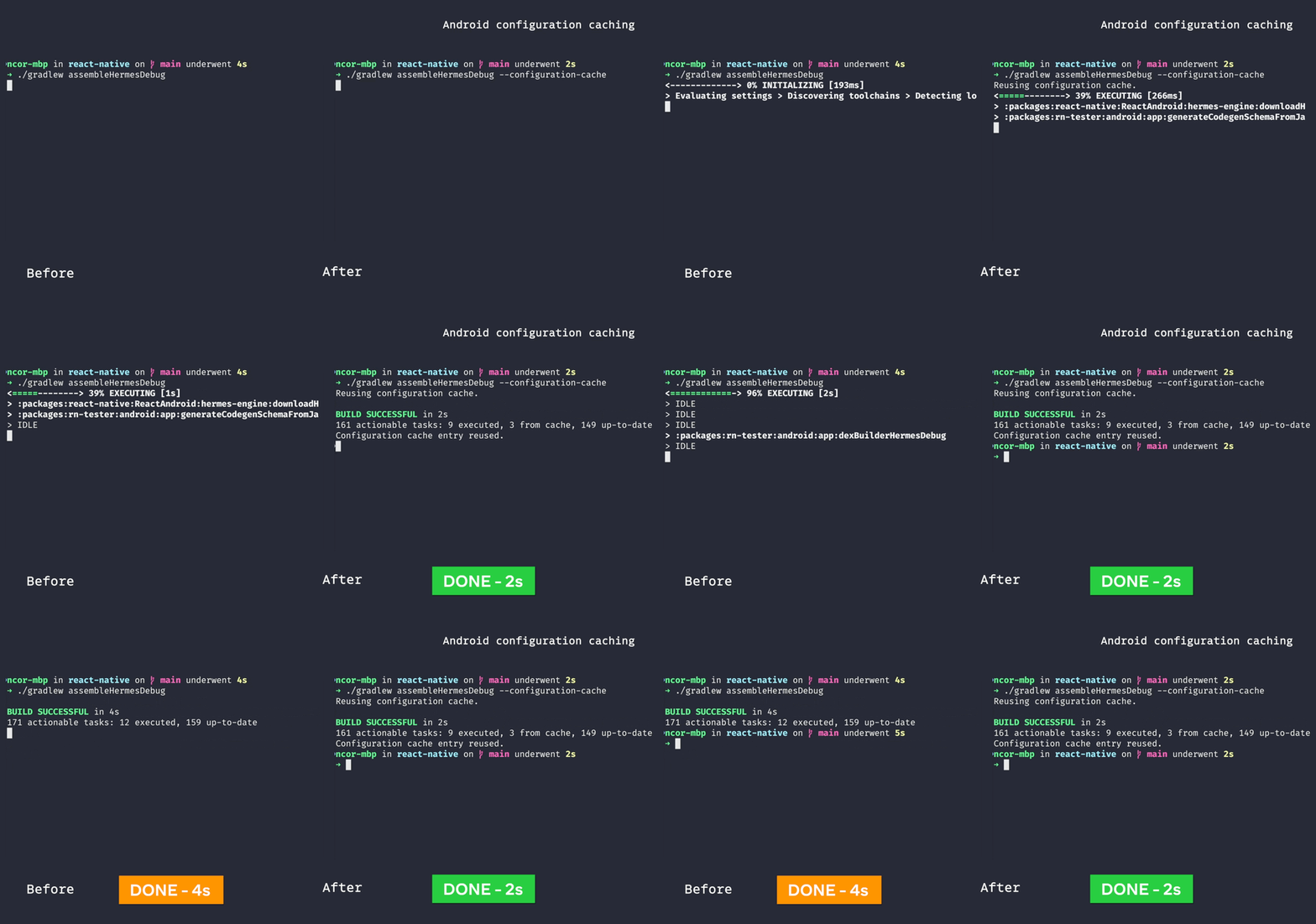
You can enable Gradle Configuration Caching by adding the following line in your `android/gradle.properties` file:
```
org.gradle.configuration-cache=true
```
Please refer to the [official Gradle documentation](https://docs.gradle.org/current/userguide/configuration_cache.html) for more resources on Configuration Caching.
## Using a Maven Mirror (Android-only)[](#using-a-maven-mirror-android-only "Direct link to Using a Maven Mirror (Android-only)")
When building Android apps, your Gradle builds will need to download the necessary dependencies from Maven Central and other repositories from the internet.
If your organization is running a Maven repository mirror, you should consider using it as it will speed up your build, by downloading the artifacts from the mirror rather than from the internet.
You can configure a mirror by specifying the `exclusiveEnterpriseRepository` property in your `android/gradle.properties` file:
diff
```
# Use this property to enable or disable the Hermes JS engine.
# If set to false, you will be using JSC instead.
hermesEnabled=true
# Use this property to configure a Maven enterprise repository
# that will be used exclusively to fetch all of your dependencies.
+exclusiveEnterpriseRepository=https://my.internal.proxy.net/
```
By setting this property, your build will fetch dependencies **exclusively** from your specified repository and not from others.
## Use a compiler cache[](#use-a-compiler-cache "Direct link to Use a compiler cache")
If you're running frequent native builds (either C++ or Objective-C), you might benefit from using a **compiler cache**.
Specifically you can use two type of caches: local compiler caches and distributed compiler caches.
### Local caches[](#local-caches "Direct link to Local caches")
info
The following instructions will work for **both Android & iOS**. If you're building only Android apps, you should be good to go. If you're building also iOS apps, please follow the instructions in the [Xcode Specific Setup](#xcode-specific-setup) section below.
We suggest to use [**ccache**](https://ccache.dev/) to cache the compilation of your native builds. Ccache works by wrapping the C++ compilers, storing the compilation results, and skipping the compilation if an intermediate compilation result was originally stored.
Ccache is available in the package manager for most operating systems. On macOS, we can install ccache with `brew install ccache`. Or you can follow the [official installation instructions](https://github.com/ccache/ccache/blob/master/doc/install.md) to install from source.
You can then do two clean builds (e.g. on Android you can first run `yarn react-native run-android`, delete the `android/app/build` folder and run the first command once more). You will notice that the second build was way faster than the first one (it should take seconds rather than minutes). While building, you can verify that `ccache` works correctly and check the cache hits/miss rate `ccache -s`
```
$ ccache -s
Summary:
Hits: 196 / 3068 (6.39 %)
Direct: 0 / 3068 (0.00 %)
Preprocessed: 196 / 3068 (6.39 %)
Misses: 2872
Direct: 3068
Preprocessed: 2872
Uncacheable: 1
Primary storage:
Hits: 196 / 6136 (3.19 %)
Misses: 5940
Cache size (GB): 0.60 / 20.00 (3.00 %)
```
Note that `ccache` aggregates the stats over all builds. You can use `ccache --zero-stats` to reset them before a build to verify the cache-hit ratio.
Should you need to wipe your cache, you can do so with `ccache --clear`
#### Xcode Specific Setup[](#xcode-specific-setup "Direct link to Xcode Specific Setup")
To make sure `ccache` works correctly with iOS and Xcode, you need to enable React Native support for ccache in `ios/Podfile`.
Open `ios/Podfile` in your editor and uncomment the `ccache_enabled` line.
ruby
```
post_install do |installer|
# https://github.com/facebook/react-native/blob/main/packages/react-native/scripts/react_native_pods.rb#L197-L202
react_native_post_install(
installer,
config[:reactNativePath],
:mac_catalyst_enabled => false,
# TODO: Uncomment the line below
:ccache_enabled => true
)
end
```
#### Using this approach on a CI[](#using-this-approach-on-a-ci "Direct link to Using this approach on a CI")
Ccache uses the `/Users/$USER/Library/Caches/ccache` folder on macOS to store the cache. Therefore you could save & restore the corresponding folder also on CI to speedup your builds.
However, there are a couple of things to be aware:
1. On CI, we recommend to do a full clean build, to avoid poisoned cache problems. If you follow the approach mentioned in the previous paragraph, you should be able to parallelize the native build on 4 different ABIs and you will most likely not need `ccache` on CI.
2. `ccache` relies on timestamps to compute a cache hit. This doesn't work well on CI as files are re-downloaded at every CI run. To overcome this, you'll need to use the `compiler_check content` option which relies instead on [hashing the content of the file](https://ccache.dev/manual/4.3.html).
### Distributed caches[](#distributed-caches "Direct link to Distributed caches")
Similar to local caches, you might want to consider using a distributed cache for your native builds. This could be specifically useful in bigger organizations that are doing frequent native builds.
We recommend to use [sccache](https://github.com/mozilla/sccache) to achieve this. We defer to the sccache [distributed compilation quickstart](https://github.com/mozilla/sccache/blob/main/docs/DistributedQuickstart.md) for instructions on how to setup and use this tool.
---
# 🗑️ Building For TV Devices
TV devices support has been implemented with the intention of making existing React Native applications work on Apple TV and Android TV, with few or no changes needed in the JavaScript code for the applications.
Deprecated
TV support has moved to the [React Native for TV](https://github.com/react-native-tvos/react-native-tvos#readme) repository. Please see the **README** there for information on projects for Apple TV or Android TV.
---
# Button
A basic button component that should render nicely on any platform. Supports a minimal level of customization.
If this button doesn't look right for your app, you can build your own button using [Pressable](/docs/pressable.md). For inspiration, look at the [source code for the Button component](https://github.com/facebook/react-native/blob/main/packages/react-native/Libraries/Components/Button.js).
tsx
```
```
## Example[](#example "Direct link to Example")
***
# Reference
## Props[](#props "Direct link to Props")
### Required**`onPress`**[](#requiredonpress "Direct link to requiredonpress")
Handler to be called when the user taps the button.
| Type |
| ----------------------------- |
| `({nativeEvent: PressEvent})` |
***
### Required**`title`**[](#requiredtitle "Direct link to requiredtitle")
Text to display inside the button. On Android the given title will be converted to the uppercased form.
| Type |
| ------ |
| string |
***
### `accessibilityLabel`[](#accessibilitylabel "Direct link to accessibilitylabel")
Text to display for blindness accessibility features.
| Type |
| ------ |
| string |
***
### `accessibilityLanguage`iOS[](#accessibilitylanguage-ios "Direct link to accessibilitylanguage-ios")
A value indicating which language should be used by the screen reader when the user interacts with the element. It should follow the [BCP 47 specification](https://www.rfc-editor.org/info/bcp47).
See the [iOS `accessibilityLanguage` doc](https://developer.apple.com/documentation/objectivec/nsobject/1615192-accessibilitylanguage) for more information.
| Type |
| ------ |
| string |
***
### `accessibilityActions`[](#accessibilityactions "Direct link to accessibilityactions")
Accessibility actions allow an assistive technology to programmatically invoke the actions of a component. The `accessibilityActions` property should contain a list of action objects. Each action object should contain the field name and label.
See the [Accessibility guide](/docs/accessibility.md#accessibility-actions) for more information.
| Type | Required |
| ----- | -------- |
| array | No |
***
### `onAccessibilityAction`[](#onaccessibilityaction "Direct link to onaccessibilityaction")
Invoked when the user performs the accessibility actions. The only argument to this function is an event containing the name of the action to perform.
See the [Accessibility guide](/docs/accessibility.md#accessibility-actions) for more information.
| Type | Required |
| -------- | -------- |
| function | No |
***
### `color`[](#color "Direct link to color")
Color of the text (iOS), or background color of the button (Android).
| Type | Default |
| ------------------------ | ----------------------------------- |
| [color](/docs/colors.md) | `'#2196F3'`Android***`'#007AFF'`iOS |
***
### `disabled`[](#disabled "Direct link to disabled")
If `true`, disable all interactions for this component.
| Type | Default |
| ---- | ------- |
| bool | `false` |
***
### `hasTVPreferredFocus`TV[](#hastvpreferredfocus-tv "Direct link to hastvpreferredfocus-tv")
TV preferred focus.
| Type | Default |
| ---- | ------- |
| bool | `false` |
***
### `nextFocusDown`AndroidTV[](#nextfocusdown-androidtv "Direct link to nextfocusdown-androidtv")
Designates the next view to receive focus when the user navigates down. See the [Android documentation](https://developer.android.com/reference/android/view/View.html#attr_android:nextFocusDown).
| Type |
| ------ |
| number |
***
### `nextFocusForward`AndroidTV[](#nextfocusforward-androidtv "Direct link to nextfocusforward-androidtv")
Designates the next view to receive focus when the user navigates forward. See the [Android documentation](https://developer.android.com/reference/android/view/View.html#attr_android:nextFocusForward).
| Type |
| ------ |
| number |
***
### `nextFocusLeft`AndroidTV[](#nextfocusleft-androidtv "Direct link to nextfocusleft-androidtv")
Designates the next view to receive focus when the user navigates left. See the [Android documentation](https://developer.android.com/reference/android/view/View.html#attr_android:nextFocusLeft).
| Type |
| ------ |
| number |
***
### `nextFocusRight`AndroidTV[](#nextfocusright-androidtv "Direct link to nextfocusright-androidtv")
Designates the next view to receive focus when the user navigates right. See the [Android documentation](https://developer.android.com/reference/android/view/View.html#attr_android:nextFocusRight).
| Type |
| ------ |
| number |
***
### `nextFocusUp`AndroidTV[](#nextfocusup-androidtv "Direct link to nextfocusup-androidtv")
Designates the next view to receive focus when the user navigates up. See the [Android documentation](https://developer.android.com/reference/android/view/View.html#attr_android:nextFocusUp).
| Type |
| ------ |
| number |
***
### `testID`[](#testid "Direct link to testid")
Used to locate this view in end-to-end tests.
| Type |
| ------ |
| string |
***
### `touchSoundDisabled`Android[](#touchsounddisabled-android "Direct link to touchsounddisabled-android")
If `true`, doesn't play system sound on touch.
| Type | Default |
| ------- | ------- |
| boolean | `false` |
---
# ❌ CheckBox
Removed from React Native
Use one of the [community packages](https://reactnative.directory/?search=checkbox) instead.
---
# ❌ Clipboard
Removed from React Native
Use one of the [community packages](https://reactnative.directory/?search=clipboard) instead.
---
# Color Reference
Components in React Native are [styled using JavaScript](/docs/style.md). Color properties usually match how [CSS works on the web](https://developer.mozilla.org/en-US/docs/Web/CSS/color_value). General guides on the color usage on each platform could be found below:
* [Android](https://material.io/design/color/color-usage.html)
* [iOS](https://developer.apple.com/design/human-interface-guidelines/ios/visual-design/color/)
## Color APIs[](#color-apis "Direct link to Color APIs")
React Native has several color APIs designed to allow you to take full advantage of your platform's design and user preferences.
* [PlatformColor](/docs/platformcolor.md) lets you reference the platform's color system.
* [DynamicColorIOS](/docs/dynamiccolorios.md) is iOS specific and allows you to specify which colors should be used in light or Dark Mode.
## Color representations[](#color-representations "Direct link to Color representations")
### Red Green Blue (RGB)[](#red-green-blue-rgb "Direct link to Red Green Blue (RGB)")
React Native supports `rgb()` and `rgba()` in both hexadecimal and functional notation:
* `'#f0f'` (#rgb)
* `'#ff00ff'` (#rrggbb)
* `'#f0ff'` (#rgba)
* `'#ff00ff00'` (#rrggbbaa)
* `'rgb(255, 0, 255)'`
* `'rgb(255 0 255)'`
* `'rgba(255, 0, 255, 1.0)'`
* `'rgba(255 0 255 / 1.0)'`
### Hue Saturation Lightness (HSL)[](#hue-saturation-lightness-hsl "Direct link to Hue Saturation Lightness (HSL)")
React Native supports `hsl()` and `hsla()` in functional notation:
* `'hsl(360, 100%, 100%)'`
* `'hsl(360 100% 100%)'`
* `'hsla(360, 100%, 100%, 1.0)'`
* `'hsla(360 100% 100% / 1.0)'`
### Hue Whiteness Blackness (HWB)[](#hue-whiteness-blackness-hwb "Direct link to Hue Whiteness Blackness (HWB)")
React Native supports `hwb()` in functional notation:
* `'hwb(0, 0%, 100%)'`
* `'hwb(360, 100%, 100%)'`
* `'hwb(0 0% 0%)'`
* `'hwb(70 50% 0%)'`
### Color ints[](#color-ints "Direct link to Color ints")
React Native also supports colors as an `int` values (in RGB color mode):
* `0xff00ff00` (0xrrggbbaa)
caution
This might appear similar to the Android [Color](https://developer.android.com/reference/android/graphics/Color) ints representation but on Android values are stored in SRGB color mode (0xaarrggbb).
### Named colors[](#named-colors "Direct link to Named colors")
In React Native you can also use color name strings as values.
info
React Native only supports lowercase color names. Uppercase color names are not supported.
#### `transparent`[](#transparent "Direct link to transparent")
This is a shortcut for `rgba(0,0,0,0)`, same like in [CSS3](https://www.w3.org/TR/css-color-3/#transparent).
#### Color keywords[](#color-keywords "Direct link to Color keywords")
Named colors implementation follows the [CSS3/SVG specification](https://www.w3.org/TR/css-color-3/#svg-color):
* aliceblue (`#f0f8ff`)
* antiquewhite (`#faebd7`)
* aqua (`#00ffff`)
* aquamarine (`#7fffd4`)
* azure (`#f0ffff`)
* beige (`#f5f5dc`)
* bisque (`#ffe4c4`)
* black (`#000000`)
* blanchedalmond (`#ffebcd`)
* blue (`#0000ff`)
* blueviolet (`#8a2be2`)
* brown (`#a52a2a`)
* burlywood (`#deb887`)
* cadetblue (`#5f9ea0`)
* chartreuse (`#7fff00`)
* chocolate (`#d2691e`)
* coral (`#ff7f50`)
* cornflowerblue (`#6495ed`)
* cornsilk (`#fff8dc`)
* crimson (`#dc143c`)
* cyan (`#00ffff`)
* darkblue (`#00008b`)
* darkcyan (`#008b8b`)
* darkgoldenrod (`#b8860b`)
* darkgray (`#a9a9a9`)
* darkgreen (`#006400`)
* darkgrey (`#a9a9a9`)
* darkkhaki (`#bdb76b`)
* darkmagenta (`#8b008b`)
* darkolivegreen (`#556b2f`)
* darkorange (`#ff8c00`)
* darkorchid (`#9932cc`)
* darkred (`#8b0000`)
* darksalmon (`#e9967a`)
* darkseagreen (`#8fbc8f`)
* darkslateblue (`#483d8b`)
* darkslategrey (`#2f4f4f`)
* darkturquoise (`#00ced1`)
* darkviolet (`#9400d3`)
* deeppink (`#ff1493`)
* deepskyblue (`#00bfff`)
* dimgray (`#696969`)
* dimgrey (`#696969`)
* dodgerblue (`#1e90ff`)
* firebrick (`#b22222`)
* floralwhite (`#fffaf0`)
* forestgreen (`#228b22`)
* fuchsia (`#ff00ff`)
* gainsboro (`#dcdcdc`)
* ghostwhite (`#f8f8ff`)
* gold (`#ffd700`)
* goldenrod (`#daa520`)
* gray (`#808080`)
* green (`#008000`)
* greenyellow (`#adff2f`)
* grey (`#808080`)
* honeydew (`#f0fff0`)
* hotpink (`#ff69b4`)
* indianred (`#cd5c5c`)
* indigo (`#4b0082`)
* ivory (`#fffff0`)
* khaki (`#f0e68c`)
* lavender (`#e6e6fa`)
* lavenderblush (`#fff0f5`)
* lawngreen (`#7cfc00`)
* lemonchiffon (`#fffacd`)
* lightblue (`#add8e6`)
* lightcoral (`#f08080`)
* lightcyan (`#e0ffff`)
* lightgoldenrodyellow (`#fafad2`)
* lightgray (`#d3d3d3`)
* lightgreen (`#90ee90`)
* lightgrey (`#d3d3d3`)
* lightpink (`#ffb6c1`)
* lightsalmon (`#ffa07a`)
* lightseagreen (`#20b2aa`)
* lightskyblue (`#87cefa`)
* lightslategrey (`#778899`)
* lightsteelblue (`#b0c4de`)
* lightyellow (`#ffffe0`)
* lime (`#00ff00`)
* limegreen (`#32cd32`)
* linen (`#faf0e6`)
* magenta (`#ff00ff`)
* maroon (`#800000`)
* mediumaquamarine (`#66cdaa`)
* mediumblue (`#0000cd`)
* mediumorchid (`#ba55d3`)
* mediumpurple (`#9370db`)
* mediumseagreen (`#3cb371`)
* mediumslateblue (`#7b68ee`)
* mediumspringgreen (`#00fa9a`)
* mediumturquoise (`#48d1cc`)
* mediumvioletred (`#c71585`)
* midnightblue (`#191970`)
* mintcream (`#f5fffa`)
* mistyrose (`#ffe4e1`)
* moccasin (`#ffe4b5`)
* navajowhite (`#ffdead`)
* navy (`#000080`)
* oldlace (`#fdf5e6`)
* olive (`#808000`)
* olivedrab (`#6b8e23`)
* orange (`#ffa500`)
* orangered (`#ff4500`)
* orchid (`#da70d6`)
* palegoldenrod (`#eee8aa`)
* palegreen (`#98fb98`)
* paleturquoise (`#afeeee`)
* palevioletred (`#db7093`)
* papayawhip (`#ffefd5`)
* peachpuff (`#ffdab9`)
* peru (`#cd853f`)
* pink (`#ffc0cb`)
* plum (`#dda0dd`)
* powderblue (`#b0e0e6`)
* purple (`#800080`)
* rebeccapurple (`#663399`)
* red (`#ff0000`)
* rosybrown (`#bc8f8f`)
* royalblue (`#4169e1`)
* saddlebrown (`#8b4513`)
* salmon (`#fa8072`)
* sandybrown (`#f4a460`)
* seagreen (`#2e8b57`)
* seashell (`#fff5ee`)
* sienna (`#a0522d`)
* silver (`#c0c0c0`)
* skyblue (`#87ceeb`)
* slateblue (`#6a5acd`)
* slategray (`#708090`)
* snow (`#fffafa`)
* springgreen (`#00ff7f`)
* steelblue (`#4682b4`)
* tan (`#d2b48c`)
* teal (`#008080`)
* thistle (`#d8bfd8`)
* tomato (`#ff6347`)
* turquoise (`#40e0d0`)
* violet (`#ee82ee`)
* wheat (`#f5deb3`)
* white (`#ffffff`)
* whitesmoke (`#f5f5f5`)
* yellow (`#ffff00`)
* yellowgreen (`#9acd32`)
---
# Communication between native and React Native
In [Integrating with Existing Apps guide](/docs/integration-with-existing-apps.md) and [Native UI Components guide](/docs/legacy/native-components-android.md) we learn how to embed React Native in a native component and vice versa. When we mix native and React Native components, we'll eventually find a need to communicate between these two worlds. Some ways to achieve that have been already mentioned in other guides. This article summarizes available techniques.
## Introduction[](#introduction "Direct link to Introduction")
React Native is inspired by React, so the basic idea of the information flow is similar. The flow in React is one-directional. We maintain a hierarchy of components, in which each component depends only on its parent and its own internal state. We do this with properties: data is passed from a parent to its children in a top-down manner. If an ancestor component relies on the state of its descendant, one should pass down a callback to be used by the descendant to update the ancestor.
The same concept applies to React Native. As long as we are building our application purely within the framework, we can drive our app with properties and callbacks. But, when we mix React Native and native components, we need some specific, cross-language mechanisms that would allow us to pass information between them.
## Properties[](#properties "Direct link to Properties")
Properties are the most straightforward way of cross-component communication. So we need a way to pass properties both from native to React Native, and from React Native to native.
### Passing properties from native to React Native[](#passing-properties-from-native-to-react-native "Direct link to Passing properties from native to React Native")
You can pass properties down to the React Native app by providing a custom implementation of `ReactActivityDelegate` in your main activity. This implementation should override `getLaunchOptions` to return a `Bundle` with the desired properties.
* Java
* Kotlin
java
```
public class MainActivity extends ReactActivity {
@Override
protected ReactActivityDelegate createReactActivityDelegate() {
return new ReactActivityDelegate(this, getMainComponentName()) {
@Override
protected Bundle getLaunchOptions() {
Bundle initialProperties = new Bundle();
ArrayList imageList = new ArrayList(Arrays.asList(
"https://dummyimage.com/600x400/ffffff/000000.png",
"https://dummyimage.com/600x400/000000/ffffff.png"
));
initialProperties.putStringArrayList("images", imageList);
return initialProperties;
}
};
}
}
```
kotlin
```
class MainActivity : ReactActivity() {
override fun createReactActivityDelegate(): ReactActivityDelegate {
return object : ReactActivityDelegate(this, mainComponentName) {
override fun getLaunchOptions(): Bundle {
val imageList = arrayListOf("https://dummyimage.com/600x400/ffffff/000000.png", "https://dummyimage.com/600x400/000000/ffffff.png")
val initialProperties = Bundle().apply { putStringArrayList("images", imageList) }
return initialProperties
}
}
}
}
```
tsx
```
import React from 'react';
import {View, Image} from 'react-native';
export default class ImageBrowserApp extends React.Component {
renderImage(imgURI) {
return ;
}
render() {
return {this.props.images.map(this.renderImage)};
}
}
```
`ReactRootView` provides a read-write property `appProperties`. After `appProperties` is set, the React Native app is re-rendered with new properties. The update is only performed when the new updated properties differ from the previous ones.
* Java
* Kotlin
java
```
Bundle updatedProps = mReactRootView.getAppProperties();
ArrayList imageList = new ArrayList(Arrays.asList(
"https://dummyimage.com/600x400/ff0000/000000.png",
"https://dummyimage.com/600x400/ffffff/ff0000.png"
));
updatedProps.putStringArrayList("images", imageList);
mReactRootView.setAppProperties(updatedProps);
```
kotlin
```
var updatedProps: Bundle = reactRootView.getAppProperties()
var imageList = arrayListOf("https://dummyimage.com/600x400/ff0000/000000.png", "https://dummyimage.com/600x400/ffffff/ff0000.png")
```
It is fine to update properties anytime. However, updates have to be performed on the main thread. You use the getter on any thread.
There is no way to update only a few properties at a time. We suggest that you build it into your own wrapper instead.
info
Currently, JS function `componentWillUpdateProps` of the top level RN component will not be called after a prop update. However, you can access the new props in `componentDidMount` function.
### Passing properties from React Native to native[](#passing-properties-from-react-native-to-native "Direct link to Passing properties from React Native to native")
The problem exposing properties of native components is covered in detail in [this article](/docs/legacy/native-components-android.md#3-expose-view-property-setters-using-reactprop-or-reactpropgroup-annotation). In short, properties that are to be reflected in JavaScript needs to be exposed as setter method annotated with `@ReactProp`, then use them in React Native as if the component was an ordinary React Native component.
### Limits of properties[](#limits-of-properties "Direct link to Limits of properties")
The main drawback of cross-language properties is that they do not support callbacks, which would allow us to handle bottom-up data bindings. Imagine you have a small RN view that you want to be removed from the native parent view as a result of a JS action. There is no way to do that with props, as the information would need to go bottom-up.
Although we have a flavor of cross-language callbacks ([described here](/docs/legacy/native-modules-android.md#callbacks)), these callbacks are not always the thing we need. The main problem is that they are not intended to be passed as properties. Rather, this mechanism allows us to trigger a native action from JS, and handle the result of that action in JS.
## Other ways of cross-language interaction (events and native modules)[](#other-ways-of-cross-language-interaction-events-and-native-modules "Direct link to Other ways of cross-language interaction (events and native modules)")
As stated in the previous chapter, using properties comes with some limitations. Sometimes properties are not enough to drive the logic of our app and we need a solution that gives more flexibility. This chapter covers other communication techniques available in React Native. They can be used for internal communication (between JS and native layers in RN) as well as for external communication (between RN and the 'pure native' part of your app).
React Native enables you to perform cross-language function calls. You can execute custom native code from JS and vice versa. Unfortunately, depending on the side we are working on, we achieve the same goal in different ways. For native - we use events mechanism to schedule an execution of a handler function in JS, while for React Native we directly call methods exported by native modules.
### Calling React Native functions from native (events)[](#calling-react-native-functions-from-native-events "Direct link to Calling React Native functions from native (events)")
Events are described in detail in [this article](/docs/legacy/native-components-android.md#events). Note that using events gives us no guarantees about execution time, as the event is handled on a separate thread.
Events are powerful, because they allow us to change React Native components without needing a reference to them. However, there are some pitfalls that you can fall into while using them:
* As events can be sent from anywhere, they can introduce spaghetti-style dependencies into your project.
* Events share namespace, which means that you may encounter some name collisions. Collisions will not be detected statically, which makes them hard to debug.
* If you use several instances of the same React Native component and you want to distinguish them from the perspective of your event, you'll likely need to introduce identifiers and pass them along with events (you can use the native view's `reactTag` as an identifier).
### Calling native functions from React Native (native modules)[](#calling-native-functions-from-react-native-native-modules "Direct link to Calling native functions from React Native (native modules)")
Native modules are Java/Kotlin classes that are available in JS. Typically one instance of each module is created per JS bridge. They can export arbitrary functions and constants to React Native. They have been covered in detail in [this article](/docs/legacy/native-modules-android.md).
warning
All native modules share the same namespace. Watch out for name collisions when creating new ones.
---
# Communication between native and React Native
In [Integrating with Existing Apps guide](/docs/integration-with-existing-apps.md) and [Native UI Components guide](/docs/legacy/native-components-ios.md) we learn how to embed React Native in a native component and vice versa. When we mix native and React Native components, we'll eventually find a need to communicate between these two worlds. Some ways to achieve that have been already mentioned in other guides. This article summarizes available techniques.
## Introduction[](#introduction "Direct link to Introduction")
React Native is inspired by React, so the basic idea of the information flow is similar. The flow in React is one-directional. We maintain a hierarchy of components, in which each component depends only on its parent and its own internal state. We do this with properties: data is passed from a parent to its children in a top-down manner. If an ancestor component relies on the state of its descendant, one should pass down a callback to be used by the descendant to update the ancestor.
The same concept applies to React Native. As long as we are building our application purely within the framework, we can drive our app with properties and callbacks. But, when we mix React Native and native components, we need some specific, cross-language mechanisms that would allow us to pass information between them.
## Properties[](#properties "Direct link to Properties")
Properties are the most straightforward way of cross-component communication. So we need a way to pass properties both from native to React Native, and from React Native to native.
### Passing properties from native to React Native[](#passing-properties-from-native-to-react-native "Direct link to Passing properties from native to React Native")
In order to embed a React Native view in a native component, we use `RCTRootView`. `RCTRootView` is a `UIView` that holds a React Native app. It also provides an interface between native side and the hosted app.
`RCTRootView` has an initializer that allows you to pass arbitrary properties down to the React Native app. The `initialProperties` parameter has to be an instance of `NSDictionary`. The dictionary is internally converted into a JSON object that the top-level JS component can reference.
objectivec
```
NSArray *imageList = @[@"https://dummyimage.com/600x400/ffffff/000000.png",
@"https://dummyimage.com/600x400/000000/ffffff.png"];
NSDictionary *props = @{@"images" : imageList};
RCTRootView *rootView = [[RCTRootView alloc] initWithBridge:bridge
moduleName:@"ImageBrowserApp"
initialProperties:props];
```
tsx
```
import React from 'react';
import {View, Image} from 'react-native';
export default class ImageBrowserApp extends React.Component {
renderImage(imgURI) {
return ;
}
render() {
return {this.props.images.map(this.renderImage)};
}
}
```
`RCTRootView` also provides a read-write property `appProperties`. After `appProperties` is set, the React Native app is re-rendered with new properties. The update is only performed when the new updated properties differ from the previous ones.
objectivec
```
NSArray *imageList = @[@"https://dummyimage.com/600x400/ff0000/000000.png",
@"https://dummyimage.com/600x400/ffffff/ff0000.png"];
rootView.appProperties = @{@"images" : imageList};
```
It is fine to update properties anytime. However, updates have to be performed on the main thread. You use the getter on any thread.
note
Currently, there is a known issue where setting appProperties during the bridge startup, the change can be lost. See for more information.
There is no way to update only a few properties at a time. We suggest that you build it into your own wrapper instead.
### Passing properties from React Native to native[](#passing-properties-from-react-native-to-native "Direct link to Passing properties from React Native to native")
The problem exposing properties of native components is covered in detail in [this article](/docs/legacy/native-components-ios.md#properties). In short, export properties with `RCT_CUSTOM_VIEW_PROPERTY` macro in your custom native component, then use them in React Native as if the component was an ordinary React Native component.
### Limits of properties[](#limits-of-properties "Direct link to Limits of properties")
The main drawback of cross-language properties is that they do not support callbacks, which would allow us to handle bottom-up data bindings. Imagine you have a small RN view that you want to be removed from the native parent view as a result of a JS action. There is no way to do that with props, as the information would need to go bottom-up.
Although we have a flavor of cross-language callbacks ([described here](/docs/legacy/native-modules-ios.md#callbacks)), these callbacks are not always the thing we need. The main problem is that they are not intended to be passed as properties. Rather, this mechanism allows us to trigger a native action from JS, and handle the result of that action in JS.
## Other ways of cross-language interaction (events and native modules)[](#other-ways-of-cross-language-interaction-events-and-native-modules "Direct link to Other ways of cross-language interaction (events and native modules)")
As stated in the previous chapter, using properties comes with some limitations. Sometimes properties are not enough to drive the logic of our app and we need a solution that gives more flexibility. This chapter covers other communication techniques available in React Native. They can be used for internal communication (between JS and native layers in RN) as well as for external communication (between RN and the 'pure native' part of your app).
React Native enables you to perform cross-language function calls. You can execute custom native code from JS and vice versa. Unfortunately, depending on the side we are working on, we achieve the same goal in different ways. For native - we use events mechanism to schedule an execution of a handler function in JS, while for React Native we directly call methods exported by native modules.
### Calling React Native functions from native (events)[](#calling-react-native-functions-from-native-events "Direct link to Calling React Native functions from native (events)")
Events are described in detail in [this article](/docs/legacy/native-components-ios.md#events). Note that using events gives us no guarantees about execution time, as the event is handled on a separate thread.
Events are powerful, because they allow us to change React Native components without needing a reference to them. However, there are some pitfalls that you can fall into while using them:
* As events can be sent from anywhere, they can introduce spaghetti-style dependencies into your project.
* Events share namespace, which means that you may encounter some name collisions. Collisions will not be detected statically, which makes them hard to debug.
* If you use several instances of the same React Native component and you want to distinguish them from the perspective of your event, you'll likely need to introduce identifiers and pass them along with events (you can use the native view's `reactTag` as an identifier).
The common pattern we use when embedding native in React Native is to make the native component's RCTViewManager a delegate for the views, sending events back to JavaScript via the bridge. This keeps related event calls in one place.
### Calling native functions from React Native (native modules)[](#calling-native-functions-from-react-native-native-modules "Direct link to Calling native functions from React Native (native modules)")
Native modules are Objective-C classes that are available in JS. Typically one instance of each module is created per JS bridge. They can export arbitrary functions and constants to React Native. They have been covered in detail in [this article](/docs/legacy/native-modules-ios.md#content).
The fact that native modules are singletons limits the mechanism in the context of embedding. Let's say we have a React Native component embedded in a native view and we want to update the native, parent view. Using the native module mechanism, we would export a function that not only takes expected arguments, but also an identifier of the parent native view. The identifier would be used to retrieve a reference to the parent view to update. That said, we would need to keep a mapping from identifiers to native views in the module.
Although this solution is complex, it is used in `RCTUIManager`, which is an internal React Native class that manages all React Native views.
Native modules can also be used to expose existing native libraries to JS. The [Geolocation library](https://github.com/michalchudziak/react-native-geolocation) is a living example of the idea.
caution
All native modules share the same namespace. Watch out for name collisions when creating new ones.
## Layout computation flow[](#layout-computation-flow "Direct link to Layout computation flow")
When integrating native and React Native, we also need a way to consolidate two different layout systems. This section covers common layout problems and provides a brief description of mechanisms to address them.
### Layout of a native component embedded in React Native[](#layout-of-a-native-component-embedded-in-react-native "Direct link to Layout of a native component embedded in React Native")
This case is covered in [this article](/docs/legacy/native-components-ios.md#styles). To summarize, since all our native react views are subclasses of `UIView`, most style and size attributes will work like you would expect out of the box.
### Layout of a React Native component embedded in native[](#layout-of-a-react-native-component-embedded-in-native "Direct link to Layout of a React Native component embedded in native")
#### React Native content with fixed size[](#react-native-content-with-fixed-size "Direct link to React Native content with fixed size")
The general scenario is when we have a React Native app with a fixed size, which is known to the native side. In particular, a full-screen React Native view falls into this case. If we want a smaller root view, we can explicitly set RCTRootView's frame.
For instance, to make an RN app 200 (logical) pixels high, and the hosting view's width wide, we could do:
SomeViewController.m
```
- (void)viewDidLoad
{
[...]
RCTRootView *rootView = [[RCTRootView alloc] initWithBridge:bridge
moduleName:appName
initialProperties:props];
rootView.frame = CGRectMake(0, 0, self.view.width, 200);
[self.view addSubview:rootView];
}
```
When we have a fixed size root view, we need to respect its bounds on the JS side. In other words, we need to ensure that the React Native content can be contained within the fixed-size root view. The easiest way to ensure this is to use Flexbox layout. If you use absolute positioning, and React components are visible outside the root view's bounds, you'll get overlap with native views, causing some features to behave unexpectedly. For instance, 'TouchableHighlight' will not highlight your touches outside the root view's bounds.
It's totally fine to update root view's size dynamically by re-setting its frame property. React Native will take care of the content's layout.
#### React Native content with flexible size[](#react-native-content-with-flexible-size "Direct link to React Native content with flexible size")
In some cases we'd like to render content of initially unknown size. Let's say the size will be defined dynamically in JS. We have two solutions to this problem.
1. You can wrap your React Native view in a `ScrollView` component. This guarantees that your content will always be available and it won't overlap with native views.
2. React Native allows you to determine, in JS, the size of the RN app and provide it to the owner of the hosting `RCTRootView`. The owner is then responsible for re-laying out the subviews and keeping the UI consistent. We achieve this with `RCTRootView`'s flexibility modes.
`RCTRootView` supports 4 different size flexibility modes:
RCTRootView\.h
```
typedef NS_ENUM(NSInteger, RCTRootViewSizeFlexibility) {
RCTRootViewSizeFlexibilityNone = 0,
RCTRootViewSizeFlexibilityWidth,
RCTRootViewSizeFlexibilityHeight,
RCTRootViewSizeFlexibilityWidthAndHeight,
};
```
`RCTRootViewSizeFlexibilityNone` is the default value, which makes a root view's size fixed (but it still can be updated with `setFrame:`). The other three modes allow us to track React Native content's size updates. For instance, setting mode to `RCTRootViewSizeFlexibilityHeight` will cause React Native to measure the content's height and pass that information back to `RCTRootView`'s delegate. An arbitrary action can be performed within the delegate, including setting the root view's frame, so the content fits. The delegate is called only when the size of the content has changed.
caution
Making a dimension flexible in both JS and native leads to undefined behavior. For example - don't make a top-level React component's width flexible (with `flexbox`) while you're using `RCTRootViewSizeFlexibilityWidth` on the hosting `RCTRootView`.
Let's look at an example.
FlexibleSizeExampleView\.m
```
- (instancetype)initWithFrame:(CGRect)frame
{
[...]
_rootView = [[RCTRootView alloc] initWithBridge:bridge
moduleName:@"FlexibilityExampleApp"
initialProperties:@{}];
_rootView.delegate = self;
_rootView.sizeFlexibility = RCTRootViewSizeFlexibilityHeight;
_rootView.frame = CGRectMake(0, 0, self.frame.size.width, 0);
}
#pragma mark - RCTRootViewDelegate
- (void)rootViewDidChangeIntrinsicSize:(RCTRootView *)rootView
{
CGRect newFrame = rootView.frame;
newFrame.size = rootView.intrinsicContentSize;
rootView.frame = newFrame;
}
```
In the example we have a `FlexibleSizeExampleView` view that holds a root view. We create the root view, initialize it and set the delegate. The delegate will handle size updates. Then, we set the root view's size flexibility to `RCTRootViewSizeFlexibilityHeight`, which means that `rootViewDidChangeIntrinsicSize:` method will be called every time the React Native content changes its height. Finally, we set the root view's width and position. Note that we set there height as well, but it has no effect as we made the height RN-dependent.
You can checkout full source code of the example [here](https://github.com/facebook/react-native/blob/main/packages/rn-tester/RNTester/NativeExampleViews/FlexibleSizeExampleView.mm).
It's fine to change root view's size flexibility mode dynamically. Changing flexibility mode of a root view will schedule a layout recalculation and the delegate `rootViewDidChangeIntrinsicSize:` method will be called once the content size is known.
note
React Native layout calculation is performed on a separate thread, while native UI view updates are done on the main thread. This may cause temporary UI inconsistencies between native and React Native. This is a known problem and our team is working on synchronizing UI updates coming from different sources.
note
React Native does not perform any layout calculations until the root view becomes a subview of some other views. If you want to hide React Native view until its dimensions are known, add the root view as a subview and make it initially hidden (use `UIView`'s `hidden` property). Then change its visibility in the delegate method.
---
# Core Components and APIs
React Native provides a number of built-in [Core Components](/docs/intro-react-native-components.md) ready for you to use in your app. You can find them all in the left sidebar (or menu above, if you are on a narrow screen). If you're not sure where to get started, take a look at the following categories:
* [Basic Components](/docs/components-and-apis.md#basic-components)
* [User Interface](/docs/components-and-apis.md#user-interface)
* [List Views](/docs/components-and-apis.md#list-views)
* [Android-specific](/docs/components-and-apis.md#android-components-and-apis)
* [iOS-specific](/docs/components-and-apis.md#ios-components-and-apis)
* [Others](/docs/components-and-apis.md#others)
You're not limited to the components and APIs bundled with React Native. React Native has a community of thousands of developers. If you're looking for a library that does something specific, please refer to [this guide about finding libraries](/docs/libraries.md#finding-libraries).
## Basic Components[](#basic-components "Direct link to Basic Components")
Most apps will end up using one or more of these basic components.
### [View](./view)
[The most fundamental component for building a UI.](./view)
### [Text](./text)
[A component for displaying text.](./text)
### [Image](./image)
[A component for displaying images.](./image)
### [TextInput](./textinput)
[A component for inputting text into the app via a keyboard.](./textinput)
### [Pressable](./pressable)
[A wrapper component that can detect various stages of press interactions on any of its children.](./pressable)
### [ScrollView](./scrollview)
[Provides a scrolling container that can host multiple components and views.](./scrollview)
### [StyleSheet](./stylesheet)
[Provides an abstraction layer similar to CSS stylesheets.](./stylesheet)
## User Interface[](#user-interface "Direct link to User Interface")
These common user interface controls will render on any platform.
### [Button](./button)
[A basic button component for handling touches that should render nicely on any platform.](./button)
### [Switch](./switch)
[Renders a boolean input.](./switch)
## List Views[](#list-views "Direct link to List Views")
Unlike the more generic [`ScrollView`](/docs/scrollview.md), the following list view components only render elements that are currently showing on the screen. This makes them a performant choice for displaying long lists of data.
### [FlatList](./flatlist)
[A component for rendering performant scrollable lists.](./flatlist)
### [SectionList](./sectionlist)
[Like `FlatList`, but for sectioned lists.](./sectionlist)
## Android Components and APIs[](#android-components-and-apis "Direct link to Android Components and APIs")
Many of the following components provide wrappers for commonly used Android classes.
### [BackHandler](./backhandler)
[Detect hardware button presses for back navigation.](./backhandler)
### [DrawerLayoutAndroid](./drawerlayoutandroid)
[Renders a `DrawerLayout` on Android.](./drawerlayoutandroid)
### [PermissionsAndroid](./permissionsandroid)
[Provides access to the permissions model introduced in Android M.](./permissionsandroid)
### [ToastAndroid](./toastandroid)
[Create an Android Toast alert.](./toastandroid)
## iOS Components and APIs[](#ios-components-and-apis "Direct link to iOS Components and APIs")
Many of the following components provide wrappers for commonly used UIKit classes.
### [ActionSheetIOS](./actionsheetios)
[API to display an iOS action sheet or share sheet.](./actionsheetios)
## Others[](#others "Direct link to Others")
These components may be useful for certain applications. For an exhaustive list of components and APIs, check out the sidebar to the left (or menu above, if you are on a narrow screen).
### [ActivityIndicator](./activityindicator)
[Displays a circular loading indicator.](./activityindicator)
### [Alert](./alert)
[Launches an alert dialog with the specified title and message.](./alert)
### [Animated](./animated)
[A library for creating fluid, powerful animations that are easy to build and maintain.](./animated)
### [Dimensions](./dimensions)
[Provides an interface for getting device dimensions.](./dimensions)
### [KeyboardAvoidingView](./keyboardavoidingview)
[Provides a view that moves out of the way of the virtual keyboard automatically.](./keyboardavoidingview)
### [Linking](./linking)
[Provides a general interface to interact with both incoming and outgoing app links.](./linking)
### [Modal](./modal)
[Provides a simple way to present content above an enclosing view.](./modal)
### [PixelRatio](./pixelratio)
[Provides access to the device pixel density.](./pixelratio)
### [RefreshControl](./refreshcontrol)
[This component is used inside a `ScrollView` to add pull to refresh functionality.](./refreshcontrol)
### [StatusBar](./statusbar)
[Component to control the app status bar.](./statusbar)
---
# ❌ DatePickerAndroid
Removed from React Native
Use one of the [community packages](https://reactnative.directory/?search=datepicker) instead.
---
# ❌ DatePickerIOS
Removed from React Native
Use one of the [community packages](https://reactnative.directory/?search=datepicker) instead.
---
# Debugging Basics
note
Debugging features, such as the Dev Menu, LogBox, and React Native DevTools are disabled in release (production) builds.
## Opening the Dev Menu[](#opening-the-dev-menu "Direct link to Opening the Dev Menu")
React Native provides an in-app developer menu providing access to debugging features. You can access the Dev Menu by shaking your device or via keyboard shortcuts:
* iOS Simulator: `Ctrl` + `Cmd ⌘` + `Z` (or Device > Shake)
* Android emulators: `Cmd ⌘` + `M` (macOS) or `Ctrl` + `M` (Windows and Linux)
Alternative (Android): `adb shell input keyevent 82`.
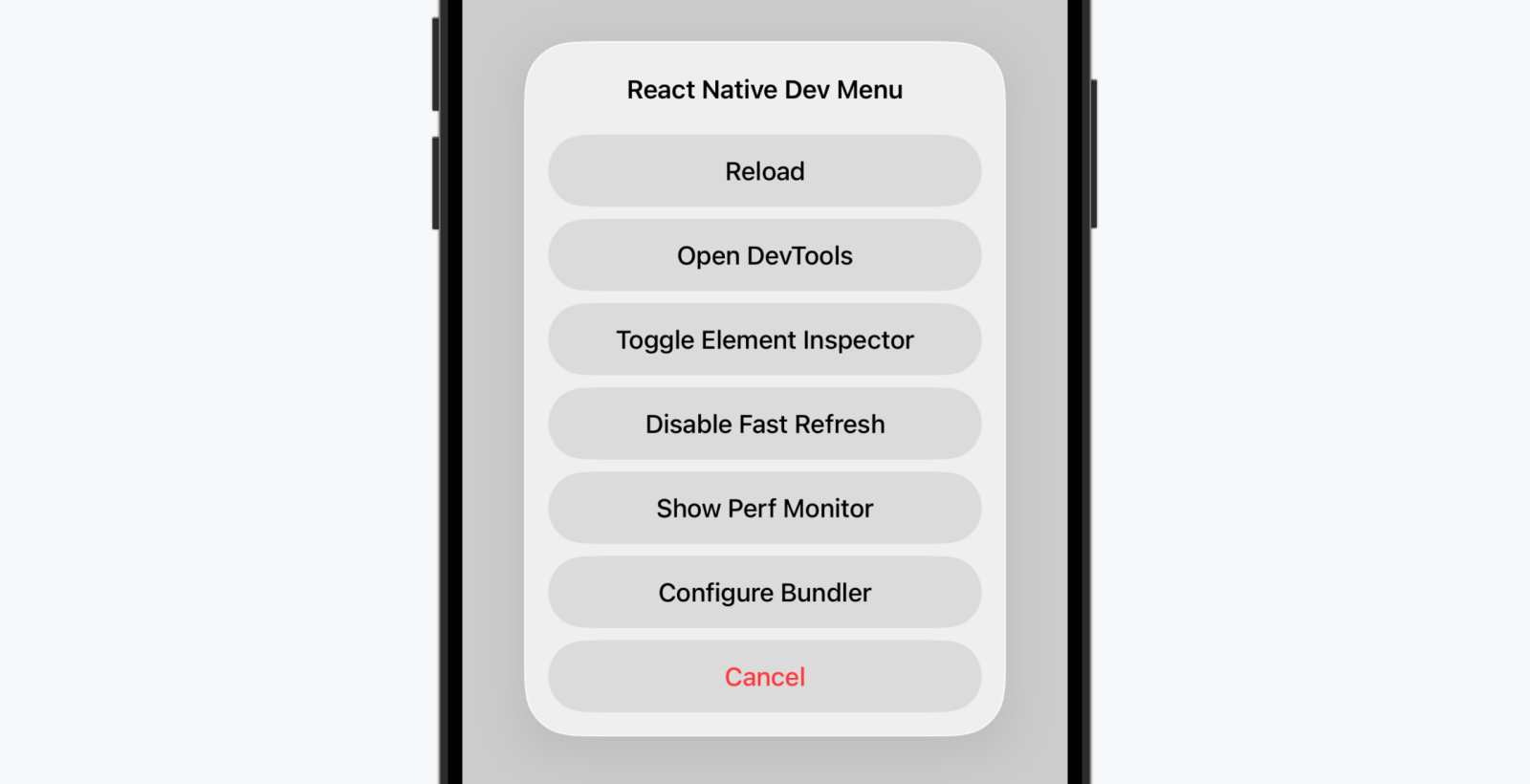
## Opening DevTools[](#opening-devtools "Direct link to Opening DevTools")
[React Native DevTools](/docs/react-native-devtools.md) is our built-in debugger for React Native. It allows you to inspect and understand how your JavaScript code is running, similar to a web browser.
To open DevTools, either:
* Select "Open DevTools" in the Dev Menu.
* Press `j` from the CLI.
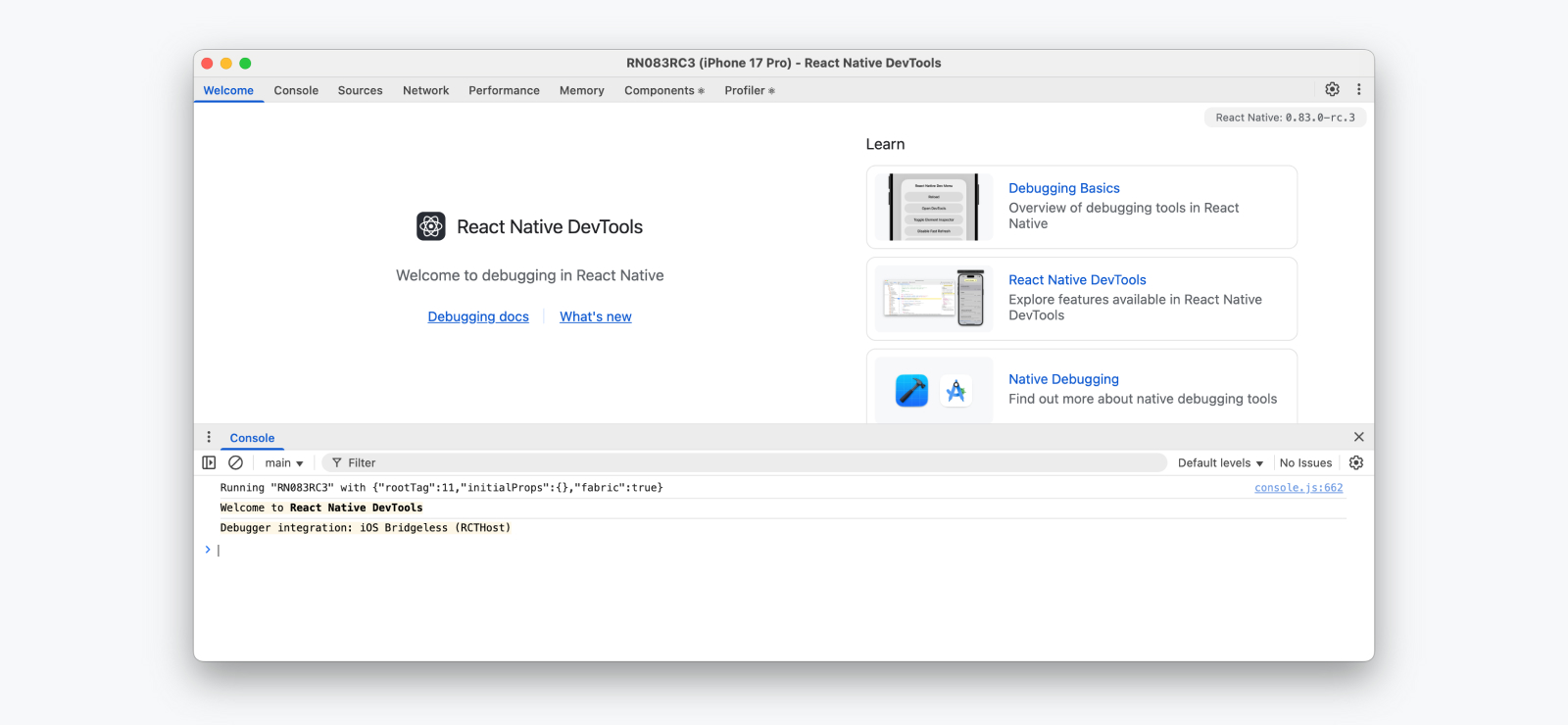
On first launch, DevTools will open to a welcome panel, along with an open console drawer where you can view logs and interact with the JavaScript runtime. From the top of the window, you can navigate to other panels, including the integrated React Components Inspector and Profiler.
Learn more in our [React Native DevTools guide](/docs/react-native-devtools.md).
## LogBox[](#logbox "Direct link to LogBox")
LogBox is an in-app tool that displays when warnings or errors are logged by your app.
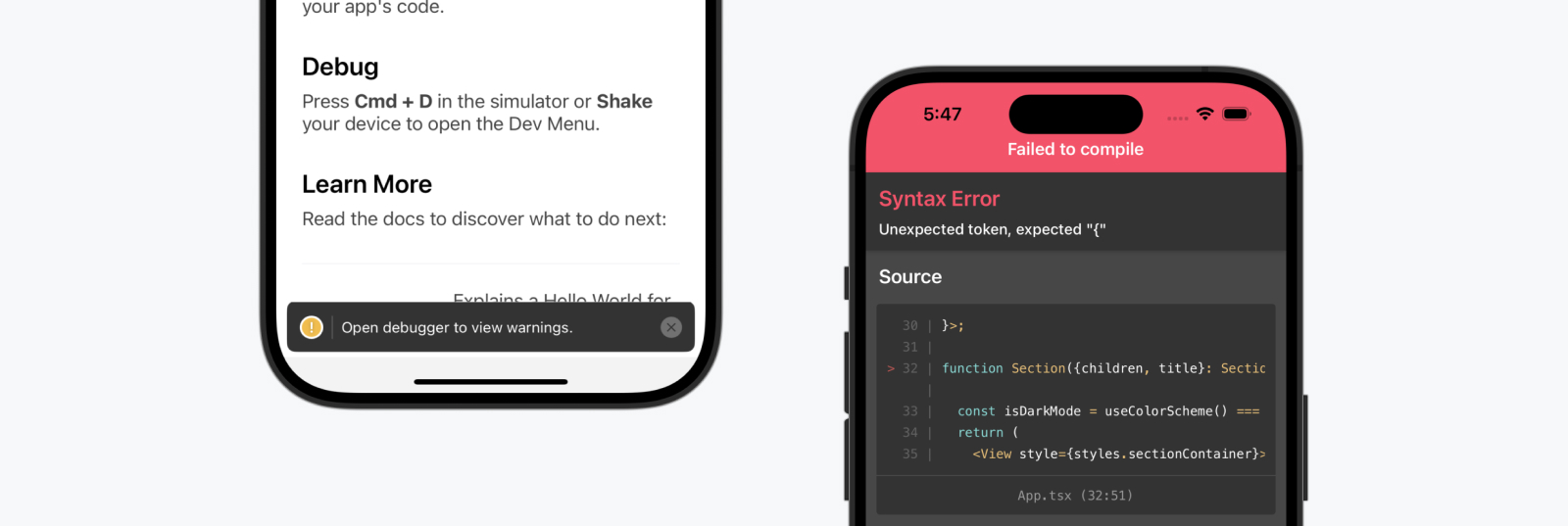
### Fatal Errors[](#fatal-errors "Direct link to Fatal Errors")
When an unrecoverable error occurs, such as a JavaScript syntax error, LogBox will open with the location of the error. In this state, LogBox is not dismissable since your code cannot be executed. LogBox will automatically dismiss once the syntax error is fixed — either via Fast Refresh or after a manual reload.
### Console Errors and Warnings[](#console-errors-and-warnings "Direct link to Console Errors and Warnings")
Console errors and warnings are displayed as on-screen notifications with a red or yellow badge.
* **Errors** will display with a notification count. Tap the notification to see an expanded view and to paginate through other logs.
* **Warnings** will display a notification banner without details, prompting you to open React Native DevTools.
When React Native DevTools is open, all errors except fatal errors will be hidden to LogBox. We recommend using the Console panel within React Native DevTools as a source of truth, due to various LogBox options which can hide or adjust the level of certain logs.
**💡 Ignoring logs**
LogBox can be configured via the `LogBox` API.
js
```
import {LogBox} from 'react-native';
```
#### Ignore all logs[](#ignore-all-logs "Direct link to Ignore all logs")
LogBox notifications can be disabled using `LogBox.ignoreAllLogs()`. This can be useful in situations such as giving product demos.
js
```
LogBox.ignoreAllLogs();
```
#### Ignore specific logs[](#ignore-specific-logs "Direct link to Ignore specific logs")
Notifications can be disabled on a per-log basis via `LogBox.ignoreLogs()`. This can be useful for noisy warnings or those that cannot be fixed, e.g. in a third-party dependency.
js
```
LogBox.ignoreLogs([
// Exact message
'Warning: componentWillReceiveProps has been renamed',
// Substring or regex match
/GraphQL error: .*/,
]);
```
note
LogBox will treat certain errors from React as warnings, which will mean they don't display as an in-app error notification. Advanced users can change this behaviour by customising LogBox's warning filter using [`LogBoxData.setWarningFilter()`](https://github.com/facebook/react-native/blob/d334f4d77eea538dff87fdcf2ebc090246cfdbb0/packages/react-native/Libraries/LogBox/Data/LogBoxData.js#L338).
## Performance Monitor[](#performance-monitor "Direct link to Performance Monitor")
On Android and iOS, an in-app performance overlay can be toggled during development by selecting **"Perf Monitor"** in the Dev Menu. Learn more about this feature [here](/docs/performance.md).
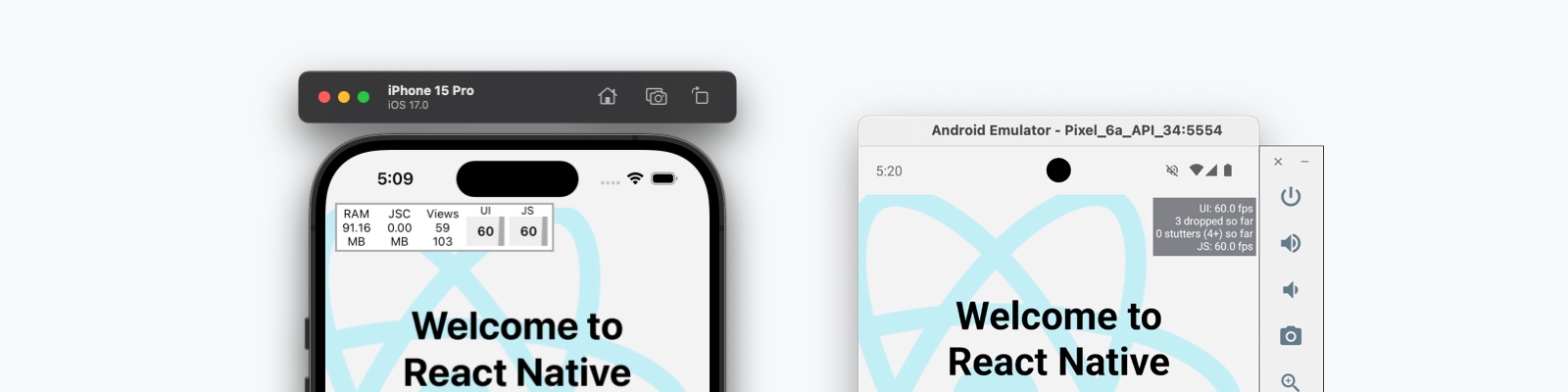
info
The Performance Monitor runs in-app and is a guide. We recommend investigating the native tooling under Android Studio and Xcode for accurate performance measurements.
---
# Debugging Native Code
### Projects with Native Code Only
The following section only applies to projects with native code exposed. If you are using the managed Expo workflow, see the guide on [prebuild](https://docs.expo.dev/workflow/prebuild/) to use this API.
## Accessing Logs[](#accessing-logs "Direct link to Accessing Logs")
You can display the native logs for an iOS or Android app by using the following commands in a terminal while the app is running:
```
# For Android:
npx react-native log-android
# Or, for iOS:
npx react-native log-ios
```
You may also access these through Debug > Open System Log… in the iOS Simulator or by running `adb logcat "*:S" ReactNative:V ReactNativeJS:V` in a terminal while an Android app is running on a device or emulator.
**💡 Custom Native Logs**
If you are writing a Native Module and want to add custom logs to your module for debugging purposes, you can use the following method:
#### Android (Java/Kotlin)[](#android-javakotlin "Direct link to Android (Java/Kotlin)")
In your native module, use the `Log` class to add logs that can be viewed in Logcat:
java
```
import android.util.Log;
private void log(String message) {
Log.d("YourModuleName", message);
}
```
To view these logs in Logcat, use this command, replacing `YourModuleName` with your custom tag:
```
adb logcat "*:S" ReactNative:V ReactNativeJS:V YourModuleName:D
```
#### iOS (Objective-C/Swift)[](#ios-objective-cswift "Direct link to iOS (Objective-C/Swift)")
In your native module, use `NSLog` for custom logs:
objective-c
```
NSLog(@"YourModuleName: %@", message);
```
Or, in Swift:
swift
```
print("YourModuleName: \(message)")
```
These logs will appear in the Xcode console when running the app.
## Debugging in a Native IDE[](#debugging-in-a-native-ide "Direct link to Debugging in a Native IDE")
When working with native code, such as when writing native modules, you can launch the app from Android Studio or Xcode and take advantage of the native debugging features (setting up breakpoints, etc.) as you would in case of building a standard native app.
Another option is to run your application using the React Native CLI and attach the native debugger of the native IDE (Android Studio or Xcode) to the process.
### Android Studio[](#android-studio "Direct link to Android Studio")
On Android Studio you can do this by going on the "Run" option on the menu bar, clicking on "Attach to Process..." and selecting the running React Native app.
### Xcode[](#xcode "Direct link to Xcode")
On Xcode click on "Debug" on the top menu bar, select the "Attach to process" option, and select the application in the list of "Likely Targets".
---
# Debugging Release Builds
## Symbolicating a stack trace[](#symbolicating-a-stack-trace "Direct link to Symbolicating a stack trace")
If a React Native app throws an unhandled exception in a release build, the output may be obfuscated and hard to read.
```
07-15 10:58:25.820 18979 18998 E AndroidRuntime: FATAL EXCEPTION: mqt_native_modules
07-15 10:58:25.820 18979 18998 E AndroidRuntime: Process: com.awesomeproject, PID: 18979 07-15 10:58:25.820 18979 18998 E AndroidRuntime: com.facebook.react.common.JavascriptException: Failed, js engine: hermes, stack:
07-15 10:58:25.820 18979 18998 E AndroidRuntime: p@1:132161
07-15 10:58:25.820 18979 18998 E AndroidRuntime: p@1:132084
07-15 10:58:25.820 18979 18998 E AndroidRuntime: f@1:131854
07-15 10:58:25.820 18979 18998 E AndroidRuntime: anonymous@1:131119
```
In the above stack trace, entries like `p@1:132161` are minified function names and bytecode offsets. To debug these calls, we want to translate these into file, line, and function name, e.g. `AwesomeProject/App.js:54:initializeMap`. This is known as **symbolication.**
You can symbolicate minified function names and bytecode like the above by passing the stack trace and a generated source map to [`metro-symbolicate`](https://www.npmjs.com/package/metro-symbolicate).
### Enabling source maps[](#enabling-source-maps "Direct link to Enabling source maps")
Source maps are required to symbolicate stack traces. Make sure that source maps are enabled within the build config for the target platform.
* Android
* iOS
info
On Android, source maps are **enabled** by default.
To enable source map generation, ensure the following `hermesFlags` are present in `android/app/build.gradle`.
groovy
```
react {
hermesFlags = ["-O", "-output-source-map"]
}
```
If done correctly you should see the output location of the source map during Metro build output.
text
```
Writing bundle output to:, android/app/build/generated/assets/react/release/index.android.bundle
Writing sourcemap output to:, android/app/build/intermediates/sourcemaps/react/release/index.android.bundle.packager.map
```
info
On iOS, source maps are **disabled** by default. Use the following instructions to enable them.
To enable source map generation:
* Open Xcode and edit the build phase "Bundle React Native code and images".
* Above the other exports, add a `SOURCEMAP_FILE` entry with the desired output path.
diff
```
+ export SOURCEMAP_FILE="$(pwd)/../main.jsbundle.map"
WITH_ENVIRONMENT="../node_modules/react-native/scripts/xcode/with-environment.sh"
```
If done correctly you should see the output location of the source map during Metro build output.
text
```
Writing bundle output to:, Build/Intermediates.noindex/ArchiveIntermediates/application/BuildProductsPath/Release-iphoneos/main.jsbundle
Writing sourcemap output to:, Build/Intermediates.noindex/ArchiveIntermediates/application/BuildProductsPath/Release-iphoneos/main.jsbundle.map
```
### Using `metro-symbolicate`[](#using-metro-symbolicate "Direct link to using-metro-symbolicate")
With source maps being generated, we can now translate our stack traces.
```
# Print usage instructions
npx metro-symbolicate
# From a file containing the stack trace
npx metro-symbolicate android/app/build/generated/sourcemaps/react/release/index.android.bundle.map < stacktrace.txt
# From adb logcat (Android)
adb logcat -d | npx metro-symbolicate android/app/build/generated/sourcemaps/react/release/index.android.bundle.map
```
### Notes on source maps[](#notes-on-source-maps "Direct link to Notes on source maps")
* Multiple source maps may be generated by the build process. Make sure to use the one in the location shown in the examples.
* Make sure that the source map you use corresponds to the exact commit of the crashing app. Small changes in source code can cause large differences in offsets.
* If `metro-symbolicate` exits immediately with success, make sure the input comes from a pipe or redirection and not from a terminal.
---
# DevSettings
The `DevSettings` module exposes methods for customizing settings for developers in development.
***
# Reference
## Methods[](#methods "Direct link to Methods")
### `addMenuItem()`[](#addmenuitem "Direct link to addmenuitem")
tsx
```
static addMenuItem(title: string, handler: () => any);
```
Add a custom menu item to the Dev Menu.
**Parameters:**
| Name | Type |
| --------------- | -------- |
| titleRequired | string |
| handlerRequired | function |
**Example:**
tsx
```
DevSettings.addMenuItem('Show Secret Dev Screen', () => {
Alert.alert('Showing secret dev screen!');
});
```
***
### `reload()`[](#reload "Direct link to reload")
tsx
```
static reload(reason?: string): void;
```
Reload the application. Can be invoked directly or on user interaction.
**Example:**
tsx
```